
LENNOX S40 Smart Thermostat User Guide


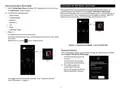


Manually Adding S40 Smart Thermostat to Account
Tips for Connecting the Thermostat to the Home Wi-Fi
mUlTiPle s40 ThermosTATs in The home
IMPORTANT
If the home will have multiple S40 thermostats then they all MUST be on the
same 2.4GHz Home Wi-Fi network in order to communicate with each other.
The preferred method to creating a new Lennox thermostat account and
adding the thermostat to the account is through the Lennox Home App.
1. Verify that the thermostat is connected to the home Wi-FI and that all indi-
cators are green and check marked as illustrated in “Figure 3. Thermostat
Connectivity Status” on page 15. From the home screen, go to Menu >
Settings > Wi-Fi.
Wi-Fi considerATions
• This thermostat cannot connect to a home wireless router that uses more
than 32 characters in the wireless access point name (visible or hidden).
• This thermostat will support up to a 63 character Wi-Fi password.
Passwords cannot contain blank spaces or % symbol.
2. From your thermostat’s home screen, go to Menu > User Account.
3. Select Create New Account.
• If the home Wi-Fi connection is unsecured, then Wi-Fi security MUST be
4. Enter account details such as your first and last name, phone, email
address, and password.
enabled. Consult router documentation on how to enable Wi-Fi security
• This thermostat supports the following Wi-Fi security protocols: WEP, WPA,
5. Select whether you want to receive e-mail updates and reminders.
6. Select allow your dealer to receive notifications (highly recommended).
WPA2 and WPA3.
• Never use a home guest account.
• Always use a secure connection physically located in the home where the
thermostat is located.
IMPORTANT
• Lennox S40 and S30 Smart Thermostats are not designed to communicate
with each other even when on the same network.
Please verify that your dealer has already added their account and contact
information when they installed your thermostat. That information can be
found at Menu > Lennox Dealer Support Access > Local Lennox Dealer
Info. If this information is missing, please contact your local Lennox Dealer
and get the information you need to complete your dealer contact information.
sUPPorTed Wi-Fi neTWork TyPes
Supported wireless network types are listed as follows:
Table 1. Supported Wi-Fi Standards
7. Select agree to EULA (End User License Agreement).
Standard
Description
8. Enter your information and select Next. Enter your country/region,
address, city, state, and zip code.
802.11b
Compatible.
Compatible.
Compatible.
Compatible.
9. Select Create Account.
802.11g
8
0
2
.
1
1
n
(
W
i
-
F
i
4
)
NOTE: It is important that you provide your Lennox Home Comfort System
Dealership remote sharing and Advanced Diagnostics and
Troubleshooting (On / Always) options.
802.11ac (Wi-Fi 5)
802.11ax (Wi-Fi 6)
NOTE: MIMO is not supported.
Not directly supported. Wi-Fi 6 routers are 100%
backwards compatible with Wi-Fi 5 and older Wi-Fi
devices.
NOTE: MIMO is not supported.
14

| General | Details |
|---|---|
| Name | LENNOX S40 Smart Thermostat User Guide |
| Make | Lennox |
| Language | English |
| Filetype | PDF (Download) |
| File size | 1.3 MB |
 (1 votes, average: 5.00 out of 5)
 Loading...

LENNOX L40 Smart Thermostat Owner’s Manual

LENNOX EL18KCV Smart Wi-Fi Communicating Thermostat User Manual


Haswill Electronics STC-8080A+ Thermostat User Guide

Klima H001 Smart Thermostat For Air Conditioner User Manual

Network Thermostat NetX X7 Series Thermostat Instruction Manual

velleman K2649 Thermostat with LCD Display Instruction Manual

Rayotec PERGARP0DCN6YB3I Wi-Fi Thermostat Instruction Manual

Danfoss ATF Clamp-On Pipe Mounting Frost Thermostat Installation Guide

Danfoss RA 2000 Radiator Thermostat Installation Guide

Honeywell RTH9600WF Touchscreen Programmable Thermostat User Guide

Vaillant VRT15 Room Thermostat User Guide

Beca BAC-7000 Smart Knob Thermostat User Guide