
LENNOX S40 Smart Thermostat User Guide


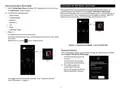


Setup and Customization Process
Set Up the S40 Smart Thermostat
The S40 Setup Pending badge displays on the thermostat’s home screen
after the dealer or installer has completed their portion of the Setup Process.
Homeowners can then complete the Setup Process by adding the Lennox®
S40 Smart Thermostat to their user account and later customizing their
thermostat. See “Customize the S40 Smart Thermostat” on page 8.
The S40 Smart Thermostat has a built-in Setup and Customization Process
that walks the homeowner through steps like accepting the End User License
Agreement and thermostat features like Setting a Schedule and One-Touch
Away. If the homeowner chooses to bypass the setup and customization
process, a S40 Pending Setup badge displays on the home screen. The
badge displays until the homeowner clears it.
Setup Process
NOTE: The Setup Process is completed in conjunction with the S40 Smart
Thermostat and the Lennox Home app.
The Setup Process allows homeowners to:
» Choose the language for their S40 Smart Thermostat (English, Spanish
or French)
» Accept the End User License Agreement (EULA)
» Select & connect the Lennox® S40 Smart Thermostat to the home
Wi-Fi network
» Scan QR codes to download the Lennox Home App
» Pair the Lennox® S40 Smart Thermostat to the Lennox Home App
After the Lennox Dealer installs the Lennox® S40 Smart Thermostat, a S40
Setup Pending badge displays on the home screen. Lennox recommends
completing the Setup Process to experience the full potential of the Lennox®
S40 Smart Thermostat.
1. Press the S40 Setup Pending badge.
2. Press Yes.
Customization Process
The Thermostat Language screen displays.
NOTE: The Customization Process is completed through the Lennox Home
App only.
3. Select the preferred language for the S40 Smart Thermostat and press
.
The Customization Process allows homeowners to start using the top features
of the Lennox® S40 Smart Thermostat according to their preferences. After
completing the Setup Process, a “Customization is pending” badge appears
on the home screen. See “Customize the S40 Smart Thermostat” on page
8 for more information.
The End-User License Agreement for Lennox screen displays.
4. Review the End User License Agreement (EULA) and select the I Agree
to the LENNOX EULA and press
The Select a Wi-Fi Network screen displays.
5. Select the home’s Wi-Fi network from the list of available networks.
If the home uses a hidden network, see “Connecting to a Hidden Wi-Fi
Access Point” on page 15.
6. Enter the Wi-Fi password via the virtual keyboard.
7. Press
.
A confirmation dialog displays when the connection is established.
6

| General | Details |
|---|---|
| Name | LENNOX S40 Smart Thermostat User Guide |
| Make | Lennox |
| Language | English |
| Filetype | PDF (Download) |
| File size | 1.3 MB |
 (1 votes, average: 5.00 out of 5)
 Loading...

LENNOX L40 Smart Thermostat Owner’s Manual

LENNOX EL18KCV Smart Wi-Fi Communicating Thermostat User Manual


Danfoss RT 9E Thermostat Installation Guide

Danfoss VIMCA20F 24V RT Room Thermostat Installation Guide

PURMO M16MI419 Advanced Thermostat Instruction Manual

ikon ITG-24 Thermostat Control User Manual

vivint VS-ZGBTHERM-001 Smart Thermostat User Guide

namron 4512738 Touch Zigbee 16A Thermostat Instruction Manual

EvenAir T21WF WiFi Thermostat User Manual

Honeywell CT8602 Programmable Thermostat User Guide

SALUS Thermostat and Smart Plug Installation Guide
COLDBUSTER CB Dual Thermostat User Manual