
LENNOX S40 Smart Thermostat User Guide


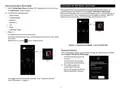


8. Press OK.
Selecting No
1. Select No and press
.
The system asks whether the homeowner has an S40 User Account.
The Download the Lennox Home App screen displays.
2. Scan the QR code and download the Lennox Home App.
3. Return to the S40 Smart Thermostat and press
.
Adding ThermosTAT To s40 User AccoUnT
The Create your User Account screen on the Lennox Home App screen
displays.
This phase of the Setup Process walks the homeowner through the steps of
adding their Lennox® S40 Smart Thermostat to their account.
NOTE: See “Selecting Yes” on page 7 if the homeowner has a Lennox®
S40 User Account. See “Selecting No” on page 7 for instructions
on how to set up a user account if the homeowner does not have a
Lennox® S40 User Account.
4. Follow the directions on the screen:
» Open the Lennox Home App
» Tap on Create New User Account
» Begin the registration process
Selecting Yes
5. Press on the thermostat screen. The thermostat generates a PIN
The system asks if the Lennox Home App is installed on the user’s mobile
device.
number.
6. Return to the Add Smart Thermostat screen in the Lennox Home App.
1. Press Yes,
.
7. Press +.
NOTE: If the Lennox Home App is not installed on the mobile device, see
“Download Lennox Smart Applications” on page 5.
8. Enter the temporary PIN from the thermostat in the PIN Number field.
9. Press Add.
The Log In to the Lennox Home App screen displays.
2. Press
.
The Thermostat Added message displays.
10. Press OK.
The menu screen displays.
3. Follow the on-screen instructions.
The Create Home or Select Existing Home screen displays.
a. Tap Menu on the Lennox Home App.
b. Select Add Thermostat (or press the thermostat icon on the screen).
The Add Thermostat screen displays.
4. Return to the S40 Smart Thermostat and press
.
The thermostat generates a PIN number.
5. Enter the PIN number into the PIN number field in the Lennox Home
App and press Add.
The Thermostat Added dialog displays. This message confirms the
thermostat successfully paired with the mobile device and has been
added to the user account.
6. Press OK.
The Create Home or Select Existing Home screen displays.
See “Create Home or Select Existing Home” on page 8.
7

| General | Details |
|---|---|
| Name | LENNOX S40 Smart Thermostat User Guide |
| Make | Lennox |
| Language | English |
| Filetype | PDF (Download) |
| File size | 1.3 MB |
 (1 votes, average: 5.00 out of 5)
 Loading...

LENNOX L40 Smart Thermostat Owner’s Manual

LENNOX EL18KCV Smart Wi-Fi Communicating Thermostat User Manual


Beca BHT-008 Heating Thermostat User Guide

PRO1 T755 Heat 2 Cool Dual Fuel Thermostat User Manual

AURATON Libra U Wireless Digital Room Thermostat User Manual

BOSCH BCC110 Connected Control Thermostat Instruction Manual

Centrometal TU-DT-2024-ENG Thermostat Instruction Manual

BEOK TGP53 China Piano Buttons Underfloor Heating Thermostat User Guide

ENGO CONTROLS ESIMPLE230W Non-Programmable Wired Thermostat User Guide

SALUS FC600 Fan Coil Thermostat User Guide

Orbegozo FDR 65 Litres Adjustable Thermostat Instruction Manual

Honeywell Home TH2110U4004 Programmable Thermostat Installation Guide