
LENNOX S40 Smart Thermostat User Guide


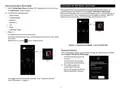


9. Verify the Thermostat Connectivity Status indicator appears as
illustrated in “Figure 3. Thermostat Connectivity Status”. All connect icons
will need to display green check marks across all connection
Manually Connect to Wi-Fi
connecTing To A Visible home Wi-Fi Access PoinT
1. Go to Menu > Settings > Wi-Fi (from Thermostat’s home screen).
2. Slide the option to the ON position to enable Wi-Fi.
3. Select Not Connected to display a list of available access points.
4. Select the home Wi-Fi network.
Electromagnetic Interference Causing Poor Connectivity
The thermostat and router should be located away from other devices that
could possibility interfere with wireless communications. Some examples of
other devices that could interfere are:
• Microwave ovens
5. Enter the home Wi-Fi network password and select Join to continue.
• Wireless cameras
N
O
T
E
:
S
e
l
e
c
t
S
h
o
w
P
a
s
s
w
o
r
d
t
o
v
i
e
w
c
h
a
r
a
c
t
e
r
s
e
n
t
e
r
e
d
.
• Portable phones and bases
• Baby monitors
6. Verify the Thermostat Connectivity Status indicator appears as
illustrated in “Figure 3. Thermostat Connectivity Status”. All connect icons
will need to display green check marks across all connections.
• Wireless speakers
• Bluetooth devices
• Garage door openers
• Neighbor’s wireless devices
To eliminate a possible source of interference, temporally disable any devices
and see if Wi-Fi performance has improved.
Lennox S40
Smart Thermostat
Internet Service
Provider
Router
Server
Wi-Fi Terminology
Figure 3. Thermostat Connectivity Status
The following terminology is used in this troubleshooting section:
• Received Signal Strength Indication (RSSI). This indicates the signal
strength of the Wi-Fi router being received by the scanning device (i.e., smart
phone). The higher the RSSI number (or less negative in some devices), the
stronger the signal.
connecTing To A hidden Wi-Fi Access PoinT
1. Go to Menu > Settings > Wi-Fi (from the thermostat’s home screen).
2. Slide the option to the ON position to enable Wi-Fi.
Wi-Fi network indicator will show not connected.
3. Select “not connected”.
• Internet Protocol Address (IP address). This is an address assigned by your
home router for each network device (e.g., computer, printer, thermostat).
Received Signal Strength Indicator (RSSI)
4
.
S
c
r
o
l
l
d
o
w
n
a
n
d
s
e
l
e
c
t
o
t
h
e
r
.
The RSSI can be viewed from the thermostat.
1. Select Menu > Settings > Wi-Fi > and select right arrow next to the Wi-
The “enter new network information” screen will appear.
5. Enter the name of the hidden network.
Fi network name and then select it again (from the home screen).
6. Select the Wi-Fi access point Security. Options are: none, WEP, WPA,
WPA2 and WPA3.Once a security type is selected, a password field will
appear.
2. When selecting the right arrow (>) the second time, a screen will appear
which will display an option to forget the network. In addition IP address,
subnet mask, router IP, DNS, MAC Address, Speed, wireless type, BSSID
and RSSI.
7. Enter the Wi-Fi password to connect to the home Wi-Fi network.
NOTE: If the RSSI signal strength is anywhere between -9 to -69, then the
signal strength is sufficient. If outside this range, then either relocate
the router closer to the thermostat, add a repeater, or move the
thermostat. Adjusting antenna on router or extender/repeater may
resolve the issue.
NOTE: Select Show Password to view characters entered.
8
.
S
e
l
e
c
t
J
o
i
n
.
15

| General | Details |
|---|---|
| Name | LENNOX S40 Smart Thermostat User Guide |
| Make | Lennox |
| Language | English |
| Filetype | PDF (Download) |
| File size | 1.3 MB |
 (1 votes, average: 5.00 out of 5)
 Loading...

LENNOX L40 Smart Thermostat Owner’s Manual

LENNOX EL18KCV Smart Wi-Fi Communicating Thermostat User Manual


ZigBee WiFi Series Water Heating Thermostat User Guide

MYSON Unisenza Plus Thermostat Instruction Manual

FC610 Bandary Smart Thermostat Owner’s Manual

MOES BRT-100 Radiator Thermostat User Guide

EMERSON 1F76U-22WFB Series Sensi Lite Smart Thermostat Installation Guide

DAIKIN ONE+ Smart Thermostat User Manual

Garza 401267C-401267G Smart Home Wi-fi Smart Thermostat Instruction Manual

PRO1 T731W Wireless PTAC Non-Programmable Thermostat Installation Guide

Danfoss MBC 8000 Heavy Duty Thermostat Installation Guide

HERSCHEL MD2 Wi-fi Enabled Wired Thermostat Instruction Manual