DAIKIN ONE+ Smart Thermostat User Manual
| General | Details |
|---|---|
| Name | DAIKIN ONE+ Smart Thermostat User Manual |
| Make | Daikin |
| Language | English |
| Filetype | PDF (Download) |
| File size | 1.02 MB |

DAIKIN One Lite Smart Thermostat User Guide

Daikin One Lite Smart Thermostat Instruction Manual

DAIKIN DTST-ONE-ADA-A One Touch Smart Thermostat Installation Guide

DAIKIN IM 1368 Vertical Stack WSHP Thermostat Instruction Manual

DAIKIN IM 1366 Remote Integrated Thermostat Instruction Manual

DAIKIN TRC-11 One Lite Connected Thermostat Instruction Manual

DAIKIN ONE Smart Thermostat Instructions

DAIKIN DKN509 Wireless Communicating Thermostat Instruction Manual

DAIKIN SQNSQ22 One Touch Smart Thermostat User Manual

EMSQ22 Daikin ONE Lite Smart Thermostat User Manual

DAIKIN ONE+ Smart Thermostat User Manual Overview
Summary of Contents
- Page 1: Page 1
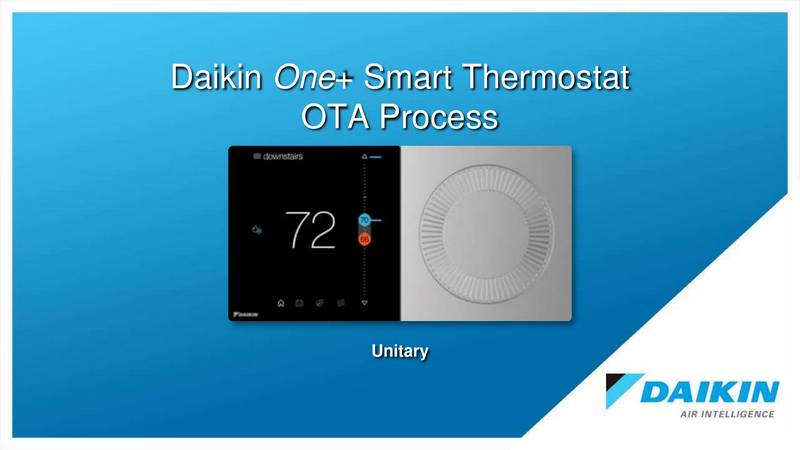
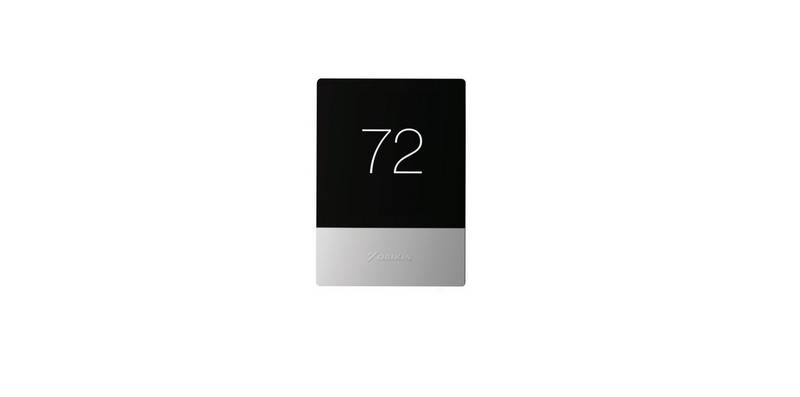
- Page 2: Everything you expect in a smart thermostat backed by the world’s leading HVAC manufacturer. The home screen displays the current temperature, the current system mode, and icons leading to each of the top level screens. The adjust screen displays the current temperature on the left and set-points on the right. The schedule screen displays upcoming set-point changes and scheduled times. The air quality screen displays indoor air quality levels when a Daikin One home air monitor is connected. Outdoor air quality and weather will be displayed when connected to the internet and thermostat added in the mobile app under home location. The away screen displays energy saving set-points. Energy saving can be invoked manually or automatically when the mobile app recognizes everyone is away. Actual screen may vary for different indoor unit models. The Daikin One home air monitor only works with ducted units.
- Page 3: Air quality alert examples Good view example Example of additional details Indoor air quality To download the Daikin One home mobile app Filter ok For more accurate readings, the system is calculating baseline values for your home Actual screen may vary for different indoor unit models The Daikin One home air monitor only works with ducted units and is sold separately Daikin One+ smart thermostat homeowner guide
- Page 4: When WiFi is enabled on your Daikin One+ smart thermostat, the Daikin One Home mobile app can help you manage and remotely control multiple Daikin One+ smart thermostats in your home. Enabling WiFi adds smart features to your thermostat, including automatic software updates, remote control with the mobile app, alerts when you are away from home, and voice control capabilities when connected to Amazon Alexa and/or Google Assistant devices. You can connect the Daikin One+ smart thermostat to WiFi by following specific steps in the settings menu. To pair the thermostat with the app, you need to navigate to the settings menu and use the code displayed on the thermostat. The pair code will expire in 15 minutes, but you can always get a new code if needed. After creating an account in the app, you will be prompted to add your home location.
- Page 5: Connecting Daikin One+ smart thermostat to Amazon Alexa will enable voice command through Alexa. Complete setup on Daikin One+ smart thermostat and Daikin One Home mobile app. Login to Alexa account from phone/tablet device. This will successfully link Daikin One+ smart thermostat to Amazon Alexa. Voice commands include setting the thermostat to specific temperatures and adjusting the temperature. Connecting Daikin One+ smart thermostat to Google Home will enable voice command through Google Assistant. Complete setup on Daikin One+ smart thermostat and Daikin One Home mobile app. This will successfully link Daikin One+ smart thermostat to Google Home. Voice commands include setting the thermostat to cool or heat and adjusting the temperature. DAIKIN ONE+ SMART THERMOSTAT HOMEOWNER GUIDE.
- Page 6: For systems that have both heating and cooling, you have the ability to choose a mode: auto, cool, heat, or off. How to switch modes: From the Home Screen, simply tap the mode icons located on the left-hand side of the current temperature. From the Settings Menu, access settings from any primary screen by tapping the menu icon. Then select system mode.
- Page 7: With the Daikin One+ smart thermostat, you can create a different schedule for each mode of the thermostat. Your thermostat will have the ability to create a schedule for Heat (only), Cool (only), and Auto mode. To create a schedule, tap on the schedule icon to bring up the schedule menu. Tap the menu icon located in the upper right-hand corner. Select the day you wish to edit by tapping the header in the upper left-hand corner. From the edit screen, tap the “add new event” or “edit event” option located at the bottom of the screen. For start time, tap and drag the hour and minute intervals to update. Edit the name of the event in the event label. Choose the action you want your system to perform in the event action. Be sure to tap save after making your changes.
- Page 8: Copy schedules allow users to easily replicate a day's schedule. To copy a day’s schedule, select the desired day and choose “copy day” from the footer. You can then choose which days to copy to, with the copied day greyed out and selected days highlighted. Templates can serve as a basis for creating a schedule that fits your lifestyle. You can edit the schedule after selecting a template, but any edits in the current schedule will be lost when loading a template. To create a schedule from a template, tap the menu icon in the upper right-hand corner. Select the settings option, then schedule, and finally schedule templates. You can view a schedule template by tapping and selecting it from the list.
- Page 9: Customized settings allow you to tailor the Daikin One+ smart thermostat to your comfort needs. Navigate to the settings menu by tapping the menu icon in the top right of the home menu. Set your preferences for display language, degree units, brightness, large font, and sound. Choose to enable or disable the light bar, which indicates when the system is heating or cooling. Select whether to enable or disable the haptic sound when rotating the analog dial. Choose from a selection of screen savers to display when the thermostat is not in use. Night mode turns off the display and light bar during the selected schedule time. Access night mode by tapping the brightness option from the display menu. For assistance with the thermostat, contact Daikin support. The document includes a homeowner guide for the Daikin One+ smart thermostat.
- Page 10: Customized settings continued: Large font option To enable, open the settings by tapping the menu item in the top right and select “settings.” Navigate to display settings and enable the “use large font” checkbox. Spanish and French language support To choose a language, open the settings by tapping the menu item in the top right and select “settings.” Navigate to language settings: display > language and select the desired language. Ability to restart thermostat To restart the thermostat, open the settings by tapping the menu item in the top right and select “settings.” Navigate to system settings: configuration > system components > thermostat and select “restart thermostat.”
- Page 11: For additional resources and instructional videos, scan code or visit Daikin One. If you encounter any issues or would like assistance with setting up your Daikin One+ smart thermostat, please contact Daikin support. Before purchasing this appliance, read important information about its estimated annual energy consumption, yearly operating cost, or energy efficiency rating that is available from your retailer. Google, Google Assistant, and all related logos are trademarks of Google, or its affiliates. Amazon, Alexa, and all related logos are trademarks of Amazon.com, Inc. or its affiliates. 2020 HG-ONE+ST 08-20