
HotWire R220 WiFi Thermostat Instruction Manual


TR220-WiFi Pairing Manual for iPhone
Get ready for connection
Go to the App Store, download “Hi Thermostat” app and install it.Then create an account with your email address and sign in. Ensure you are
connected to your WiFi network, keep your phone, your thermostat, and your WiFi router as close as possible.
1
2
On your thermostat, press the power button to turn your thermostat off.
Press and hold the power button for 5 seconds until you see REF on screen.
Wait for a few seconds until the wifi symbol is flashing.
hi thermostat
Step 1
Myoffice1
1
Touch “+” on the top right corner of
Thermostat 1
your phone to add a new device;
SS2100224_77
My office
Enter your WiFi details. Please ensure
you have selected the correct WiFi
network and the password you enter is
correct. Then press “Confirm”.
2
1
2
Step 2
1
Press “Connect”.
2
3
Press “Join” as your phone wants to
join device’s WiFi hotspot named
XPG-GAgent-xxxx;
Press “Join” as your phone needs to
go back to your original WiFi network.
The connection process is automatically
completed. Now your thermostat is
accessible via the app.
Myoffice1
1
2
3
Troubleshooting
Some phones might not be able to join
device’s WiFi hotspot automatically. In
this case, please do it manually. Follow
the steps below:
Myoffice1
Myoffice2
Myoffice1
Myoffice2
Myoffice1 5G
1
In Step 2, before pressing “Connect”,
please go to your phone’s Settings - WLAN.
2
Connect your phone to device's WiFi
hotspot named XPG-GAgent-xxxx;
Once connected to XPG-GAgent-xxxx,
return back to the thermostat app
and follow Step 2 above.
1
2


| General | Details |
|---|---|
| Name | HotWire R220 WiFi Thermostat Instruction Manual |
| Make | Hotwire |
| Language | English |
| Filetype | PDF (Download) |
| File size | 0.22 MB |
 (1 votes, average: 5.00 out of 5)
 Loading...

HWGL2 Hotwire Thermostat Instructions

Hotwire HWTH Horizontal Thermostat Instructions

Hotwire HWGL2 Dual Programming Thermostat Instructions

Hotwire R220 Manual: Questions and Answers
How do I add a new device to the Hotwire R220 app?
Touch the plus icon in the top right corner of the app.
- Touch the plus icon on the top right corner to add a new device.
- Enter your WiFi network name and password.
- Press Confirm. Instruction Manual, p. 1
How do I connect the Hotwire R220 to Wi-Fi on an iPhone?
First download and install the Hi Thermostat app from the App Store.
- Create an account and sign in.
- Press the power button on the thermostat to turn it off.
- Press and hold the power button for 5 seconds until REF appears and the wifi symbol flashes.
- In the app, touch the plus icon to add a new device.
- Enter your WiFi details and press Confirm.
- Press Connect, then press Join twice to complete the connection. Instruction Manual, p. 1
More Hotwire thermostat manuals

InverterCool CPT100 2C Wi-Fi Thermostat Instruction Manual

Milesight WT101 Smart Radiator Thermostat User Guide

Danfoss VIMCB20F Icon2 / 24V On Wall Mount Room Thermostat Installation Guide

Danfoss RAS-C2 Combi Radiator Thermostat Installation Guide

GENERAL HT250 Digital Room Thermostat User Manual

ENGO CONTROLS E901RF Series Programmable Thermostat User Guide

BEOK TDS23 Wi-Fi Thermostat User Manual

GENERAL LIFE FH10 Underfloor Heating Thermostat User Manual
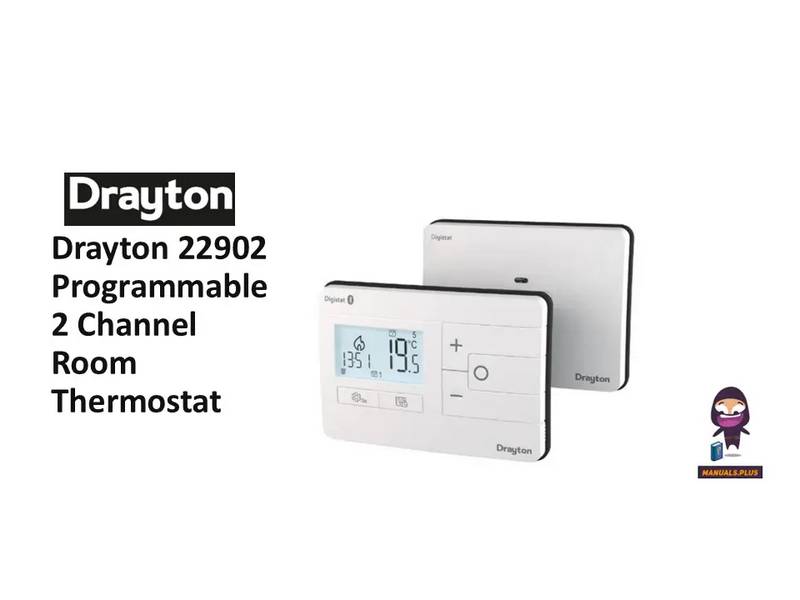
Drayton 22902 Programmable 2 Channel Room Thermostat Installation Guide

SMART TEMP SMT-131 Hotel Touchscreen Thermostat User Manual