Home > SMART TEMP > Smart Temp SMT-850 Halo Thermostat User Guide

Smart Temp SMT-850 Halo Thermostat User Guide

alo  
H
Quick Start Guide  
GeneralDetails
NameSmart Temp SMT-850 Halo Thermostat User Guide
MakeSMART TEMP
LanguageEnglish
FiletypePDF (Download)
File size0.95 MB
Download PDF
1 Star2 Stars3 Stars4 Stars5 Stars (1 votes, average: 5.00 out of 5)
Loading...
SMT-2W5 Smart Temp Wifi Thermostat Instruction Manual
SMART TEMP SMT-131 Hotel Touchscreen Thermostat User Manual
Smart Temp SMT-450 Flexistat WiFi Thermostat Instructions

Smart Temp SMT-850 Halo Thermostat User Guide
Get the free PDF manual for the Smart Temp SMT-850 Halo Thermostat User Guide and access setup steps, usage instructions, and troubleshooting tips. 👉 View online or download now to keep your thermostat running smoothly!
Smart Temp SMT-850 Halo Thermostat User Guide Overview
Summary of Contents

  • Page 1: Page 1
  • Page 2: Every effort has been made to ensure the accuracy of this manual. However, as this product is continuously evolving, we cannot guarantee that the information in this document is entirely up-to-date.
  • Page 3: Welcome and thank you for choosing the Smart Temp SMT-850 “Halo” thermostat. This advanced device is designed to provide you with years of seamless climate control. Please take a moment to read through this quick start guide. It will guide you through the setup process and help you maximize the benefits of your 'Halo' thermostat with ease. For more detailed information, you can access the full manual. We’re here to assist you—please share your feedback or reach out for support. Warm regards, The Smart Temp Australia Development Team.
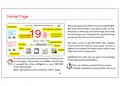
  • Page 4: We have made every effort to ensure that the SMT-850 'Halo' thermostat is easy and intuitive to use. This quick start guide will help you to use the most common functions. The main screen of the SMT-850 'Halo' displays control icons for most of your needs. Since it is highly customizable, the layout on your device may differ from what is shown here. Additional icons that are not seen in the example are described below. The zone icon will appear if zone control is enabled. Use this icon to manage the zones configured on your SMT-850 'Halo' thermostat. This icon indicates a timer function can be initiated. The History icon is available in the More page. Good air quality is indicated by the current humidity level.
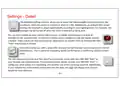
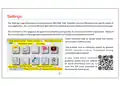
  • Page 5: Settings page allows customization of the SMT-850 'Halo' to suit your lifestyle or application needs. You can scroll left and right to access additional functions on the second page. Functions on this page are designed to be intuitive and typically do not require further explanation. Many icons will open a new page when touched while others will simply turn a function on or off. Some functions may be locked and require a PIN to access. The Installer Icon is locked by default to prevent critical HVAC system functions from being unintentionally modified. If you need more detailed guidance, please visit our website or scan the QR code provided to download the full manual. Key functions include weekly weather forecast, system information, define holiday schedule, temperature trend, and Wi-Fi setup. Settings include backlight, clock, clean screen, installer, display, backlight settings, customized appearance, clock settings, and pause touch function. Advanced settings are available with caution.
  • Page 6: The Backlight Settings window allows you to adjust the Halo backlight intensity based on two conditions: when the screen is touched or when it is idle. An ambient light sensor enables the backlight to adjust automatically according to room lighting levels. You can enter holiday periods into the Halo memory. A holiday period begins and ends at midnight on the specified days, during which holiday event settings override the regular weekly schedule. Trend will provide you with a zoom-able record of the last few days room temperature and set temperatures. This is useful for evaluating system performance or confirming correct comfort levels. The Info window should be your first stop if you encounter issues with your SMT-850 “Halo” or your heating and cooling system. This window provides details on how your SMT-850 “Halo” is configured, what actions it is requesting, and whether any errors are being reported.
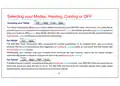
  • Page 7: Selecting your modes: heating, cooling, or off. The mode function bar allows you to select different modes for your SMT-850 'Halo' thermostat. Heat only mode activates your heating system to maintain your desired warmth. Cool only mode activates your cooling system to keep your home or office cool. Auto mode monitors the room temperature and automatically switches between heating and cooling. Fan mode offers advanced fan control capabilities. You can choose whether the fan runs continuously (On) or only when needed (Auto). Your installer may have enabled more advanced fan logic features. If enabled, you can select the speed at which the fan runs. The SMT-850 will show the available speeds based on your heating or cooling system.
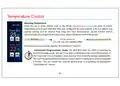
  • Page 8: Temperature control Adjusting temperature Press the up or down button next to the mode (heating or cooling) you want to adjust. A fly-out ribbon may appear, asking you to choose how long this new temperature should remain before automatically returning to its previous value. Select the desired override period. In commercial programmable mode, the SMT-850 Halo has built-in features to minimize energy waste. You won’t be able to adjust the stop event temperature. If the “override” icon is displayed, press this icon first to enable climate adjustments. The override period will automatically cancel after a preset time. You can cancel the override period prior to it expiring by tapping the “overridden to” ribbon.
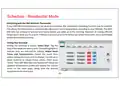
  • Page 9: Schedule - Residential Mode If your SMT-850 Halo thermostat is set up by your installer, the residential scheduling function may be enabled. This allows the thermostat to automatically adjust your home temperature according to your lifestyle. The SMT-850 Halo can preheat or precool your home before you wake up in the morning. Maintain an energy-efficient temperature while you're at work. Preheat or precool your home before you return from work. Set a comfortable temperature while you sleep. Editing the schedule is simple. Select the days of the week you want to edit. Adjust event times and temperatures using the up or down buttons. Your SMT-850 Halo thermostat will follow the updated temperature profile.
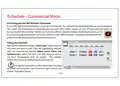
  • Page 10: Schedule - Commercial Mode If your SMT-850 Halo thermostat is set up by your installer, the commercial scheduling function may be enabled. This allows the thermostat to automatically turn your office HVAC system on and off based on occupancy attendance times. The Halo also offers a separate holiday scheduling function to prevent the HVAC system from running during extended periods of absence. Editing your schedule is simple. Select days of the week you want to edit. Adjust event times and temperatures by selecting the start and stop times as well as the start temperature. The installer defines the stop event temperature and fan mode. During the stop event, an after-hours run icon may be shown on the screen.
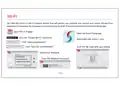
  • Page 11: The SMT-850 Halo is a Wi-Fi capable device that will permit you to monitor and control your home climate from anywhere in the world. You must pair your Halo to your local Wi-Fi network and then to the Smart Temp App. Open the Smart Temp app. Enable Wi-Fi. Click the “Enable Wi-Fi” checkbox. Select add new device - scan. Click “Setup Connections.” Scan for new Network. Select your Network. Scan the QR code with your phone. Enter the Network Password.
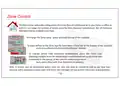
  • Page 12: Zone control allows for the directed flow of conditioned air in your home or office. The Halo can measure temperature in different locations. To change the zone name, press and hold the top of the zone box. Airflow can be controlled by tapping the zone open/close bar. Temperature measurement can be adjusted by pressing the temperature icon. Selecting multiple zones for temperature measurement averages their temperatures. One zone with a temperature sensor must remain open at all times. Alert messages will provide guidance when necessary. Not all functions may be enabled in your Halo. Only zones fitted with zone control damper motors can allow airflow adjustments.
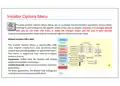
  • Page 13: Installer Options Menu allows customization of the thermostat's operations and functions. It is advised not to enter this menu or make changes unless sure of actions. Unauthorized adjustments could result in system damage not covered by the warranty. Default Installer PIN is 0021. The menu is user-friendly with clear English instructions and on-device help screens. The menu is organized into easy-to-navigate sections. Equipment defines how the heating and cooling system is controlled. Control Override sets minimum run times and other parameters. For most applications, the default Halo settings are suitable and do not require modification.
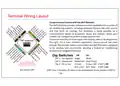
  • Page 14: Terminal wiring layout The SMT-850 Halo provides extensive control capabilities for a variety of air conditioning systems, including advanced features like zone control and free fresh air cooling. This flexibility is made possible by a comprehensive library of assignable inputs and outputs. The installer options menu within the SMT-850 Halo is designed to be intuitive and user-friendly. DIP switches control various functions including fan speeds and equipment settings. The Halo is typically powered by 24V AC but can operate from 10 to 30V AC or DC. DIP 2 settings affect the operation mode of the system. DIP 3 has two functions based on the position of DIP 2. Refer to the diagram for an overview of inputs and outputs. For detailed explanations, consult the main manual. The installer can configure the system to perform a wide range of tasks.
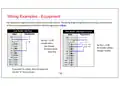
  • Page 15: Wiring examples for equipment are provided. For detailed wiring instructions, refer to the full manual. The wiring diagrams are a small sample of the control capabilities of the Halo. Field wirings are shown in blue. Gas heater configurations include options for no fan and with add-on cooling. Set dip switches 1-4 to off for specific configurations. No installer setting changes are needed for certain modes. Fan control can be wired into the G (Fan) terminal. Permitted modes include heat only and various auxiliary settings. The document includes wiring diagrams for different equipment setups.
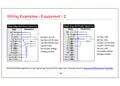
  • Page 16: Wiring examples for equipment are provided. Single stage heat pump configurations include 1 speed and 3 speed fan options. Specific dip switch settings are outlined for different operational modes. No installer setting changes are needed for certain configurations. Detailed examples of wiring can be found in the main user manual.
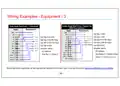
  • Page 17: Wiring examples for equipment are provided. Single stage heat pump with one speed fan is detailed. Three stage heat pump with three fan speeds is also included. Specific settings for dip switches are outlined. Compressor and reversing valve configurations are mentioned. Flow interlock is referenced in the context of wiring. Installer menu options are listed for user configuration. Auxiliary relay functions are defined, including water pump and compressor controls. More detailed examples of wiring can be found in the main user manual.
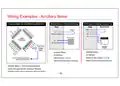
  • Page 18: Wiring examples for ancillary items include remote sensor or digital input wiring. 0-10V output is used for heating, cooling, or fan control in inverter style air conditioning systems. The installer menu provides options for input and output selection. Select the appropriate gateway module for communication. The gateway module manual will provide additional details.
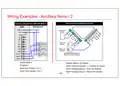
  • Page 19: Wiring examples for ancillary items are provided. A typical economy wiring diagram is illustrated. The setup includes three zones using Belimo LMU-24T motors. Key equipment includes the Halo and various sensors. The diagram features connections for outside air, fresh air, and return air dampers. Belimo LMU-24T motors are used for multiple dampers. The installer menu includes options for selecting auxiliary outputs. Zone dampers can be selected from one to three. Universal outputs and analog outputs for sensors and dampers are available in the installer menu. The document outlines the power supply for dampers.
  • Page 20: Page 20