sensi 1F95U-42WF Series Touch Smart Thermostat User Guide
| General | Details |
|---|---|
| Name | sensi 1F95U-42WF Series Touch Smart Thermostat User Guide |
| Make | sensi |
| Language | English |
| Filetype | PDF (Download) |
| File size | 0.17 MB |

sensi 1F87U-42WF Smart Thermostat Installation Guide

sensi 1F76U-22WFB Lite Smart Thermostat User Manual

ST76 Sensi Touch 2 Smart Thermostat Instruction Manual

sensi 1F76U-22WFB Series Lite Smart Thermostat Installation Guide

sensi ST76 Series Touch 2 Smart Thermostat User Manual

sensi Lite Zigbee Smart Thermostat Installation Guide

sensi ST765470 Thermostat Installation Guide

sensi 1F96U-42WF Series Touch 2 Smart Thermostat Installation Guide

sensi 1F95U-42WF Series Touch Smart Thermostat User Guide Overview
Summary of Contents
- Page 1: Sensi touch smart thermostat Humidity control guide Models: 1F95U-42WF series, ST75 series, NH-2WIFI series, OH-2WIFI series Version: April 2023 Emerson Electric Co. All rights reserved
- Page 2: Contractor firmware update process involves connecting the thermostat to Wi-Fi and registering it to the customer's account. The thermostat will check for available firmware updates after registration. Ensure the firmware is updated before installing humidification accessories. Installation requires understanding compatibility and wiring for the Sensi thermostat. For conventional system connection, power for cooling is 24V, power for heating is also 24V, and a common wire is needed. The first stage cool is indicated by Y, while the first stage heat is indicated by W/E. The second stage heat and cool can be indicated by Y2/* and W2/*. The indoor blower (fan) is connected via G, and the heat pump changeover is indicated by O/B. The L terminal has no function.
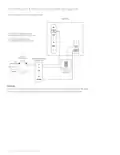
- Page 3: Humidification & dehumidification wiring diagrams Wire humidification & dehumidification thermostat W2/* terminal de-energizes on call for dehumidification with call for cool Y2/* terminal energizes on call for humidification with call for heat 1 wire control is typically used to energize one side of a solenoid coil that already has the other side of a relay or solenoid coil attached to the common on the 24 VAC HVAC transformer. Sensi Touch smart thermostat Humidity guide
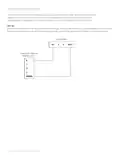
- Page 4: Wired dehumidification involves the thermostat terminal W2/* de-energizing to lower fan speed. The DHM/DHUM terminal is used only on compatible systems with the required terminal connection or a relay for fan speed reduction. Wired dehumidification cannot be configured with two-stage heating systems. If configuration issues arise, check the installer menu to ensure HVAC Equipment for Indoor is set for single stage. The document references the Sensi Touch smart thermostat. There is a mention of a humidity guide.
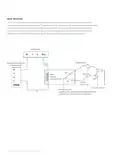
- Page 5: A relay can be installed to switch fan speed to the next lower speed for dehumidification. The reduction in air flow allows the coil to remove more humidity from the air. The relay should be rated for the blower motor load. This configuration reduces air flow in cooling, so anti-freeze-up control is recommended. Anti-freeze-up control prevents the air conditioning coil from freezing due to low air flow. Normal cool speed position is when the DHM is energized. Dehum speed mode occurs when the DHM is de-energized. The document includes a reference to a Sensi Touch smart thermostat. The terminal strip includes various fan speed settings. The document provides a humidity guide.
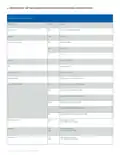
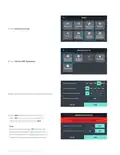
- Page 6: Configuration – Setting humidification/dehumidification control capability on/off Configuration menu items reference Sleep mode – Turn sleep display mode on/off Backglow – On/Off options Home screen content – Indoor humidity, time of day, °F/°C Schedule – 5/2 day schedule Wi-Fi – Connect to Wi-Fi About thermostat – Advanced setup Set up HVAC equipment – Model number/reset Fan mode options – Humidify, dehumidify, circulating fan settings
- Page 7: Press Advanced Set Up. Press Set Up HVAC Equipment. Make selection depending on installed equipment. Press Add Additional Accessories, and press Yes for either wired humidifier or wired dehumidifier. Then press Save. If you're unable to toggle Yes then you are utilizing second stage heating/cooling. Go back to the main HVAC Equipment menu and configure for single stage heating/cooling. Sensi Touch smart thermostat. Humidity guide.
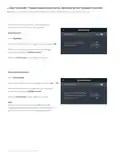
- Page 8: Using the feature – turning humidification control on/off and setting the humidity setpoint Adjust the humidification/dehumidification feature from either the thermostat or the Sensi app. In the Advanced Set Up menu, the Humidify and Dehumidify feature controls are available. In the Humidification menu, toggle the feature on or off. With Humidification on, adjust the set percentage to maintain using the up/down arrows. In the Dehumidification menu, toggle the feature on or off. With Dehumidification on, adjust the set percentage to maintain using the up/down arrows. If you have selected wired dehumidification in the HVAC Equipment settings, then the overcooling option will not be there, only the wired dehumidify option.
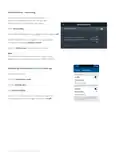
- Page 9: Dehumidification - Overcooling You can use your cooling system to dehumidify your space without an accessory installed for wired dehumidification. In the Dehumidification menu, toggle the feature on or off. With Dehumidification on, adjust the set percentage to maintain using the up/down arrows. This allows your cooling system to run longer, up to 3 degrees past your set temperature, to remove moisture. Adjusting the humidity control from the Sensi app involves opening the app and tapping your thermostat name. Tap the settings gear and then tap System settings. Scroll to the humidity control section and adjust the percentage as needed or toggle the feature on/off.
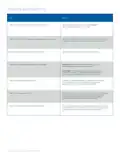
- Page 10: Frequently asked questions When can I get the firmware OTA update for humidity control? OTA updates are pushed via Wi-Fi after being registered to the customer's account on the Sensi app. Which versions of Sensi thermostats are compatible with humidity control? Sensi Touch (1F95U) and Sensi (1F87U) smart thermostats are all backward compatible. 1F86U and UP500W models are currently not compatible. What terminals should I use to enable humidity control? Use Y2/* for humidification and W2/* for dehumidification. What types of humidifiers and dehumidifiers are supported? Any 24VAC humidifier is supported. Currently, Sensi does not support independent (call for heat) humidification. HVAC systems with dehumidify mode or 24VAC dehumidifiers are supported. Currently, Sensi does not support independent (call for cool) dehumidification. What is an appropriate humidity setpoint? The ideal indoor humidity level is between 30-50% RH. In cold weather, if condensation appears on your windows, lower the humidity setpoint. What is overcooling to dehumidify? The dehumidification feature allows Sensi to overcool to a maximum of 3⁰ below the AC setpoint to help control humidity. Why is my system unable to reach my humidity setpoint? Your humidifier or dehumidifier may not be able to increase or decrease humidity enough to reach your setpoint depending on the size of your equipment.