
Home > ENGO CONTROLS > ENGO CONTROLS E10-MBUSW Wi-Fi Modbus Thermostat User Guide
ENGO CONTROLS E10-MBUSW Wi-Fi Modbus Thermostat User Guide


MODBUS
Connection description
Installation of the Wi-Fi thermostat in the app
Make sure your router is within range of your smartphone. Make sure you are connected to the Internet. This
will reduce the pairing time of the device.
Product Compliance
a) Connection diagram for heating source
b) Connection diagram for pump / actuator
Wi-Fi, MODBUS Thermostat
This product complies with the following EU
Directives:
A+/B- Terminals
Modbus
A+/B- Terminals
Modbus
2014/30/EU, 2014/35/EU, 2014/53/EU,
2011/65/EU.
RS-485
RS-485
STEP 1 - DOWNLOAD ENGO SMART APP
230V
Thermostat
230V
Thermostat
Powered By
Download the ENGO Smart app from Google
Play or Apple App Store and install
it on your smartphone.
Heating source
A+ B- NO COM
L
N
A+ B- NO COM
L
N
*
SAFETY INFORMATION
max. 3(1)A
GET IT ON
Use in accordance with national and EU regulations.
Use the device only as intended, keeping it in a dry
condition. The product is for indoor use only. Please
read the entire manual, before installation or use.
E10-MBUSW
E10-MBUSB
AC 230V
AC 230V
L
L
N
Available on the
N
Quick Guide
PE
Installation:
STEP 2 - REGISTER THE NEW ACCOUNT
Installation must be performed by a qualified
person with appropriate electrical qualifications,
in accordance with the standards and regulations
in force in a given country and in the EU. The
manufacturer is not responsible for non-compliance
with the instructions.
Legend:
c) Connection diagram to the control box
To register a new account, please follow the steps below:
Works with
Powered By
Ver. 1.1
Release date: VII 2024
Soft:
Main module: v2.0.2
MCU: v0.4.1
Heating source - Boiler connection*
Boiler’s contacts for ON/OFF
thermostat (according to the
boiler’s instructions)
1
2
3
4
GET IT ON
230V
Thermostat
Available on the
Pump
WARNING:
Valve
A+ B- NO COM
L
N
For the entire installation, there may be additional
protection requirements, which the installer is
responsible for.
L, N
Pover supply
Voltage-free output
N
L
Producer:
Engo Controls sp. z o.o. sp. k.
Rolna 4 St.
Control box
1 - 8 Zones
COM, NO
A+,B-
SL..
Click„Sign Up”to create
new account.
Enter your e-mail
address to which the
Enter the verification code
received in the email.
verification code will be Remember that you only
Then set the login
password.
SL..
A+/B- Terminals
Modbus
RS-485
43-262 Kobielice
Poland
Modbus RS-485 terminals
sent.
have 60 seconds to enter
the code!
230V control input in the control box
Fuse
STEP 3 - CONNECT THE THERMOSTAT TO WI-FI
After installing the app and creating an account:
Products features
Introduction
LCD icon description + Button description
1
2
3
Modbus RS-485 communication
An internet, flush-mounted temperature controller
that enables energy-efficient control of heating
(any type) and cooling. Designed to be controlled
wirelessly over a Wi-Fi Internet network or by wires
over RS-485 Modbus communication protocol. Can
operate according to user settings stored in the
ENGO Smart mobile app, which allows control of
device parameters from anywhere in the world (e.g.
selection of min. and max. set temperature, key lock).
Without connection to the app, it works as a non
programmable thermostat.
1
2
3
4
1. Heating mode
compatibility with the ENGO Smart
application (in Tuya Cloud technology)
2. Cooling or frost protection mode
3. Connection with Internet
4. Connection with Wi-Fi
5
6
Wi-Fi 2.4 GHz communication standard
TPI algorithm ideal for underfloor heating
5. Temperature unit
6. Current / setpoint room temperature
3 sec.
3 sek.
On your mobile device, make sure the
Make sure the thermostat is
In the app, select:
„Add Device”.
ENGO Smart has access to permissions powered on. Then press and hold
(Location, Bluetooth, Nearby devices). the buttons on the thermostat for
Then turn on Bluetooth and Location. approx. 3 seconds until the display
voltage-free output
1. “DOWN”button
2. “UP”button
3. “RESTART”button
possibility to set the minimum and
maximum setpoint temperature range
Connect to 2.4GHz Wi-Fi network to shows„PA”. Then release the keys.
which you want to assign the device. The pairing mode will be started up.
1
3
2
cooling mode
4
6
5
control of underfloor
heating or heat source
Change the parameter value up
Change the parameter value down
WI-FI 2.4GHz
Technical data
********
Enter the pairing mode - hold until the PA message appears
Factory reset - hold until the FA message appears.
Power supply
Max current
230V AC 50 Hz
3(1)A
+
Wait for the app to configure
the thermostat with the selected
Wi-Fi network
After finding the
thermostat, go„Add”.
Select the Wi-Fi network in which
the thermostat will operate and enter
the password of this network.
Setpoint temp.range
Display temp. accuracy
Control algorithm
Communication
5,0°C to 45,0°C
0,1°C
Intensity of the night LCD backlight (Ambient Backlight) - hold until Ab message appears, then
release the keys and choose the intensity in the range of 0 - 10
7
8
TPI or Histeresis ( 0,1°C to 2°C)
Wi-Fi 2,4GHz
RESTART Pressing this key will restart the thermostat (the button should be clicked with a pin)
Input A+/B-
Modbus RS-485
Output control
Protection class
COM / NO (voltage-free)
IP30
Ambient backlight
Ambient Backlight is a subtle LCD backlight very helpful in darkened rooms.
The subtle glow provides a room temperature reading in nighttime conditions.
Go„DONE”
The thermostat has been installed and
displays the main interface.
Dimmension [mm]
86 x 86 x 39 mm (14 after mounting in a box with a diameter of 60)


| General | Details |
|---|---|
| Name | ENGO CONTROLS E10-MBUSW Wi-Fi Modbus Thermostat User Guide |
| Make | ENGO CONTROLS |
| Language | English |
| Filetype | PDF (Download) |
| File size | 0.26 MB |
 (1 votes, average: 5.00 out of 5)
 Loading...

ENGO Controls EONE230W Internet Controlled Thermostat User Guide

ENGO CONTROLS EFAN-230W Fan Coil Thermostat User Guide

ENGO CONTROLS FAN-24W 24V Fan Coil Thermostat User Guide

ENGO CONTROLS EASY230W Non-Programmable Wired Thermostat User Guide

ENGO CONTROLS EONE230 Internet Controlled Thermostat User Guide

ENGO CONTROLS EONEBATW, EONEBATB Internet Controlled Thermostat User Manual

ENGO Controls E901WIFI Internet Wireless Thermostat User Guide

ENGO CONTROLS EONE-BATW, EONE-BATB Internet Controlled Thermostat User Guide

ENGO CONTROLS EFAN-24W Fan Coil Thermostat User Guide

ENGO CONTROLS EFAN-230W WIFI 230V Fan Coil Thermostat User Guide

ENGO Controls E10-MBUSW Modbus Manual: Questions and Answers
ENGO Controls E10-MBUSW Modbus specifications
| Power supply | 230V AC 50 Hz |
| Setpoint range | 5,0°C to 45,0°C |
| IP rating | IP30 |
How do I know the ENGO Controls E10-MBUSW Modbus is connected to Wi-Fi?
The Wi-Fi icon appears on the display when connected. User Guide, p. 1
Can I control the ENGO Controls thermostat without the app?
Yes, it works as a non-programmable thermostat without app connection. The app allows remote control and parameter adjustment, but manual operation at the device is possible without Wi-Fi or the ENGO Smart app. User Guide, p. 1
What is the difference between heating mode and cooling mode on the ENGO Controls E10-MBUSW Modbus?
| Mode | Function |
|---|---|
| Heating mode | Controls any type of heating system |
| Cooling or frost protection mode | Controls cooling or prevents freezing |
ENGO Controls E10-MBUSW Modbus compared with other room thermostats
| Specification | ENGO Controls E10-MBUSW Modbus | BECA BHP-8000 C | BEOK BOT-R6W | BEOK TCR7 |
|---|---|---|---|---|
| Power supply | 230V AC 50 Hz | 24VDC/AC +10% | 3 x 1.5 V alkaline AA battery | AC100~240V50/60Hz |
| Setpoint range | 5,0°C to 45,0°C | 42-122 ℉ (5~50℃) | 5-60℃(Default) | 5~95℃ / 41~203℉ |
| IP rating | IP30 | IP20 | IP20 | IP20 |
Other ENGO Controls E10-MBUSW manuals
More ENGO Controls thermostat manuals

Danfoss KPS 76 Pressure Switch and Thermostat Installation Guide
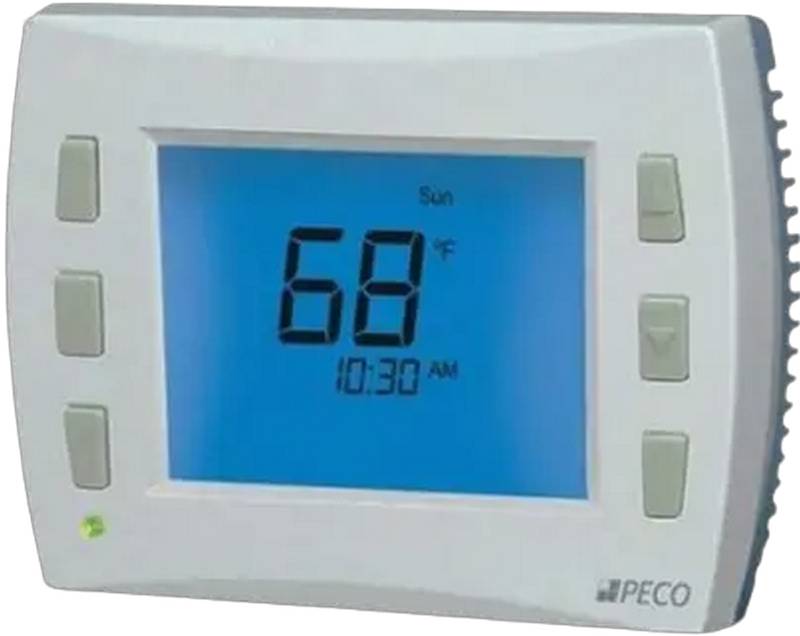
PECO CONTROL SYSTEMS T8168B-2 BACnet IP Connection Thermostat Instructions

NT NetX X5N-NX Thermostat Instruction Manual

Livn 147 Thermostat User Guide

GENERAL MITRA 250S Smart Room Thermostat User Manual

WTE WT-100 Zigbee Thermostat User Manual

Rayotec PERGARP0DCN6YB3I Wi-Fi Thermostat Instruction Manual

stelpro STZW402 ELECTRONIC THERMOSTAT SMART HOME User Guide

Schneider Electric TC900 Series Space Logic Thermostat Instruction Manual

White-Rodgers 1F97-1277 Big Blue Single Stage Thermostat User Manual