
Home > ENGO CONTROLS > ENGO CONTROLS EONEBATW, EONEBATB Internet Controlled Thermostat User Manual
ENGO CONTROLS EONEBATW, EONEBATB Internet Controlled Thermostat User Manual


ONE
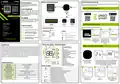
Wireless communication diagram
Installation thermostat in the app
Product Compliance
Internet controlled thermostat, ZigBee
Make sure your router is within range of your smartphone. Make sure you are connected to the Internet.
This will reduce the pairing time of the device.
This product complies with the following EU
Directives: 2014/30/EU, 2014/35/EU, 2014/53/
EU, 2011/65/EU
ZigBee 3.0
WI-FI 2.4GHz
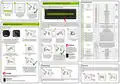
STEP 1 - DOWNLOAD ENGO SMART APP
SAFETY INFORMATION:
Use in accordance with national and EU
regulations. Use the device only as intended,
keeping it in a dry condition. The product is for
indoor use only. Please read the entire manual,
before installation or use.
Gateway
Download the ENGO Smart app from Google Play or Apple App Store and install it on your smartphone.
EGATEZB
EONEBATW/B
EONEBATW
EONEBATB
Quick Guide
ZigBee 3.0
Ver. 1
Release date: II 2023
WARNING:
This product must be used with a ZigBee EGATEZB
gateway (purchased separately). Thermostat
programming is done by ENGO Smart app.
or
or
EMODZB
EREL1ZB12A
Relay
ECB62ZB
STEP 2 - REGISTER THE NEW ACCOUNT
Control box
Module
Product advantages:
Producer:
Engo Controls S.C.
43-200 Pszczyna
3E Górnośląska St.
Poland
To register a new account, please follow the steps below:
Built-in Li-Ion 3,7V Battery
Connection description
1
2
3
4
Communication in the ZigBee 3.0 standard
ZigBee 3.0
Legend:
EONEBATW/B
A multitude of functions available from
ENGO Smart / Tuya Smart application
Distributor:
S1
QL CONTROLS Sp z o.o. Sp. k.
43-262 Kobielice
4 Rolna St.
Temperature sensor
Li-lon
3.7V
S1-S2 Input for additional sensor
S1, S2 Thermostat input for ext. temperature sensor
Connection with ZigBee 3.0 network
NTC
Poland
S2
ENGO
ENGO binding function (devices connection
in Online and Offline mode)
BINDING
Click„Register”
to create new account.
Enter your e-mail
address to which the
Enter the verification code Then set the login
received in the email. password.
Connection with WiFi 2.4GHz network
Products sold separately
verification code will Remember that you only
be sent.
have 60 seconds to enter
the code!!
LCD Icon Description + Button Description
INTRODUCTION:
STEP 3 - CONNECT THE THERMOSTAT TO ZigBee
1
2
3
1. Current humidity reading
2. Current/Setpoint temperature
3. Clock
ONEBAT is a surface-mounted room thermostat which works over ZigBee technology. It has a built-in humidity
sensor and a minimum/maximum setpoint temperature limiting function. The ONEBAT has the ability to work
in heating or cooling modes. The unique feature of this thermostat is the possibility of wireless control over
ENGO binding function. In order to have the ability to controll wirelessly, ONEBAT needs to be used with ENGO
Smart / TUYA Smart mobile application and EGATEZB internet gateway (sold separately). „ENGO binding”
function provides wireless and direct connection to the receivers (e.g. ECB62ZB control box, EMODZB module
or EREL1ZB12A relay) over the EGATEZB gateway. After adding to the mobile app, thermostat offer more
functions, e.g. push notifications or possibility of programming time schedules.
4
4. Temperature unit
5. Heating indicator (icon is animating when
there is heating demand)
6. Cooling indicator (icon is animating when
there is cooling demand)
7. Schedule mode icon
8. Temporary override mode
9. External/Floor or Occupancy sensor
10. Button lock
1
2
3
16
15
14
SET
5
6
5 sek.
5 sek.
7
8
5 sek.
9
11. Holiday mode
12. Settings icon
13. Battery indicator
14. Receiver pairing indicator
15. ZigBee network connection indicator
16. Settings icon / temperature settings
Make sure ZigBee gateway
has been added to
the Engo Smart app.
Press and hold button for 5 seconds to turn ON EONE thermostat.
When room temperature appears on the LCD, press and hold
the and buttons for approx. 5 seconds until the display
shows„PA”. Then release the keys. The pairing mode will start
and counts the time back (180s).
12
10
1. “Up”Button
2. ”OK”Button
3. ”Down”Button
13
11
Technical Informations
Power supply
Charging connector
Temperature range
Display temperature accuracy
Control algorithm
Built-in Li-Ion 3,7V Battery
USB type C, 5V DC
Button description
1
2
3
Change the parameter value up
5,0°C - 45,0°C
Change the parameter value down
0,5°C
Manual/Schedule mode - short button press (Online mode)
Enther the installer parameters- hold 3 seconds
Turn OFF/ON thermostat - hold 5 seconds
Enter the pairing mode - hold 5 seconds
Enter binding mode - hold 10 seconds
TPI or Histeresis (from 0,1°C to 2°C)
ZigBee 3.0 2,4GHz
Communication
S1/S2 multifunctional input
IP protection class
Floor temp sensor, external air sensor, occupancy sensor
IP30
+
Select:
„Add Device”.
When the ZigBee gateway
finds thermostat click the
„Add”button.
In the app, click on
upper right corner.
Dimension [mm]
90 x 90 x 14 mm
Thermostat factory reset - hold 15 seconds
Lock/Unlock thermostat keys - hold 3 seconds
Heating/Cooling mode change - hold 3seconds
+
+


| General | Details |
|---|---|
| Name | ENGO CONTROLS EONEBATW, EONEBATB Internet Controlled Thermostat User Manual |
| Make | ENGO CONTROLS |
| Language | English |
| Filetype | PDF (Download) |
| File size | 0.5 MB |
 (1 votes, average: 5.00 out of 5)
 Loading...

ENGO Controls EONE230W Internet Controlled Thermostat User Guide

ENGO CONTROLS EFAN-230W Fan Coil Thermostat User Guide

ENGO CONTROLS FAN-24W 24V Fan Coil Thermostat User Guide

ENGO CONTROLS EASY230W Non-Programmable Wired Thermostat User Guide

ENGO CONTROLS EONE230 Internet Controlled Thermostat User Guide

ENGO Controls E901WIFI Internet Wireless Thermostat User Guide

ENGO CONTROLS EONE-BATW, EONE-BATB Internet Controlled Thermostat User Guide

ENGO CONTROLS EFAN-24W Fan Coil Thermostat User Guide

ENGO CONTROLS EFAN-230W WIFI 230V Fan Coil Thermostat User Guide

ENGO CONTROLS E10-MBUSW, E10-MBUSB Wi-Fi MODBUS Thermostat User Guide


Living Heat Wi5 Wi-Fi Digital Heating Thermostat Instructions

SALUS Digital Room Thermostat RT310/RT310RF Installation Guide

SEALEY FH2010.V2 2000W Fan Heater with Thermostat User Manual

sauermann TST Electronic Thermostat User Guide

hager 75643134 KNX Glass Sensor 3g Thermostat Owner’s Manual

International Environmental GoldringFan Coil Digital Thermostat Installation Guide

nVent RAYCHEM RayStat-M2 Thermostat Instruction Manual

Innova B3V151 Electronic Thermostat User Manual

micro-air EasyTouch 357 Multi Zone Replacement Thermostat Instruction Manual

DOMETIC RV Air Conditioner Cool Furnace Thermostat User Guide