
Home > ROMA HEATING > ROMA HEATING CT1000 WiFi Colour Touch Screen Thermostat User Manual
ROMA HEATING CT1000 WiFi Colour Touch Screen Thermostat User Manual




WiFi Colour T
V0122


| General | Details |
|---|---|
| Name | ROMA HEATING CT1000 WiFi Colour Touch Screen Thermostat User Manual |
| Make | ROMA HEATING |
| Language | English |
| Filetype | PDF (Download) |
| File size | 0.36 MB |
 (1 votes, average: 5.00 out of 5)
 Loading...

ROMA HEATING RWI5 Wi5 Wi-Fi Digital Heating Thermostat User Manual

ROMA HEATING RT5 Touch Screen Thermostat Instructions

ROMA HEATING CT1000 WiFi Colour Touch Screen Thermostat User Manual Overview
Summary of Contents
- Page 1: WiFi colour touch screen thermostat
- Page 2: Roma WiFi colour touch screen thermostat is designed for electric floor heating or water heating systems. Equipped with a 4.3 inch colour touch LCD display, the thermostat can be easily operated and understood. The thermostat is fully programmable to automate your heating, can be used in manual mode or controlled remotely using the Smart Life APP. Instructions will explain how to set your system to work in accordance with your lifestyle with five modes. Pre-setting preferred temperatures into the 7 days easy programmable function is available. The thermostat control algorithm includes an anticipation function to reduce temperature discrepancies. This helps save energy and create a more even and comfortable room temperature. Choose from multiple sensor settings: air temperature, floor temperature, and ambient. Air temperature is controlled through the built-in air temperature sensor. Floor temperature is controlled via the included external floor probe.
- Page 3: Thermostat features include an advanced 4.3 inch colour touch screen operation and adjustable screen brightness for on and sleep modes. It supports electric heating systems with a maximum of 16A or water heating systems with a maximum of 3A. The thermostat offers WiFi control with the Smart Life app and has adjustable comfort, economy, party, holiday, and automatic programme mode controls. It features 7 days programmable settings, external and internal sensors, and a clock and day display. Temperature calibration and protection are also included, and it fits a standard 1G deep back box. Technical data specifies a voltage of 230V, 50/60Hz, with a maximum load of 16A. The temperature setting range is from 5 to 45 °C, and the ambient temperature range is from 0 to 50 °C. The sensor used is NTCIOK with 3950 ohms at 25 °C, and the accuracy is ± 0.5 °C. The protection class is IP30.
- Page 4: Home screen Menu screen Mode screen
- Page 5: Home screen provides essential controls for the thermostat. The ON/OFF button is used to turn the thermostat on or off. The mode button allows selection of the working mode. The menu button is used to access menu settings. The up and down buttons adjust temperature settings. Wi-Fi connect button is for setting up Wi-Fi and connecting to the app. The display shows regulated and unregulated temperatures. Current time and day of the week are also displayed. The menu screen includes options for scheduling and setting pre-set modes. Different modes include comfort, economy, party, and holiday settings.
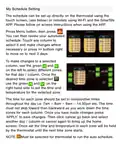
- Page 6: My Schedule Setting The schedule can be set up directly on the thermostat using the touch screen or remotely using Wi-Fi and the Smartlife app. Press Menu button to review your automated schedule. Touch any column to select it and make changes. Use the green buttons on the left to select different zones for that day/column. Set the time and temperature for the selected zone using the green buttons on the right. The time for each zone should be set in consecutive times throughout the day. The time must not skip forward then backward as you work down the time zones for each column. Press ‘APPLY’ to save changes. Click cancel to go back and select another day/column or to bring up the home screen. Must be selected for the thermostat to run the auto schedule.
- Page 7: Edit date and time by pressing the Menu button and using the appropriate buttons. Save changes by pressing APPLY. Pre-set mode temperatures can be configured for Holiday, Party, Comfort, and Economy. Each mode's temperature can be quickly selected and will hold the setting until changed. Set maximum and minimum floor temperatures to control heating based on floor probe temperature. Only Low Protection will show if only air or floor sensor is used. Both air and floor sensors must be operational for High Protection to be editable. These settings should be used with Set Point Max and Set Point Min settings.
- Page 8: Settings pages allow for adjustments to the thermostat's internal default settings based on usage and heating system type. To access these settings, ensure the unit is in the ON position, press OFF, confirm by pressing OK, and then press and hold the Time/Day section for 5 seconds. Temperature offset or calibration allows for adjustments if the displayed temperature does not match the actual air or floor temperature. The dead zone defines the range of degrees above and below the set temperature before the heating system activates or deactivates. It is recommended to set the dead zone to 1.5 degrees, particularly in quiet areas. Set point max/min refers to the maximum and minimum temperatures the thermostat can be set to. A yellow triangle will appear on the screen if the regulated temperature exceeds these set points.
- Page 9: Settings allow the user to select between air, floor, or a combination of air and floor sensors. I indicates the internal air sensor temperature. E indicates the external floor probe temperature. I&E means the thermostat regulates air temperature but displays all three temperatures. If the floor temperature exceeds protection settings, heating will turn off or on until the temperature is within range, indicated by a yellow warning triangle. IorE means only floor temperature is regulated and displayed along with the set temperature. If the air temperature drops below the low protection setting, heating will turn on. Backlight time is the duration the screen is fully illuminated before dimming. Backlight Min is the percentage of maximum brightness when the screen is not in use. Backlight Max is the percentage of maximum brightness when the screen is in use.
- Page 10: Relay Out Delay sets the time in seconds for the delay between switching the heating on or off once the temperature reaches or falls below the set temperature. Relay Out changes the switching of the relay between normal and inverted, with electric heating recommended to run on normal. Auto Lock can be set to enable the screen to lock automatically after 60 seconds of inactivity to prevent unwanted setting changes. To unlock the screen, touch any button and then press and hold the Time/Day for 10 seconds. The lock will deactivate for a short period before relocking. Restore allows the user to reset the unit to the original default settings.
- Page 11: Wiring diagrams provide essential information for installation. Use a medium size flat screwdriver to open the thermostat. Connect the heating, power supply, and floor probe cables to the correct terminals. Ensure all connections are tight. Fix the back plate to the wall securely through the screw locations.
- Page 12: Wi-Fi connection Please note we are always looking to improve this thermostat and app. To do this we make regular updates to the app and thermostat's firmware. These instructions are a guide. For the very latest instructions please always refer to our website and check for updated versions. Download the Smart Life app from the iOS or Android Store. Create a unique account and password. Open Smart Life app and on home screen press on the highlighted blue “+” and then, “Add Device”. On the next screen please select “Small Home Appliances” on the left side of screen. Then search scroll down the list of appliances on the right and select “Thermostat (Wi-fi)”.
- Page 13: Select your Wi-Fi network and enter the password for this selected network. Your phone should also be connected to the same Wi-Fi network and the router must be set to transmit on 2.4Ghz, not 5Ghz. To get the thermostat ready to pair to device/app, press the Wi-Fi symbol at the top of the screen. The thermostat screen will now have two Wi-Fi symbols in the bottom right-hand corner. Press on the Wi-Fi symbol with the hand symbol. The screen will say, “Wi-Fi Configure Confirm Starting.” Click “OK” to continue. The thermostat is now ready to be paired to your phone/app and will display “Waiting For Connection.” Once the app setup is completed correctly, the thermostat screen will change to say “Connected.”
- Page 14: On the app, it may ask to reset the thermostat. This is not required, so simply click “Next”. The app will now show two blink options. Select “Blink Quickly”. The app will now try to connect. Once the device is found, click “Add”. The app will now pair with the thermostat. Once paired, the app will display “Added Successfully”. Click “Next” and then click “Done”. Note if the thermostat says “Connected”, the screen on the app may timeout, but the app has in fact connected. Go to the app home screen and check for the thermostat. The thermostat screen should now say “Connected”. To revert back to the home screen, simply press “Cancel”. Wi-Fi setup is now complete.
- Page 15: You can connect additional phones to the thermostat but you must send each phone an invite from the primary phone. If you connect a 2nd phone directly to the thermostat it will become the primary phone and disconnect the previous phone. Make sure your Wi-Fi band is set to 2.4Ghz and the thermostat is located in a solid & strong signal area. Make sure your phone is connected to the same Wi-Fi as the thermostat will be and you are using the correct Wi-Fi pass code. If you are still unable to connect please visit our website and download the latest instructions. Also try the AP / EZ connection instructions for this thermostat that can be found on the more comprehensive website instructions.
- Page 16: Page 16

Google Cloud 2024 Nest Learning Thermostat Instructions

Regulus TP18 LCD Electronic Thermostat User Manual

nVent RAYCHEM E507S-LS Line Sensing Thermostat Instruction Manual

KINGHOME WK-010WD1 Smart Thermostat Owner’s Manual

ELECTECK 701 Non-Programmable Digital Thermostat for Home Instruction Manual

somfy 1870776 Wired IO Thermostat Instructions

Honeywell Home ElitePRO S1200 Smart Thermostat User Guide

EPH CONTROLS CDT2-24 Room Thermostat Instruction Manual

Honeywell FocusPRO TH6000 Series Programmable Thermostat Instruction Manual

Danfoss RMT-24 Room Thermostat Installation Guide