Home > SALUS > SALUS SQ610 Smart Thermostat User Guide

SALUS SQ610 Smart Thermostat User Guide
|
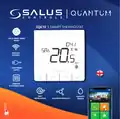
SQ610 SMART THERMOSTAT  
SALUS SMART HOME  
READY  
WIRELESS  
CONTROL  
230W POWER  
SUPPLY  
COMFORT  
OF A WARM FLOOR  
EASY  
INSTALLATION  
HUMIDITY  
SENZOR  
MULTIFUNCTIONALITY  
GeneralDetails
NameSALUS SQ610 Smart Thermostat User Guide
MakeSALUS
LanguageEnglish
FiletypePDF (Download)
File size1.12 MB
Download PDF
1 Star2 Stars3 Stars4 Stars5 Stars (1 votes, average: 5.00 out of 5)
Loading...
SALUS IT800 WIFI Smart Thermostat Installation Guide
SALUS 091FLRF Wireless Room Thermostat User Guide
SALUS Thermostat Sensor TS600 User Guide
SALUS Thermostat and Smart Plug Installation Guide
SALUS Programmable Wired Thermostat VS30W/VS30B Installation Guide
SALUS Wired Thermostat Installation Guide
SALUS Wired Digital Thermostat – Non-programmable HTRS230 User Manual
SALUS RT520 Radiator Thermostat User Guide
SALUS RT310 Thermostat User Manual
SALUS Thermostat RT520 User Manual

SALUS SQ610 Smart Thermostat User Guide
Get the free PDF manual for the SALUS SQ610 Smart Thermostat User Guide and access setup steps, usage instructions, and troubleshooting tips. 👉 View online or download now to keep your thermostat running smoothly!
SALUS SQ610 Smart Thermostat User Guide Overview
Summary of Contents

  • Page 1: SQ610 smart thermostat Salus smart home Wireless control 230W power supply Comfort of a warm floor Easy installation Humidity sensor Multifunctionality
  • Page 2: Introduction The SQ610 Quantum is a ZigBee temperature controller for wireless control of iT600 series devices. To control SQ610 over the Internet or via the SALUS Smart Home mobile app, it must be installed together with the UGE600 Internet gateway. SQ610 can be used locally without an Internet connection, however, its communication with other devices must be done using the CO10RF coordinator. THERMOSTAT SQ610 Quantum can work without Universal Gateway or CO10RF Coordinator as a standalone device. Product Compliance This product complies with the essential requirements and other relevant provisions of Directives 2014/30/EU, 2014/35/EU, 2014/53/EU and 2011/65/EU. Safety Information Use in accordance to national and EU regulations. Use the device as intended, keeping it in dry condition. Installation must be carried out by a qualified person in accordance to national and EU regulations. Disconnect your equipment before cleaning it with a dry cloth. Warning: Please always ensure the AC 230V mains power is switched off before installing or working on any components. Package Content 1) SQ610 Quantum Thermostat 2) Mounting screws 3) Manual instruction
  • Page 3: Before you start: Select correct thermostat location. Mounting: to mount thermostat you can use included accessories. Remove plate from the back to mount it to the wall. The ideal position to thermostat mounting is about 1.5m under floor level. Thermostat can’t be exposed to sunlight or any extreme conditions. Symbols explanation: S - volt-free contact, T - temperature sensor. S1, S2 Terminals: air or floor temperature sensor. External volt-free contact to connect any ON/OFF switch or occupancy sensor.
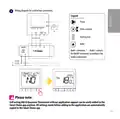
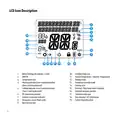
  • Page 4: Menu/Settings description includes the clock. AM/PM indicator is present. Temperature unit is displayed. Heating indicator animates during heating demand. Standby mode icon is shown. Current temperature and setpoint temperature are indicated. Holiday mode is available. Temporary override mode can be activated. Cooling indicator animates during cooling demand. Internet connection indicator is present.
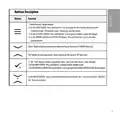
  • Page 5: Buttons description includes various functions for the thermostat. The menu button serves as a return button and allows mode changes in the main screen. In the settings screen, holding the menu button for 3 seconds returns without saving changes. In the pairing screen, it reveals other pairing options when held for 3 seconds. The down button decreases parameter values and navigates down the menu. The up button increases parameter values and navigates up the menu. The OK / Tick button confirms parameter values and saves settings. In the main screen, holding the OK / Tick button for 3 seconds enters standby mode. In the settings screen, it saves changes and returns to the main screen when held. Holding the buttons together in the main screen locks or unlocks the thermostat keys.
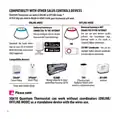
  • Page 6: Compatibility with other Salus controls devices Quantum Thermostat can work in online or offline mode. You need to decide in which mode your thermostat will work. In online mode, you can configure and use all your devices in the Smart Home App. In offline mode, you can use your devices locally without the SmartHome App. The gateway works in offline mode as a standard ZigBee coordinator. Download the Smart Home App on your iOS or Android device for remote access to your Salus equipment. You can use a standard ZigBee network coordinator to install and use your devices. Compatible devices include SPE600 Smart Plug, KL08RF Wiring Centre for underfloor heating, TRV with wireless communication, RX10RF receiver, and SR600 Smart Relay. The SQ610 Quantum Thermostat can work without coordinators as a standalone device with wired use.
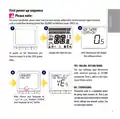
  • Page 7: First power up sequence For easier installation, please make sure you have already added other devices to your ZigBee network. To power on the thermostat you have to connect it to the 230V power. The thermostat will display the software version. Display will show all icons. You can configure your thermostat with universal gateway or CO10RF coordinator. Thermostat works as a standalone device for pump, boiler, receivers, etc. You can directly connect the thermostat to selected devices without any network system. You can add it later anytime. Now, choose your language by the buttons. Confirm your language by the button.
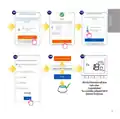
  • Page 8: Installation in online mode After language selection, follow the steps to add your device to the Smart Home app and pair with other devices. Go to SALUS Smart Home app. Once your thermostat is added to the app, you will see the screen on the LCD.
  • Page 9: Connect equipment Name this equipment SQ610 230V thermostat After that, thermostat will show main screen. Congratulations! You successfully configured SQ610 QuantumThermostat.
  • Page 10: Installation in offline mode Pairing with wiring centre/control box Open the ZigBee network Select system type: underfloor Press button to confirm Now you can pair your thermostat with additional zones Select one more zone or finish the pairing process Close the ZigBee network
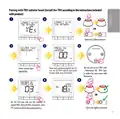
  • Page 11: Pairing with TRV radiator head should be done according to the included instructions. You can pair up to 6 TRVs with 1 thermostat, and all TRVs must be in the same room as the thermostat. Hold the antenna button for 10 seconds on all TRVs you want to pair with your thermostat. Select system type: radiators. Close the ZigBee network. On the LCD, you will see the number of paired TRVs. Once all TRVs are paired, press the button to finish the pairing process.
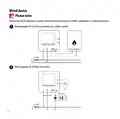
  • Page 12: Wired device Thermostat SQ610 Quantum can work without Universal Gateway or CO10RF Coordinator as a standalone device. Wiring diagram for volt-free connection (e.g. boiler control). Wiring diagram for 230VAC connections.
  • Page 13: Wiring diagram for control box connection. Legend: S1, S2, Pump, Valve actuator, S, COM, NO, L, N, Heating mat, Boiler, SL, KL08, NSB. Boiler connection for ON/OFF thermostat according to the boiler’s instructions. 1-8 Zones Power AC 230V. Self-acting SQ610 Quantum Thermostat can be easily added to the Smart Home app anytime. All settings made before adding to the application are automatically copied to the Smart Home app.
  • Page 14: Full menu structure Schedule settings Time/date Holiday mode Thermostat calibration User settings Admin settings Device information Factory reset Language
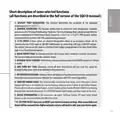
  • Page 15: Short description of some selected functions Display temp resolution: This function determines the resolution of the displayed temperature (0.5°C or 0.1°C). Control algorithm: This function defines how to control the room temperature. Available options are ITLC for underfloor heating/radiators/electrical heating, hysteresis +/-0.5°C or +/-0.25°C, and THB actuator. S1/S2 input: A floor sensor, external temperature sensor, or occupancy sensor can be connected to the S1/S2 input of SQ610RF. Valve protection: This function activates all actuators once a week for 5 minutes to prevent the actuators from sticking. Internal relay (COM/NO): Internal relay activation or deactivation with COM/NO outputs is enabled by default. Min turn off time: Minimum switch-off time prevents the thermostat from sending the signal for heating/cooling more often than specified. Optimisation feature: Optimum Start and Optimum Stop functions are energy-saving features that make the thermostat cost-effective. Comfort warm floor: This function helps to keep the floor warm, even if the room is warm enough, with three levels of warm floor feature. Device information: In this menu, the user can check software version, RF range value, paired devices, or activate identification mode. Factory reset: This option allows you to reset your device to factory settings, removing it from the ZigBee network.
  • Page 16: SQ610 thermostat features ultra slim design and precise temperature control for underfloor heating, radiator heating, and electrical heating. It works with Amazon Alexa and Google Home. The thermostat has a built-in voltage-free contact. It can connect with a universal gateway and smart radiator control. Users can pair it with Quantum Connect for enhanced functionality. The system allows for wireless control of temperature throughout the home. It is compatible with various devices including pumps, valves, and boilers. The product is imported by SALUS Controls Plc. The document includes references to Salus Smart Home systems.