
GTS TR8100V WiFi Pairing Thermostat Instruction Manual
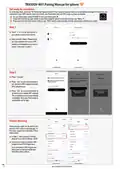


TR8100V-WiFi Pairing Manual for iphone
Get ready for connection
Go to the App Store, download “Hi Thermostat” app and install it.Then create an account with your email address and sign in; Ensure you are
connected to your WiFi network, keep your phone, your thermostat, and your WiFi router as close as possible.
1
2
On your thermostat, press POWER to turn your thermostat off
Press and hold the top right corner of your thermostat for about 5 seconds until you see “Menu 11”;
3
Press and hold the Down button until you see “REF”,wait for a few seconds until the wifi symbol is flashing on screen.
Step 1
1
Touch “+” on the top right corner of
your phone to add a new device;
Enter your WiFi details. Please ensure
you have selected the correct WiFi
network and the password you enter is
correct. Then press “Confirm”.
2
1
2
Step 2
1
Press “Connect”.
2
3
Press “Join” as your phone wants to
join device’s WiFi hotspot named
XPG-GAgent-xxxx;
Press “Join” as your phone needs to
go back to your orignal WiFi network.
The connection process is automatically
completed. Now your thermostat is
accessable via the app.
1
2
3
Trouble Shooting
Some phones might not be able to join
device’s WiFi hotspot automatically. In
this case, please do it manually. Follow
steps below,
1
In Step 2, befor pressing “Connect”,
please go to your phone’s Settings - WLAN
2
Connect your phone to device's WiFi
hotspot named XPG-GAgent-xxxx;
Once connected to XPG-GAgent-xxxx,
return back to the thermostat App
and follow Step 2 above
1
2
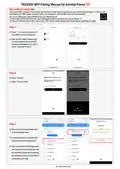
see overleaf for Android phone


| General | Details |
|---|---|
| Name | GTS TR8100V WiFi Pairing Thermostat Instruction Manual |
| Make | GTS |
| Language | English |
| Filetype | PDF (Download) |
| File size | 0.11 MB |
 (1 votes, average: 5.00 out of 5)
 Loading...

GTS TR8100V Manual: Questions and Answers
Can the GTS TR8100V work with both iPhone and Android phones?
Yes. iPhone users download and use the Hi Thermostat app, while Android users download and use the Temp Control app. Instruction Manual, p. 1
Why won't my phone automatically join the GTS TR8100V Wi-Fi hotspot?
Some phones cannot join automatically. Before pressing Connect in the app, go to your phone's Settings and manually connect to the hotspot named XPG-GAgent-xxxx through WLAN.
- Open your phone's Settings and go to WLAN.
- Connect to the device hotspot named XPG-GAgent-xxxx.
- Return to the thermostat app and continue with Step 2. Instruction Manual, p. 1
How do I add a new device to the GTS TR8100V app?
Touch the + icon in the top right corner of the app screen. Instruction Manual, p. 1

Amana DS01 PTAC Wireless Thermostat User Manual

LUX CAG1500 SERIES Smart Temp Electronic Thermostat Instruction Manual

Danfoss RT 103 Thermostat Installation Guide

ENGO CONTROLS E25-BATW Zig Bee 868MHz Smart Thermostat User Guide

PRO1 R250W Wireless System Thermostat Owner’s Manual

GENERAL Life ARUNA 300S Wired Room Thermostat User Guide

Thermogroup Thermotouch 4.3dC Dual Control Thermostat Installation Guide

Danfoss KP 61 Temperature Switches Thermostat Installation Guide

Honeywell RTH9600WF Touchscreen Programmable Thermostat User Guide

EMERSON 1F75C-11PR Programmable Thermostat Installation Guide