
GTS TR8100V WiFi Pairing Thermostat Instruction Manual


TR8100V-WiFi Pairing Manual for Android Phone
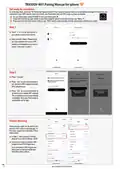
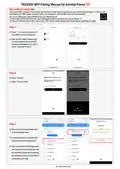
Get ready for connection
Go to Google Play, download “Temp Control” app and install it.Then create an account with your email address and sign in; Ensure you are
connected to your WiFi network, keep your phone, your thermostat, and your WiFi router as close as possible.
1
2
On your thermostat, press POWER to turn your thermostat off
Press and hold the top right corner your thermostat for about 5 seconds until you see “Menu 11”;
3
Press and hold the Down button until you see “REF”,wait for a few seconds until the wifi symbol is flashing on screen.
Step 1
1
Touch “+” on the top right corner of
your phone to add a new device;
Enter your WiFi details. Please ensure
you have selected the correct WiFi
network and the password you enter is
correct. Then press “Confirm”.
2
1
2
Step 2
1
Press “Connect”.
Press “Go to connect”.
2
1
2
Go to connect
Step 3
1 Now your phone automatically goes
to WLAN settings page.
2
Connect your phone to device's WiFi
hotspot named XPG-GAgent-xxxx;
3
Once connected to XPG-GAgent-xxxx,
return back to the thermostat App and
the connection process will automatically
be completed. Now your thermostat is
accessable via the app.
1
2
3
see overleaf for iphone

| General | Details |
|---|---|
| Name | GTS TR8100V WiFi Pairing Thermostat Instruction Manual |
| Make | GTS |
| Language | English |
| Filetype | PDF (Download) |
| File size | 0.11 MB |
 (1 votes, average: 5.00 out of 5)
 Loading...


MYSON Unisenza WiFi Programmable Thermostat User Guide

Honeywell CMR707A1049 Programmable Room Thermostat User Guide

BEOK CONTROLS TDR89 ZIGBEE Thermostat User Guide

EPH CONTROLS TRFPi2 COMBIPACK2 Programmable RF Thermostat Instruction Manual

BEOK TGR85-EP Mirror Touch Screen Underfloor Heating Thermostat User Guide

HORSTMANN C-Stat 17-B 7 Day Programmable Room Thermostat Instruction Manual

Honeywell T874H Multistage Thermostat Instruction Manual

Simx UT-M1 Ultecon Thermostat Instruction Manual

SALUS AT10 Contact Thermostat User Manual

TSTATBBEWF-01 Bryant Smart Thermostat Owner’s Manual