Home > Bosch > BOSCH BCC110 Connected Control Thermostat Instruction Manual

BOSCH BCC110 Connected Control Thermostat Instruction Manual


Advanced Settings Guide  
Bosch Connected Control  
BCC100 Thermostat | BCC110 Thermostat  
GeneralDetails
NameBOSCH BCC110 Connected Control Thermostat Instruction Manual
MakeBosch
LanguageEnglish
FiletypePDF (Download)
File size0.4 MB
Download PDF
1 Star2 Stars3 Stars4 Stars5 Stars (1 votes, average: 5.00 out of 5)
Loading...
BOSCH BCC110 Connected Control Wi-Fi Thermostat User Manual
BOSCH RT_II_230V Room Thermostat Instructions
BOSCH Smart Home Room Thermostat Instruction Manual
BOSCH RT20 RF Room Thermostat User Manual
BOSCH 6721807275 Smart Radiator Thermostat Installation Guide
BOSCH Thermostat atmosphere Smart Home 230 V Instruction Manual
BOSCH 8750000270 Radiator Thermostat II Smart Home Radiator Thermostat Instructions
BOSCH II 230V Room Thermostat Instruction Manual
BOSCH Radiator Thermostat Instructions
BOSCH BCC110 Thermostat User Guide

BOSCH BCC110 Connected Control Thermostat Instruction Manual
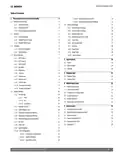
Get the free PDF manual for the BOSCH BCC110 Connected Control Thermostat Instruction Manual and access setup steps, usage instructions, and troubleshooting tips. 👉 View online or download now to keep your thermostat running smoothly!

BOSCH BCC110 Connected Control Thermostat Instruction Manual Overview

Summary of Contents

  • Page 1: Advanced settings guide for Bosch Connected Control. Information on BCC100 and BCC110 thermostats.
  • Page 2: Advanced settings guide for Bosch Connected Control Thermostat.
  • Page 3: Advanced settings guide Thermostat features and functionality Dehumidification control Reversing valve energize method Advanced settings Fan on delay in heating Heating set point Cooling set point Auto heating/cooling set point Current weather
  • Page 4: Advanced settings guide Cooling set point establishes the space temperature to be maintained during cooling operations. Home screen settings allow adjustments from the thermostat's home screen. Option range for cooling is 45°F to 99°F with a default of 78°F. To adjust cooling set point, click on the system icon on the home screen. Heating set point establishes the space temperature to be maintained during heating operations. Option range for heating is 45°F to 99°F with a default of 68°F. To adjust heating set point, select heat on the system screen. Use the +/- buttons on the home screen to increase or decrease the set points.
  • Page 5: Advanced settings guide Select heat or cool field, and use +/- to increase/decrease the set points. Auto heating/cooling set point establishes the space temperature deadband to be maintained by both heating and cooling operations. The deadband between heating and cooling setpoints cannot be configured less than 5°F. Option: 45°F to 99°F. Cooling default: 78°F. Heating default: 68°F. This section allows the user to view the weather. To access weather, connect the device to Wi-Fi, go to the menu, and select weather. Current weather feature provides information on the current weather based on location. A connection to Wi-Fi is required to view this information.
  • Page 6: Advanced Settings Guide Weather next 10 hours provides information on the weather forecast for the next 10 hours. Schedule section allows the user to select and edit a schedule for their system. A connection to Wi-Fi is required to add and remove schedules using the app. Available schedules option allows the user to select previously created custom schedules. Weather next 5 days provides information on the weather forecast for the next 5 days. Edit schedule feature lets the user edit a previously created schedule. User can set multiple schedules within a day, copy schedules, and delete schedules. Main menu includes options for weather and schedule. User must select a schedule and choose Setup to edit. Editing includes adjusting start times and setting heat and cool temperatures.
  • Page 7: Advanced Settings Guide Wi-Fi On/Off This feature allows the user to switch the Wi-Fi on and off from the device. The Device Settings are for settings that pertain to the BCC device itself. This section allows the user to select between the available Wi-Fi sources in the area to establish a Wi-Fi connection. Use the Up and Down keys to find and select the desired Wi-Fi network. This screen provides the user with alert messages from the thermostat. Includes system alerts (e.g. software updates) and service alerts (e.g. Change Filter). This section allows the user to search for the Wi-Fi source if it does not appear on the list. Type the name of the desired Wi-Fi network using the keyboard.
  • Page 8: Advanced settings guide Brightness feature allows the user to adjust the brightness of the thermostat. Screen lock allows the user to set a 4-digit numeric passcode to lock the screen. The BCC prompts the user to re-enter the password when trying to access the touchscreen. Timeout feature allows the user to set the screen time out schedule for the thermostat. If there’s no activity within the set time, the screen goes blank. Date format gives the user options to select the date format as per their choice. Options for brightness include high, medium, and low with a default of high. Options for timeout include 20 seconds, 1 minute, and 3 minutes with a default of 1 minute. Options for date format include MM/DD/YYYY, DD/MM/YYYY, and YYYY/MM/DD with a default of MM/DD/YY.
  • Page 9: Advanced settings guide This feature allows the user to select the time format. Provides the user information on the thermostat hardware and software including model, software version, HD version, and MAC ID. Options: 12hrs and 24hrs Default: 12hrs Provides the user with account ID, created date, and geo location. All three fields can be changed by clicking the “Change” button.
  • Page 10: Advanced settings guide This feature allows a user with a properly installed and wired humidifier accessory to choose how the system controls humidity and set the relative humidity set point. Selecting No disables the humidity control function. This section allows the user to change settings related to the HVAC system in their building. To access these settings, select menu, and choose “System Settings”. This section allows the user to select one of three available fan modes: Auto, On, and Circulation. In Auto mode, the fan will only run during heating or cooling operation. In On mode, the fan will be continuously on, even if the system mode has been set to Off. This feature establishes the unit for temperature. Options for temperature unit are °F or °C, with a default of °F. The circulation feature gives the user the option to circulate air within the conditioned space.
  • Page 11: Advanced settings guide Low space temperature monitor establishes the minimum space temperature allowed. If the temperature falls below this value, the thermostat will activate heating mode. High space temperature monitor establishes the maximum space temperature allowed. If the temperature rises above this value, the thermostat will activate cooling mode. Options for low and high temperature settings range from 70°F to 99°F, with a default of Off for low and 99°F for high. Main menu includes system settings, temperature, and alerts. The option for system settings is skipped for A/C equipment. Users can select high and low stage temperatures using the Up and Down keys. The reset feature allows users to reset heating or cooling runtime to zero and update the starting date to the current date.
  • Page 12: Advanced settings guide Air filter feature allows establishing the number of days of operation of the HVAC equipment between filter changes. The thermostat sends a notification to change the air filter based on the set period. Water pad feature allows establishing the number of days of operation of the HVAC equipment with humidifier option between water pad changes. The thermostat sends a notification to change the water pad based on the set period. Options for replacement time period range from 15 days to 360 days, with a default of 90 days. Use the Up and Down keys to adjust the replacement time period. The system configuration must have the humidifier accessory chosen for the water pad feature to be available. System update option is used to update the device with the latest firmware version if the automatic update is unsuccessful. Main menu includes system settings and system update. Download the most recent update through the system update option.
  • Page 13: Advanced settings guide This function allows for an automatic shift from compressor heat to auxiliary heating when a heat pump system is used. This section allows the user to select the configuration of their system. The user can choose between fossil fuel, heat pump, dual fuel, electric, and no heating. Once the user is in the system settings, select unit configuration to access this selection. This feature establishes the number of compressor stages that the equipment is using. This option is only for heat pumps. Enables additional heating stage if compressor cannot satisfy the current heating set point. Depending on the heat type chosen, the options available may vary.
  • Page 14: Advanced settings guide Humidifier control enables the use of a humidifier. The setup technician must set the humidity set point to establish the desired humidity level that should be maintained. The humidifier will only be activated during a heating call. Dehumidification control allows the ability to enable cool-to-dehumidify functionality or to disable the functionality and operate hot gas reheat. When cool-to-dehumidify functionality is enabled, the cooling equipment will remain on until the humidity set point is met or the over cooling temperature has been reached. The over cooling temperature is the permissible number of degrees below the set point that the user will allow in an attempt to better dehumidify the space. This option is skipped for A/C equipment. Options for humidification include enable and disable, with the default set to disable. Options for dehumidification include humidifier, dehumidifier, and none, with the default set to dehumidifier.
  • Page 15: Advanced settings are for specific settings about how the system operates. The advanced settings are accessed by clicking on Menu, then Advanced Settings. The reversing valve logic is set based on user selection. Selecting cool will energize the reversing valve during cooling operations. Selecting heat will energize the reversing valve during heating operations. This feature allows the ability to delay the fan motor from energizing for a specified amount of time while in heating mode. Options for fan delay range from 0 seconds to 120 seconds, with a default of 0 seconds. This option is skipped for A/C equipment. To access advanced settings, enter the professional access code “1886.” Use the Up and Down keys to select Fan Delay.
  • Page 16: Advanced settings guide On delay in cooling allows the ability to delay the fan motor from energizing for a specified amount of time while in cooling mode. Minimum run time establishes the minimum allowable run time for the compressor, preventing short run time and lengthening the life of the compressor. The compressor will continue to run for the specified number of minutes even if the set point is reached. Options for fan delay range from 0 seconds to 120 seconds, with a default of 0 seconds. Minimum run time is the number of seconds the thermostat will call for heating or cooling to ensure a comfortable cycling rate. Setting the system to off or the opposite system call will override the timer and immediately terminate the heating or cooling call. The minimum run time upper limit is tied to the stage delay timer setting, which is 600 seconds or 10 minutes by default. The upper limit for minimum run time may be set as high as 90 minutes if the stage delay timer is set accordingly. Use the up and down keys to select fan delay. Use the up and down keys to select the minimum run time.
  • Page 17: Advanced settings guide Anti short cycle (ASC) timer The minimum off time is the number of seconds after a call and before a new heating or cooling call can be initiated. This feature establishes the temperature differential at which a heating or cooling call occurs. Options: 0 to 300 seconds Default: 300 seconds Zero energy band Options: 0.5°F to 2°F Default: 2°F Cycle time Options: 60 to 300 seconds Default: 180 seconds
  • Page 18: Advanced settings guide Stage delay establishes how the HVAC equipment will stage down. With this feature disabled, the thermostat will stage down to the previous stage once the set point is met. With this feature enabled, all stages will be turned off and the thermostat will go into standby mode once the set point has been satisfied. The stage delay timer automatically up stages the heating or cooling after a continuous call for a time equal to the selected time period. The timer will not upstage cooling if the indoor temperature is below the selected temperature. It will not upstage heating if the indoor temperature is above the selected temperature. Neither upstaging for cooling or heating will occur if the space temperature is within the zero energy band. Options for stage delay range from 3 minutes to 90 minutes. Default setting for stage delay is 10 minutes. Options for enabling or disabling the feature are available.
  • Page 19: Advanced settings guide provides information on thermostat features and controls. The app allows the thermostat to determine the speed of heating based on temperature differential. Users can control features from the mobile app, including viewing room temperature and adjusting set points. Options for temperature adjustment range from 0°F to 15°F, with a default of 4°F. The main menu includes options for advanced settings and installer access. To adjust the set point, users must open the app, go to the BCC dashboard, and enter the professional access code. The factory reset function allows users to restore the thermostat to its initial factory settings. To confirm a factory reset, users must select Yes or No to cancel. The document includes figures illustrating the settings and options available. The Bosch Connected Control Thermostat is referenced with a date of May 2024.
  • Page 20: Advanced settings guide Use app to add or select a schedule. Schedule can have a desired time, heat and cool temperature and it will be set as per user’s need. Use the settings tab to adjust temperature settings, date & time, location, screen lock, and view device information. Open app. Go to BCC dashboard. Select schedule tab. Choose a schedule or add a new one. Go to BCC dashboard. Select settings tab.
  • Page 21: Advanced settings guide Staging logic Staging response determines how the thermostat stages heating or cooling calls based on the difference between space temperature and the set point. If your Bosch Connected Control thermostat is connected to one of Bosch’s Water Source Heat Pump products, the following WSHP fault codes can be displayed on the BCC. There are 4 timers defined in the stage algorithm: MRT, ASC, Stage Delay, and a fixed 3 minutes timer for quick staging down. The equipment has detected a high head pressure condition and prohibited heating and cooling calls. The equipment has detected a low head pressure condition and prohibited heating and cooling calls. The equipment has detected a freeze condition and prohibited heating and cooling calls. The equipment has detected a condensate line blockage condition and prohibited cooling calls. Stage temperature is used to determine whether there is a need for quick staging up or staging down based on a temperature setpoint differential. The equipment has detected a power brownout condition and prohibited heating and cooling calls.
  • Page 22: Advanced settings guide provides instructions for initial setup and calibration processes. Initial setup is typically accessed when a new unit is powered on or after a factory reset. Humidity calibration allows adjustment of humidity readings after extended product use. Options for humidity calibration range from -5% to 5%, with a default setting of 0%. Sensor calibration enables adjustment of temperature readings after extended use. Options for sensor calibration range from -10.0 to 10.0, with a default setting of 0.0. Relative humidity hysteresis allows adjustment of the set point differential for humidity control. Options for hysteresis range from 3% to 5%, with a default setting of 5%. Professional access code “1886” is required for installer access. Action codes “IS,” “HC,” “SC,” and “HSD” are used for various calibration processes.
  • Page 23: Advanced settings guide Sensitivity level (SS) allows adjustment of how often the system cycles to maintain the set point(s). Options range from Level 1 to Level 9, with Level 9 as the default. To access sensitivity settings, navigate through the main menu to advanced settings and installer access. Enter the professional access code “1886” followed by the action code “SS”. Use the Up and Down keys to select the sensitivity level. Staging (ST) allows configuration of staging settings for latching, stage delay, and stage temperature. Access staging settings through the main menu, advanced settings, and installer access. Enter the professional access code “1886” followed by the action code “ST”.
  • Page 24: Bosch Thermotechnology Corp. reserves the right to make changes without notice due to continuing engineering and technological advances.