
LENNOX S40 Smart Thermostat User Guide


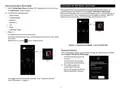


» Selecting any item on this screen will display the detail screen for that
When selecting Monitor Settings the following options are available:
device.
• Air Quality Monitor Name allows the user to rename the sensor using the
virtual key board.
» A yellow or red dot with an explanation point indicates there is an alert
condition for that specific device.
• Device Type will always show Monitor.
• About Air Quality Monitor will list model and serial numbers along with
firmware version.
Thermostats and Zones
• Level of Indoor Air Cleanliness. Options are High, Medium and Basic
(Most Economical)
Selecting the icon will bring up either the thermostat Home screen or the
home screen for a specific zone selected, if a zoning system is installed.
For further details concerning zoning control, see “Smart Zoning System” on
page 35.
Information concerning Air Pollutants and More Information can be found
further in this guide (see “Lennox Smart Air Quality Monitor” on page 40).
Lennox® Smart Room Sensor
Lennox Wireless Extender (BLE)
NOTE: The Lennox Wireless Extender BLE (Bluetooth Low Energy) is an
optional product sold separately.
IMPORTANT
The Lennox® Smart Room Sensor is currently not compatible with systems
Select this icon to prompt the wireless strength indicator. There is an
additional selection called Extender Settings.
using the Lennox Smart Zoning System (iHarmony) installed.
The Extender Setting screen includes:
• Extender Name: Shows the current name of the extender; can also be
renamed from this screen.
NOTE: The Lennox Smart Room Sensor is an optional accessory sold
separately.
• Device Type: Extender
Selecting this option displays the details of the sensor selected, including the
current room temperature in which the sensor is installed.
Additional details include:
• About Extender: Lists the model, serial number and firmware version.
See “Lennox Wireless Extender” on page 39 for further details.
» whether the sensor is participating in temperature averaging
PureAir S
» humidity level in the room
» whether the room is occupied or unoccupied
» battery percentage
NOTE: The Lennox PureAir S is an optional product sold separately.
Select this option to display the PureAir S filter life. Red indicates 1-10% filter
life left, yellow indicates 11-30% filter life left and green indicates 31-100 filter
life left.
» Wi-Fi connection strength
See “Lennox Smart Devices” on page 38 for further details.
Also available are:
• More Info: Information is listed here on the PureAir S product.
Lennox Smart Air Quality Monitor
• Reminders: You can set service reminders here for 1 day, 1 week, 1
month, 3 months or custom.
NOTE: The Lennox Smart Air Quality Monitor is an optional product sold
separately.
• Service Contracts: This will list the service contact if it has been entered
into the thermostat.
Selecting this option will display the Current Air Quality. Color indicators are
Green indicates good, Yellow indicates fair and Red indicates poor.
In addition a Bluetooth signal strength indicator is provided to show the signal
status.
There are also three options that can be selected. Those options are Monitor
Settings, Air Pollutants and More Information.
18

| General | Details |
|---|---|
| Name | LENNOX S40 Smart Thermostat User Guide |
| Make | Lennox |
| Language | English |
| Filetype | PDF (Download) |
| File size | 1.3 MB |
 (1 votes, average: 5.00 out of 5)
 Loading...

LENNOX L40 Smart Thermostat Owner’s Manual

LENNOX EL18KCV Smart Wi-Fi Communicating Thermostat User Manual


Google Cloud G953-02161-03-A Nest Learning Thermostat Instruction Manual

ELMEKO THRV 22 Double-Thermostat Owner’s Manual

BEOK CONTROLS BOT-R6W Boiler Thermostat User Guide

Schneider Electric CFMT02ZB Flush-Mounted Thermostat Instruction Manual

micro-air EasyTouch RV 356 True Air RV Thermostat User Manual

HYSEN HY608 Wi-Fi Digital Heating Thermostat User Manual

KETOTEK KTF0163 Series Smart Thermostat Instruction Manual
EMSQ22 Daikin ONE Lite Smart Thermostat User Manual

Vine TJ-560 Smart Thermostat User Manual

degrii THP Remote Thermostat User Guide