
LENNOX S40 Smart Thermostat User Guide


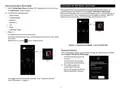


Press and hold the lock icon for 3 seconds
to unlock (Partially Locked and Locked)
Menu
Select the Menu button on the Home screen to display the Menu screen.
If multiple thermostat control systems are available they will be shown below
the General menu settings.
General
Notifications
Filters for displaying notifications are All Notifications (options that can be
checked off are All Notification, Service Urgent and Maintenance) The
second filter option is All Time Periods and the selection options are All
Time Periods, Last 24 hours, Last 30 days and Last 12 months.
User Account
Figure 6. Unlocking
This section is only accessible if the thermostat has an active connection to
Wi-Fi. On this screen homeowners have the option to sign into an existing
account or create a new account.
NOTE: Lock screen can also be used to clean the thermostat screen.
Also available is the Generate Pin option if setting up an account using the
Lennox Home App.
• Proximity Sensor which is ON by default. When set to ON, the display
will automatically turn on when approached. When set to OFF, users must
touch the screen to activate it.
Once the account has been created and thermostat added to that account,
then information under this section can be edited at any time.
Selecting User Account directs homeowners to the User Settings screen.
Homeowners can select their Email (>) to view and edit information such
as correct First and Last Name, Change Phone Number, Email and
Password, View EULA and toggle on Email Updates and Monthly Report
Email (System Performance Information).
• Screen Saver which by default is set to OFF. Options are OFF, Weather,
Power Save (blank screen) and photo. Photo can be upload to the
thermostat by using the Lennox Home app.
» Use the Lennox Home App, select Menu > Display Settings >
Screensaver and upload an image from this screen. If the upload is
successful a confirmation screen will indicate so.
There is also a option to Move Out at the bottom of the User Settings
screen. Selecting this option will remove the thermostat from the Lennox
account. This would be done typically if the home is being sold or the
homeowner is replacing the thermostat.
» From the thermostat Home screen, select Menu > Display Settings
> and turn on Screensaver and then select Photo. The photo you just
uploaded from the Lennox Home App should appear and ask you to
accept or reject. Select accept to use the picture as a screensaver.
• Home screen settings are:
Display Settings
» Outdoor Temperature by Source. Options are Accuweather or
outdoor temperature sensor. Default setting is Accuweather. To
display Accuweather, there must be a good Wi-Fi and Lennox server
connection. Also, the homeowner must be logged into their user
account.
The available settings are:
• Auto Brightness with an option for either ON or OFF. When set to OFF,
there is an adjustment bar to set the brightness level.
• Screen Lock with an option Unlocked, Partially Locked, and Locked.
» Outdoor Weather. This options allows the homeowner to turn on or off
outdoor weather on the Home screen.
Indoor Humidity. This options allows the user to turn on or off indoor
humidity being displayed on the Home screen.
24

| General | Details |
|---|---|
| Name | LENNOX S40 Smart Thermostat User Guide |
| Make | Lennox |
| Language | English |
| Filetype | PDF (Download) |
| File size | 1.3 MB |
 (1 votes, average: 5.00 out of 5)
 Loading...

LENNOX L40 Smart Thermostat Owner’s Manual

LENNOX EL18KCV Smart Wi-Fi Communicating Thermostat User Manual


Fantini Cosmi CH180-230V Touch Screen Programmable Thermostat Instructions

DIGITEN DTC-101, DTC-151 Thermostat User Manual

Wengart TP808-3 Heat Pump Thermostat User Guide

nVent RAYCHEM Green Leaf Programmable Thermostat Instruction Manual

ENSTO ECO500 Frost Protection Thermostat Instruction Manual

LUXPRO PSD111+ Series Thermostat Instruction Manual

GENERAL LIFE 230S RF Digital Room Thermostat User Manual

White Rodgers 1F72 5 2 Day Programmable Thermostat Instructions

Micro Air ETRV EasyTouch RV Thermostat Instruction Manual

Futurehome Co020, Co021 Smart Thermostat PR Owner’s Manual