Home > Micro-Air > Micro Air ETRV EasyTouch RV Thermostat Instruction Manual

Micro Air ETRV EasyTouch RV Thermostat Instruction Manual

EasyTouch RVTM  
Quick Reference Guide  
GeneralDetails
NameMicro Air ETRV EasyTouch RV Thermostat Instruction Manual
MakeMicro-Air
LanguageEnglish
FiletypePDF (Download)
File size0.65 MB
Download PDF
1 Star2 Stars3 Stars4 Stars5 Stars (1 votes, average: 5.00 out of 5)
Loading...
micro-air EasyTouch 357 Multi Zone Replacement Thermostat Instruction Manual
Micro-Air EasyTouch RV 353 Touch Screen Thermostat Instruction Manual
Micro-Air 359 Touchscreen Thermostat Instruction Manual
Micro-Air EasyTouch RV 353 Thermostat Instruction Manual
micro-Air EasyTouch RV 351 Thermostat User Manual
micro-air EasyTouch RV 356 True Air RV Thermostat User Manual
micro-Air ASY-357-X02 EasyTouch 357 Touchscreen Thermostat User Manual
micro-Air EasyTouch 352 Thermostat User Manual
Micro-Air EasyTouch 355 Touch Screen Thermostat User Manual
Micro-Air 351 Air Conditioner Digital Thermostat User Guide

Micro Air ETRV EasyTouch RV Thermostat Instruction Manual
Get the free PDF manual for the Micro Air ETRV EasyTouch RV Thermostat Instruction Manual and access setup steps, usage instructions, and troubleshooting tips. 👉 View online or download now to keep your thermostat running smoothly!

Micro Air ETRV EasyTouch RV Thermostat Instruction Manual Overview

Summary of Contents

  • Page 1: Page 1
  • Page 2: Introduction EasyTouch RV models and compatible replacements Installing the thermostat Common thermostat operations Activate cool Activate electric heat Activate auxiliary heat (gas or hydronic) Fan operation (electric) Create a schedule Common app operations
  • Page 3: EasyTouch RV is designed to be a direct replacement thermostat for many existing A/C systems. There are a few models of EasyTouch RV to replace thermostats across many manufacturers and models. The installation of EasyTouch RV will be specific to the model you purchased. Please use the in-box Quick-Start guide or the EasyTouch RV Reference Manuals for your specific thermostat to install it. Some thermostats are more involved than others so please be sure the thermostat is wired correctly. Thermostat operation may not work as intended if not installed and configured appropriately. The operations in this section start from the main screen of the thermostat touch screen. This document is meant to be a quick reference to know what buttons to press to perform desired operations. These operations in further detail can be found in the specific EasyTouch RV Reference Manuals for your EasyTouch RV model. If you are still not sure after using those resources then you can contact us.
  • Page 4: EasyTouch RV System power Activate cool Activate electric heat Activate auxiliary heat (gas or hydronic) Set auto mode (heat or cool automatically, dual setpoints) ©2023 Micro-Air LLC Revision 1.2
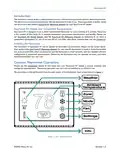
  • Page 5: EasyTouch RV Fan operation (electric) Full auto: Turns the electric fan on and off with a cycle, automatically adjusting the speed based on the difference between setpoint and inside temperature. Cycled: Turns the electric fan on and off with a cycle at the selected speed only. Manual: Always runs the electric fan at the selected speed. Note: If there is no button, then there is no electric fan control for the selected mode. Not all fan speed control options are available for all modes. Auxiliary heating systems are self-contained and fully control their sequence of operations. Change zone actively displayed: For multi-zone thermostats, the operations viewed and selected on the main screen apply only to this zone. Turn a zone’s operation off and leave other zones on: First, choose the zone you want to make changes to. Check local weather: Tap this area of the screen for more information, even if there are no graphics shown. Set time and location: Location must be saved in the thermostat to know the time zone. This is saved by connecting to the thermostat with the app over Bluetooth while the app has location services permissions granted. Current time is also given simultaneously. If the thermostat loses power or resets, location is preserved but time is lost.
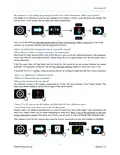
  • Page 6: EasyTouch RV Create a schedule It is recommended to be in front of the thermostat when referencing the below steps. References to zone operations are for multi-zone thermostats only. Schedule screen operation descriptions can also be found in the EasyTouch RV Reference Manuals for your model. Start at the top left and follow the presses and arrows. See section Set time and location.
  • Page 7: EasyTouch RV common app operations The thermostat can be operated remotely with the EasyTouch RV app via Bluetooth or Wi-Fi through the internet. It is recommended to ensure everything works as intended from the thermostat touch screen prior to any use of the app. First time setup must be completed prior to any other app operations. Detailed first time setup steps can be found in the EasyTouch RV reference manuals. The app must have an internet connection and Bluetooth permissions for initial setup. Steps are read left to right, top to bottom.
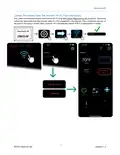
  • Page 8: EasyTouch RV Control thermostat over Bluetooth (local access) First time setup must be completed prior to connecting over Bluetooth to monitor or modify EasyTouch RV. Android versions will automatically choose Bluetooth in the first step if the app can hear it locally. Tap any of the icons once connected to modify them.
  • Page 9: EasyTouch RV Connect thermostat to Wi-Fi Modify the saved Wi-Fi credentials First time setup must be completed prior to connecting EasyTouch RV to the internet. Detailed Wi-Fi connection steps can be found in the EasyTouch RV reference manuals for your model. For troubleshooting, please see the Wi-Fi troubleshooting article in our EasyTouch RV knowledge bank. Steps are read left to right, top to bottom. Android will automatically choose Bluetooth in the first step if the app can hear it locally.
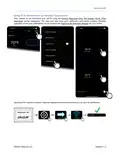
  • Page 10: EasyTouch RV Control thermostat over the internet (Wi-Fi, from anywhere) Make sure the thermostat is connected to Wi-Fi using the Connect Thermostat to Wi-Fi section. You cannot control the thermostat from the internet unless it is first connected to the internet. Once connected, tap any of the icons in the app to modify them. Android will automatically choose Wi-Fi if it cannot hear it locally.
  • Page 11: EasyTouch RV Setup push notifications on ambient temperature First, connect to the thermostat over Wi-Fi. The app must also have push notification permissions granted. Detailed operation of the push notifications can be found in the EasyTouch RV reference manuals for your model. EasyTouch RV must have internet when the temperature extreme event occurs to send the notification.
  • Page 12: EasyTouch RV Check for thermostat updates Connect to the thermostat over Wi-Fi to download an update. You can check if an update is available even if the thermostat is not connected to the internet. Once you confirm the download from the app, you no longer need the app for the rest of the process. The touchscreen will display “Downloading” during the update. A counter will show the progress of the download, followed by a success message. The thermostat will restart after the update. You can verify the new software downloaded using the FAQ. For troubleshooting, refer to the Thermostat Updates article in the EasyTouch RV Knowledge Bank.
  • Page 13: EasyTouch RV FAQs - Frequently Asked Questions Thermostat operation How do I adjust the screen brightness? The screen brightness will change from Active to Sleep brightness after about 30 seconds of inactivity. How do I turn off the backlight so that the screen is completely dark? The screen brightness will change from Active brightness to Off after about 30 seconds of inactivity. My inside temperature does not seem to be accurate. What is going on? Systems may use the Internal sensor of EasyTouch to make decisions or they may use a Remote sensor connected at the back of the thermostat or at the A/C control board. If both an internal sensor and remote sensor are available, the remote sensor will always take priority. Navigate to the info-screen to check what sensor the ambient temperature is coming from. If the sensor is REMOTE then there may be an issue with its mounting, location, or general failure. There is text at the top-center of the main screen. What does it mean? These are active faults (red) or status (orange/yellow) messages about the system.
  • Page 14: EasyTouch RV The length of an appliance cycle can be adjusted to run longer or shorter using the Hysteresis setting. You can use the FAQ to see if the reason is an inaccurate reading from the temperature sensor. EasyTouch RV often runs the electric fan at the end of a cycle to harvest remaining energy in the appliance after it has shut off. If the fan never shuts off then make sure you have the fan speed set as you expect. The software revision is the numbers separated by 3 dots. The serial number is the 9-digit number. The EasyTouch Model number is the first three digits of the serial number. Zoned systems use digital communication to a control board and have some signal wires associated with them. Check if there are no faults displaying by using the FAQ. Initiate a scan for the missing zones using the factory reset button, or the rescan button if available.
  • Page 15: EasyTouch RV Use the Common Thermostat Operations section for how to use the available modes in normal operation. Some systems automatically detect what modes are available by talking to the A/C control board. Other systems must be configured at the thermostat. Use the EasyTouch RV Reference Manuals for your model to see if your thermostat must be manually configured. Not all systems or zones have all modes. For all EasyTouch RV models except the 350 model, “furnace” mode and “aqua” mode are identical. Sometimes, electrical noise may get into the screen and corrupt it. Try removing power to the thermostat by opening/disconnecting the 12VDC breaker/fuse for a few seconds. If tapping the screen wakes it up then it is likely set for Night mode. How do I change my units in the app (Fahrenheit/Celsius)?
  • Page 16: The thermostat has all modes but the app does not. Make sure the modes are available from the thermostat. If the app is out-of-sync, tap “Refresh Configuration” to match the thermostat’s available modes. Use section Control Thermostat over Bluetooth (Local Access) to connect to the thermostat. The password created during First Time Setup is used for subsequent connections. If your account password changes, reset the Bluetooth password on the thermostat. The app may indicate the thermostat cannot be heard and to move closer. If the device list is empty when adding a device, refer to the Bluetooth Troubleshooting article.
  • Page 17: EasyTouch RV I cannot connect over Wi-Fi but Bluetooth works? There must be a green Wi-Fi logo on the main screen, otherwise the thermostat is not currently connected to the internet. This can also be checked from the thermostat settings. Please see the Wi-Fi Troubleshooting article in our EasyTouch RV Knowledge Bank if it is not green. If it is connected and green then there is an issue with the phone or app. Make sure the phone has internet or cell service. If so, try the Account Troubleshooting article in our EasyTouch RV Knowledge Bank.
  • Page 18: EasyTouch RV reference manuals provide essential information. Links are available for selecting the correct EasyTouch model. Support tickets can be submitted for further assistance. The knowledge bank contains comprehensive information on EasyTouch RV. Troubleshooting resources are accessible online. The document is published by Micro-Air LLC. The revision of the document is 1.2.