
EMERSON 1F76U-22WFB Series Sensi Lite Smart Thermostat Installation Guide


SENSI™ LITE SMART THERMOSTAT
Installation guide
Models: 1F76U-22WFB series, ST25 series
Version: February 2023
R-5664


| General | Details |
|---|---|
| Name | EMERSON 1F76U-22WFB Series Sensi Lite Smart Thermostat Installation Guide |
| Make | Emerson |
| Language | English |
| Filetype | PDF (Download) |
| File size | 0.17 MB |
 (1 votes, average: 5.00 out of 5)
 Loading...

EMERSON ST75W Sensi Touch Wi-Fi Smart Thermostat Installation Guide

EMERSON Thermostat Common Wire Kit SA11 Instruction Manual

EMERSON 1F75H-21PR Programmable Heat Pump Thermostat Instruction Manual

EMERSON 1F75C-11PR Programmable Thermostat Installation Guide

EMERSON 1D56-310 White-Rodgers Low Voltage Horizontal Mounting Thermostat Instruction Manual

EMERSON Programmable Touchscreen Thermostat Setup in E2 and Site Supervisor User Guide

EMERSON 1F87U-42WF Sensi Smart Thermostat User Guide

EMERSON 1F83C-11NP Single Stage Thermostat Owner’s Manual

EMERSON 1F75P-21PR Display Thermostat Instruction Manual

EMERSON 1F75H-21NP Non Programmable Heat Pump Thermostat Instruction Manual

EMERSON 1F76U-22WFB Series Sensi Lite Smart Thermostat Installation Guide Overview
Summary of Contents
- Page 1: Sensi lite smart thermostat Installation guide Models: 1F76U-22WFB series, ST25 series Version: February 2023
- Page 2: Downloading the app and creating an account Gather this information before you begin installation for a smoother walk through. - Wi-Fi Network Name/SSID (Make sure this is a 2.4GHz network) - Wi-Fi Network Password - Screwdriver - Hardware in Sensi Lite smart thermostat packaging The Sensi Lite smart thermostat is a Wi-Fi enabled device. To install and configure your thermostat correctly, you must use the Sensi app. To start the installation process, download the Sensi app to your smartphone or tablet. It is a free download. When you download the Sensi app, you will be prompted to create an account. This is required to access your thermostat remotely and use all the features Sensi offers. Use a valid email address and a password of your choosing to create an account. Remember this email address and password. Your Sensi thermostat will be linked to this email address once it is registered.
- Page 3: Installing the Sensi thermostat involves several steps. Add your thermostat to the Sensi app after downloading it and creating an account. Choose which thermostat you purchased, specifically the Sensi Lite model numbers ST25 series or 1F76U-22WFB series. If your Sensi thermostat is already on your wall, you need to determine if it is currently mounted or not. The Not Mounted option guides you through a full step-by-step installation process, including identifying and labeling wires. Choosing Is Currently Mounted allows you to identify existing wires and ensures correct HVAC settings. If you did not have the thermostat professionally installed, select the Not Mounted option for proper wiring and configuration. If a professional technician installed your thermostat, you can skip to the next step. For DIY installations, always choose Not Mounted to ensure correct wiring and configuration. The document serves as an installation guide for the Sensi Lite smart thermostat.
- Page 4: Installing the Sensi thermostat involves several key steps. Remove the old thermostat from your wall. Gather all the necessary tools for installation. Turn off the power to your heating and air conditioning system before handling your thermostat wires. Remove the cover using a screwdriver or by pushing the pressure latch. Photograph your wiring; this is important for troubleshooting later. Throw away any jumper wires as Sensi has a built-in jumper wire. Choose the terminal labels that have wires attached to them on your old thermostat. The app will inform you if you have a valid configuration. If you encounter an invalid configuration message, you can learn more about compatibility. Refer to the Sensi Lite smart thermostat installation guide for further instructions.
- Page 5: Installing the Sensi thermostat involves several key steps. Select the type of system you have. Label your wires using the provided stickers before disconnecting them. Remove the old thermostat base from the wall after labeling the wires. Secure the new thermostat base to the wall and connect the wires. Use the mounting screws provided to secure the Sensi base. Insert the wires into the corresponding terminals and tighten the screw. Scan the QR code to connect the thermostat to your Wi-Fi network. Install the two provided AAA batteries and attach the thermostat cover. Turn the power to your heating and air conditioning system back on. This guide is for the Sensi Lite smart thermostat installation.
- Page 6: Installing the Sensi thermostat involves several steps. Connecting to Wi-Fi and registering your thermostat is crucial for functionality. If the thermostat screen is not turning on, check the battery installation. To set up Wi-Fi, press and hold the Mode Button for four seconds. Select your home Wi-Fi network in the mobile app and enter the password. Sensi is only compatible with 2.4GHz networks. You can choose a name for your thermostat during setup. After connecting, the app will prompt you to register the thermostat. Contractor information is optional during the registration process. Once installed, press Start Using Sensi to access the app's main screen.
- Page 7: Troubleshooting Why isn’t my heating/cooling turning on? Ensure that there is power to your HVAC system and there is no error code on your control board indicating a system issue. Reset breakers. Make sure the furnace/air handler door compartments are securely screwed down and closed. Secure wire connections. Ensure the thermostat is wired correctly by following the instructions in the Sensi app. If you’re having trouble connecting to Wi-Fi, here are some tips to try: Make sure the Sensi app is up-to-date and running the latest version available in your app store. Reboot your smartphone. Reboot your router by unplugging it from the wall for a few minutes and then plugging it back in. If you replaced your router or changed your Wi-Fi network password, you will need to reconnect your thermostat to Wi-Fi.
- Page 8: HVAC configuration menu If you want to check that your thermostat’s HVAC settings were configured correctly or you’re experiencing a system issue, refer to the chart for equipment descriptions and options. Outdoor Equipment Select AC or Heat Pump equipment. Indoor Equipment Select whether the equipment is an electric or gas furnace, or fan-only. Accessing your Sensi thermostat from other devices When you log into your Sensi account with your email address and password, the app will be able to control all the thermostats registered to your Sensi account. Multistage Equipment When configured for 2C, second-stage cooling is energized. Forgot password If you forget the password to your Sensi account, click on Forgot Password on the login screen of the Sensi app. A temporary password will be sent to the email address that you use to log in.
- Page 9: Installing multiple thermostats involves following the same installation process in the Sensi app. After installing one thermostat, open the Sensi app and press the + sign to add another thermostat to your account. You can access your account information and email preferences in the Account area of the app. For iOS, tap the person icon in the upper right corner; for Android, tap the three dots in the upper right corner. For installation problems, visit the support site for troubleshooting articles and assistance from the support team.
- Page 10: Common wire (24V) 1st-stage auxiliary/emergency heat (2nd-stage heat) 1st-stage heat Indoor blower (fan) 1st-stage heat and cool (compressor) Heat pump changeover (reversing valve) connection Multi-stage not available for heat pump configurations 2nd-stage heat, 2nd-stage cool, zone panel, or 3-wire hot water zone valve connection 24VAC power from HVAC system Single-stage (AC, GA, EL)

iO HVAC Controls UT32 Titan 3H or 2C Touchscreen Thermostat Owner’s Manual

IMMERGAS 3.030909 Smartech Plus Smart Chrono Thermostat Installation Guide
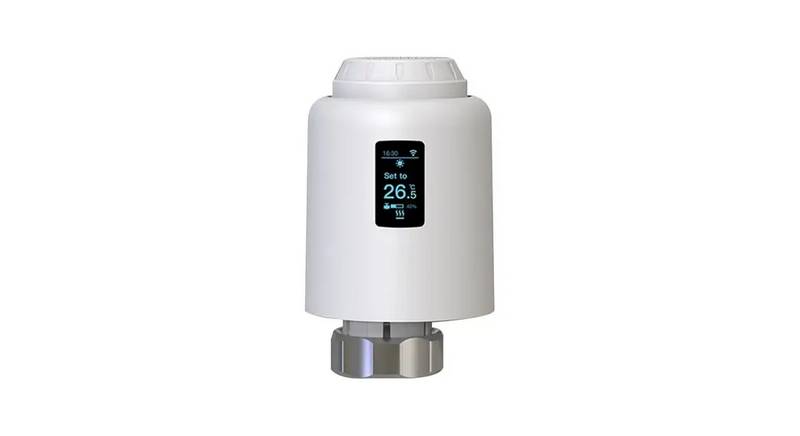
tuya TRV603 Smart WiFi Radiator Thermostat Instruction Manual

Netatmo NTH01-AMZ Energy Saving Smart and Connected Thermostat Instruction Manual

Honeywell TL7135A Non-Programmable Thermostat User Guide

ELKO EKO07258 16A Smart ZB Thermostat User Guide

Honeywell CM921 Wireless Programmable Room Thermostat User Guide

NT NetX X5N-NX Thermostat Instruction Manual

STELPRO STZW402+ Electronic Thermostat for The Smart Home Owner’s Manual

WATTS BT-A03 RF Electronic Room Thermostat Installation Guide