
namron Touch Z Wave 16A Thermostat Instruction Manual






Z-Wave Set Introduction
1 .Z-Wave Network Management
Select
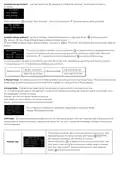
ZWAVE INFO on Home Interface to enter into Z-Wave network management interface as follow:
Adding to a Z -Wave Network ( Inclusion)
Method 1: Select “Add”, then short press button , the device will send out inclusion request, “Status” will show “Inclusion...”. If
there is no response from a gateway within 30 seconds, or inclusion failed, “Status” will show “Fail”. If included successfully,
“Status” will show “Inclusion OK” and device ID.
Method 2: Operate the gateway into inclusion mode, make sure the device is already removed from previous network, reset
power of the device, the device will be included to the gateway automatically.
Smart Start
If the user's gateway also supports smartstart, add the device by scanning the QR code, Smartstart allows users to quickly add
devices to the gateway by scanning the device's QR code.
After scanning to add the device, reset power of the device or waiting for a while, the device will be added to the gateway
automatically. Please find the QR code on the casing of the device.
Removing from a Z-Wave Network (Exclusion)
Select “Remove”, then short press button
, the device will send out exclusion request, “Status” will show “Exclusion... If ”.
F
there is no response from a gateway within 30 seconds, or exclusion failed, “Status” will show “Fail”. If excluded successfull,y
“Status” will show “Exclusion OK” and device ID will be showed as 0.
Factory Reset (Reset)
Factory resetting will reset all Advance Config parameters to default value, and the device will be removed from the Z-Wave
network.
Select “Reset”, then short press button , the device will start reset, “Status” will show “Reset...”. If there is no response
F
from a gateway within 6 seconds, or exclusion failed, “Status” will show “Fail”. If reset successfully, “Status” will show “Reset OK”.
Note 1: if the device is excluded or reset successfully, the Auto Mode Schedule will be reset to default value.
Note 2: the sent frame of inclusion and exclusion is INFO frame.
2.Basic set command class
Set the device operation mode as Comfort Mode (Manual Mode) by sending command class basic set = 0XFF. Set the device
operation mode as OFF mode by sending command class basic set = 0x00
Z-Wave Technical Specifications
1.Supported Notification Report and Sensor Type
Notifcation Type
POWER_MANAGEMENT
Heat Alarm
Triggering Event
POWER_MANAGEMENT_OVERCURRENT_DETECTED
Overheat detected
Description
Over Current Alarm
Over Heat Alarm
SENSOR MULTILEVEL Type support
Scale
Air temperature
Celsius (℃)
2. Technical Specifications
Item
Definition
SDK
6.82.00
Explorer Frame Support
Yes

| General | Details |
|---|---|
| Name | namron Touch Z Wave 16A Thermostat Instruction Manual |
| Make | NAMRON |
| Language | English |
| Filetype | PDF (Download) |
| File size | 0.54 MB |
 (1 votes, average: 5.00 out of 5)
 Loading...


namron 1402746 Touch Thermostat Instruction Manual

namron 4512738 Touch Zigbee 16A Thermostat Instruction Manual

namron 4512737 Touch Zigbee 16A Thermostat Instruction Manual

namron 16A 2.0 Zigbee Touch Thermostat Instruction Manual


HotWire R220 WiFi Thermostat Instruction Manual

LUX PSPH521 Series Programmable Heat Pump Thermostat Instruction Manual

Cielo Smart Thermostat Eco Owner’s Manual

GENERAL LIFE SOLARA 300S Digital Room Thermostat User Manual

BEOK TGW60 Glass Screen Thermostat Instruction Manual

Danfoss RET-MD Electronic Intelligent Dial Setting Thermostat Installation Guide

Satel ART-200 Wireless Radiator Thermostat Installation Guide

MI-HEAT WT8 WiFi Smart Thermostat User Manual

Hydro Smart HSRADSTATWIFI HSRadStat Wi Fi Thermostat User Guide

EPH CONTROLS RDT Recessed Room Thermostat Installation Guide