
Home > Hydro-Smart > Hydro Smart HSRADSTATWIFI HSRadStat Wi Fi Thermostat User Guide
Hydro Smart HSRADSTATWIFI HSRadStat Wi Fi Thermostat User Guide
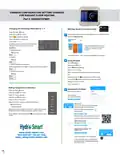


COMMON CONFIGURATION SETTING CHANGES
FOR RADIANT FLOOR HEATING
Part #: HSRADSTATWIFI
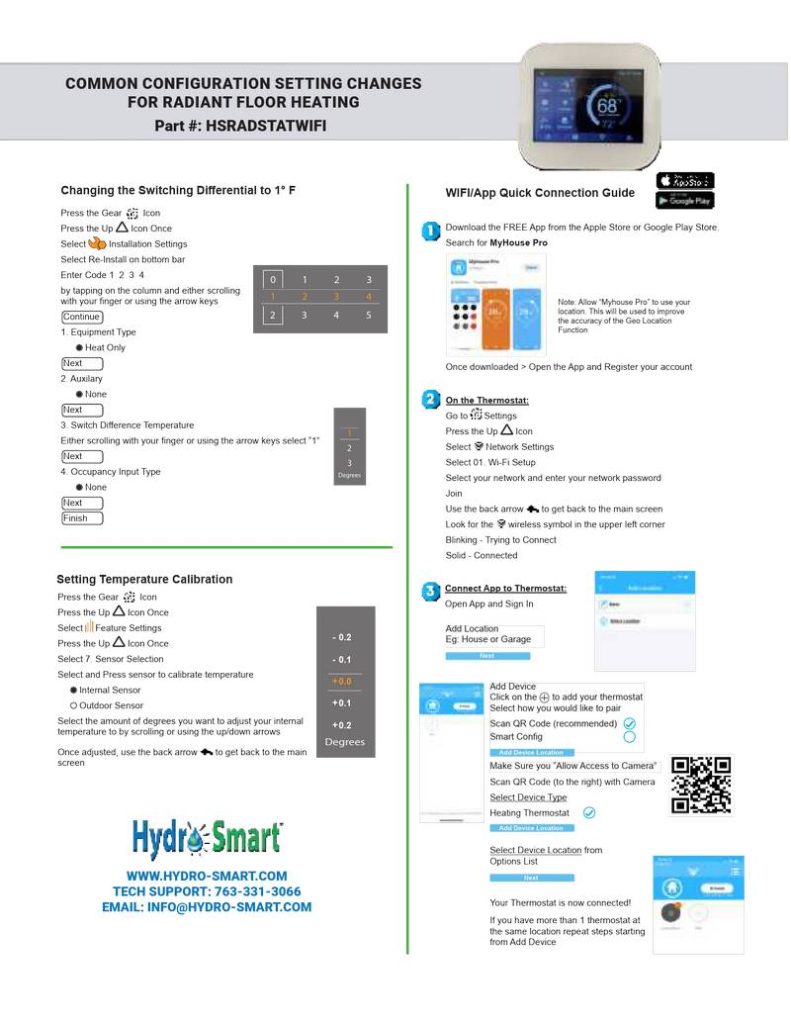
Changing the Switching Differential to 1° F
WIFI/App Quick Connection Guide
Press the Gear
Press the Up
Icon
Download the FREE App from the Apple Store or Google Play Store.
Icon Once
Search for MyHouse Pro
Select
Installation Settings
Select Re-Install on bottom bar
Enter Code 1 2 3 4
0
1
1
2
2
3
3
4
by tapping on the column and either scrolling
with your finger or using the arrow keys
Note: Allow “Myhouse Pro” to use your
location. This will be used to improve
the accuracy of the Geo Location
Function
2
3
4
5
Continue
1. Equipment Type
Heat Only
Next
Once downloaded > Open the App and Register your account
2. Auxilary
None
On the Thermostat:
Next
Go to
Press the Up
Select Network Settings
Settings
3. Switch Difference Temperature
Icon
1
2
3
Either scrolling with your finger or using the arrow keys select “1”
Next
Select 01. Wi-Fi Setup
4. Occupancy Input Type
Degrees
Select your network and enter your network password
Join
None
Next
Use the back arrow
to get back to the main screen
Finish
Look for the wireless symbol in the upper left corner
Blinking - Trying to Connect
Solid - Connected
Setting Temperature Calibration
Connect App to Thermostat:
Press the Gear
Press the Up
Icon
Open App and Sign In
Icon Once
Select Feature Settings
Press the Up Icon Once
Add Location
Eg: House or Garage
- 0.2
Next
Select 7. Sensor Selection
Select and Press sensor to calibrate temperature
Internal Sensor
- 0.1
+0.0
+0.1
Add Device
Click on the
Select how you would like to pair
to add your thermostat
Outdoor Sensor
Select the amount of degrees you want to adjust your internal
temperature to by scrolling or using the up/down arrows
Scan QR Code (recommended)
+0.2
Smart Config
Degrees
Add Device Location
Once adjusted, use the back arrow
screen
to get back to the main
Make Sure you “Allow Access to Camera”
Scan QR Code (to the right) with Camera
Select Device Type
Heating Thermostat
Add Device Location
Select Device Location from
Options List
Next
WWW.HYDRO-SMART.COM
TECH SUPPORT: 763-331-3066
EMAIL: INFO@HYDRO-SMART.COM
Your Thermostat is now connected!
If you have more than 1 thermostat at
the same location repeat steps starting
from Add Device


| General | Details |
|---|---|
| Name | Hydro Smart HSRADSTATWIFI HSRadStat Wi Fi Thermostat User Guide |
| Make | Hydro-Smart |
| Language | English |
| Filetype | PDF (Download) |
| File size | 0.16 MB |
 (1 votes, average: 5.00 out of 5)
 Loading...
Hydro Smart HSRADSTATWIFI HSRadStat Wi Fi Thermostat User Guide Overview
Summary of Contents
- Page 1: Common configuration setting changes for radiant floor heating. Changing the switching differential to 1° F. WIFI/App quick connection guide. Download the free app from the Apple Store or Google Play Store. Select installation settings and re-install on the bottom bar. Allow Myhouse Pro to use your location to improve the accuracy of the geo location function. Select your network and enter your network password to connect. Setting temperature calibration involves selecting and pressing the sensor to calibrate temperature. Make sure you allow access to the camera to scan the QR code. Your thermostat is now connected.

Haswill Electronics AL8010H Thermostat User Guide

BEOK CONTROLS TGW60 Touch Screen Boiler Thermostat User Guide

expert4house BHT-003 Series Zigbee Thermostat User Guide

STELPRO STE302NP Single Programming Electronic Thermostat User Guide

AURATON Libra U Wireless Digital Room Thermostat User Manual

stelpro STZW402 ELECTRONIC THERMOSTAT SMART HOME User Guide

THE HEATING COMPANY TR220 WiFi Thermostat User Manual

aube Electronic Thermostat TH131 Owner’s Manual

EBECO EB500 Electric Floor Heating Thermostat Instruction Manual

Honeywell Home TH2110DH 1 Cool Programmable Digital Thermostat Installation Guide