
Home > CLIMATE MASTER > CLIMATE MASTER CXM2 Communicating Awc Thermostat Installation Guide
CLIMATE MASTER CXM2 Communicating Awc Thermostat Installation Guide


iGATE 2 COMMUNICATING (AWC) THERMOSTAT – IOM
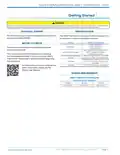
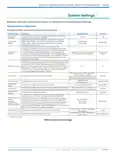
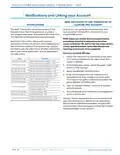
Notifications and Linking your Account
SEND INVITATION TO LINK THERMOSTAT TO
myUPLINK PRO ACCOUNT
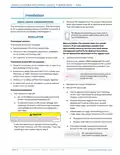
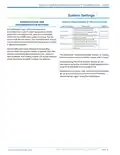
NOTIFICATIONS
The AWC Thermostat can generate alerts if the
temperature in the home goes over or under a
pre–programmed level. This protects the home from
damage due to freezing and/or excessive heat.
To ensure an on–going service relationship with
your customer, link the AWC Thermostat to your
myUplink PRO portal.
NOTE: Ensure your mobile device is updated before
proceeding. myUplink is supported on the latest
version of Android, iOS, and the last two major versions
of each operating system. Some older devices and
operating systems may not be supported.
Alert/Fault information, along with optional
technician contact information will be displayed on
the thermostat display. If the homeowner registers
the thermostat, the alert will be emailed, notification
sent in the mobile application, and be displayed in
the web portal.
From your myUplink PRO app:
1. Ensure the thermostat is connected to the user’s
Wi-Fi network (reference the user’s Quick Start
Guide if needed).
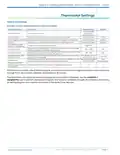
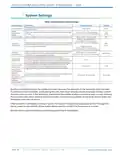
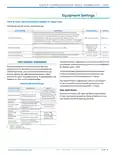
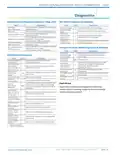
Alert
Condition
ID Temp Sensor High
Indoor temperature reading > 122°F
Indoor temperature reading <= 0°F
Indoor temperature reading not available
Remote temperature reading > 122°F
Remote temperature reading <= 0°F
ID Temp Sensor Low
2. From the Systems screen, select the green “add”
button on the top right.
Remote Sensor High
Remote Sensor Low
3. Select the REQUEST ACCESS button.
Hum Temp Sensor High Humidity temperature reading > 122°F
4. Enter the homeowners email address that is
associated with their myUplink account, enter
the name of the system (optional) and select the
green REQUEST ACCESS button.
Hum Temp Sensor Low
ID Temp Range High
ID Temp Range Low
Humidity temperature reading <= 0°F
Indoor Temperature reading > 99°F
Temperature reading < 40°F
Humidity sensor timed out
5. User will receive invitation via email to accept
your link request.
Hum Sensor Failure
Humidity reading is > 99%
Humidity reading is 0%
Humidity Range High
Humidity Range Low
Humidity reading > 90%
6. You will receive email notification upon approval
to link from the user.
Humidity reading < 10%
Outdoor temperature reading > 127°F
Outdoor temperature reading < -60°F
Outdoor Sensor Failure
Linking a device requires the device to be linked to the
user’s myUplink account. Reference the user’s Quick
Start Guide for additional information. myUplink PRO
account holder will be charged a monthly fee for each
thermostat linked to their account.
PAG E : 1 8
Part#: 97B0132N01 | Revised: Februar y 06, 2025
w w w. c l i m a te m a s te r. c o m

| General | Details |
|---|---|
| Name | CLIMATE MASTER CXM2 Communicating Awc Thermostat Installation Guide |
| Make | CLIMATE MASTER |
| Language | English |
| Filetype | PDF (Download) |
| File size | 1.03 MB |
 (1 votes, average: 5.00 out of 5)
 Loading...


JUMO exTHERM-AT Explosion-Protected Surface-Mounted Thermostat Instruction Manual

TotalHome TTHWP Wireless Programmable Thermostat Installation Guide

EMERSON Thermostat Common Wire Kit SA11 Instruction Manual

DOMETIC 3313192.XXX Single Zone LCD Thermostat Instruction Manual

Robertshaw RS9220 Digital Programmable Wall Thermostat Instruction Manual

COOKING PERFORMANCE GROUP 351030208 Retrofit Thermostat Instructions
hansgrohe AXOR URQUIOLA Concealed Thermostat with Shut Off Valve Instruction Manual

Ideal 229177 Halo Heat and System 2 Zone Extension Thermostat User Guide

Honeywell Smart Color Touchscreen Programmable Thermostat RTH9590 User Manual

Honeywell RTH6360 Series Programmable Thermostat Installation Guide