
micro-Air EasyTouch 352 Thermostat User Manual



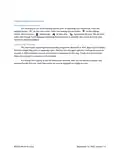




Appendix: First connection steps
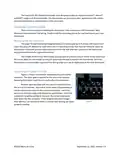
1. This thermostat uses BLE which is a special implementation of Bluetooth. It is not necessary to
“Pair” the thermostat with the phone but an account must be created for operation.
2. Start the app on your smart device. The app will open and if you have not entered your account
information, it will ask you to create an account. Enter your name, email and a password at the
prompts. The system will send a confirmation email to your inbox. Enter the number in the
confirmation email when asked.
3. Once the account is created, the application may ask to add a device. If your device is powered
it will show in the list to be added to your account. Select the control and enter a name or
location for the control.
4. If you added a control, the app will ask if you want to connect to WIFI now. Enter your SSID
(network name) and password in the boxes.
Adding a control
Follow the next steps if the account process does not add a control or a second thermostat is to
be added.
1. Press “Add” on the top of the selection screen (Apple) or press the settings gear and “Add
Device” (Android).
2. The second thermostat should be listed in the new selection window. Select the device and
enter a name for the device.
3. Press OK and the screen will return to the settings menu (Android) or the selection screen
(Apple). Android users should press the back button to get to the selection screen.
4. Select the device name to open the thermostat screen.
Connecting to a new WIFI network
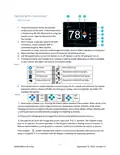
1. Connect to the thermostat in Bluetooth (Apple) and press the settings gear.
2. Select WIFI Setup from the settings window.
3. Enter the SSID (network name) and password (Both case sensitive).
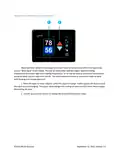
4. Press OK and the screen will return to the selection screen. The thermostat will reset and a
green WIFI symbol will appear on the thermostat screen if the connection was successful.
Updating the thermostat
Ensuring you have the latest thermostat software is key to having all the latest features.
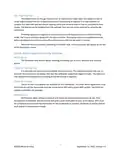
1. Ensure the thermostat is connected to WIFI with a green WIFI symbol.
2. Connect to the thermostat and press the settings gear, then tap Check for Updates.
3. Follow the prompts to update the thermostat or ensure that you already have the latest
software.
16
©2022 Micro-Air Corp
September 12, 2022, revision 1.5

| General | Details |
|---|---|
| Name | micro-Air EasyTouch 352 Thermostat User Manual |
| Make | Micro-Air |
| Language | English |
| Filetype | PDF (Download) |
| File size | 0.34 MB |
 (1 votes, average: 5.00 out of 5)
 Loading...

micro-air EasyTouch 357 Multi Zone Replacement Thermostat Instruction Manual

Micro-Air EasyTouch RV 353 Touch Screen Thermostat Instruction Manual

Micro-Air 359 Touchscreen Thermostat Instruction Manual

Micro-Air EasyTouch RV 353 Thermostat Instruction Manual

micro-Air EasyTouch RV 351 Thermostat User Manual

micro-air EasyTouch RV 356 True Air RV Thermostat User Manual

Micro Air ETRV EasyTouch RV Thermostat Instruction Manual

micro-Air ASY-357-X02 EasyTouch 357 Touchscreen Thermostat User Manual

Micro-Air EasyTouch 355 Touch Screen Thermostat User Manual

Micro-Air 351 Air Conditioner Digital Thermostat User Guide


OJ ELECTRONICS MWD5-1999-UAC3 Voice Control Wi-Fi Thermostat Instructions

GENERAL LIFE HT220 Digital Room Thermostat User Manual

GENERAL HT220S Digital Room Thermostat User Manual

tado TRV3 Smart Radiator Thermostat User Guide

WATTS BT-A03 RF Electronic Room Thermostat Installation Guide

GENERAL LIFE Mitra 230S RF Wireless Room Thermostat User Manual

Klima SF300 Digital Thermostat Instruction Manual

ENGO CONTROLS ESIMPLE230B 230V Simple Dial Thermostat User Guide

SALUS RT520TX Thermostat User Guide

GENERAL Life HT250 Wired Room Thermostat User Guide