
TCS SZ1051 Communicating Thermostat User Guide



Configuration
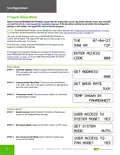
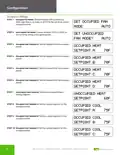
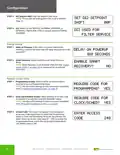
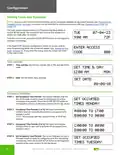
STEP 5 Copy Schedules: Select whether to copy the occupancy time
periods from the previous day. If you select YES, the settings
from the previous day’s Steps 2 and 3 will be copied to the
day shown and you will skip to the next day. If you select NO,
the screens for Occupancy Time Periods will appear, allowing
you to enter different schedules for that day. Repeat this
process for each day of the week.
COPY MON FOR
TUE?
NO
Holiday Occupancy Schedules
The SuperSTAT has two separate holiday occupancy groups (Holiday #1 and Holiday #2). Within each occupancy group
you can assign up to four occupancy time periods (A – D). After programming the occupancy time periods, you can then
assign them to multiple holidays. You can also configure the duration for each holiday schedule (in days).
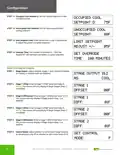
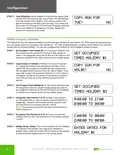
STEP 1 Set Occupied Times Holiday No. 1: This screen indicates that
the occupancy time periods for the first holiday group are
SET OCCUPIED
ready to be configured. Press the CLOCK SETUP button on the
keypad to advance to the setup screens for the holiday group.
TIMES HOLIDAY #1
STEP 2 Copy Sunday For Holiday 1: Holiday 1 gives you the option
COPY SUN FOR
HOL#1?
of copying the schedule from the previous Sunday. If you
select YES, the occupancy time periods from the previous
day (Sunday) will be copied and you will skip to Step 4. If you
select NO, screens for Occupancy Periods A – D (not shown)
will appear. As with the occupancy time periods for regular
days, You can enter up to four different occupancy time
periods.
NO
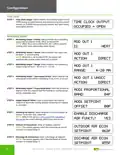
STEP 3 Set Occupied Times Holiday No. 2: This screen indicates that
the occupancy times for second holiday group are ready to
be configured. Press the CLOCK SETUP button on the keypad
to advance to the setup screens for the holiday group.
SET OCCUPIED
TIMES HOLIDAY #2
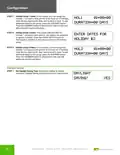
STEP 4 Occupancy Time Periods (1 of 2): Holiday 2 does not give
you the opportunity to copy occupancy time periods from a
regular day. Set hours and minutes (military time) for start
and stop times for occupancy periods A and B.
A:08:00 TO 17:00
B:00:00 TO 00:00
NOTE: Occupancy time periods with start and end times of
00:00 are inactive.
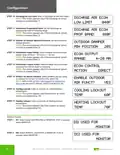
STEP 5 Occupancy Time Periods (2 of 2): Set hours and minutes
(military time) for start and stop times for occupancy periods
C and D.
C:00:00 TO 00:00
D:00:00 TO 00:00
STEP 6 Holiday Group 1 Dates: This screen indicates that the Holiday
1 occupancy time periods are ready to be assigned to
ENTER DATES FOR
HOLIDAY #1:
specific dates. Press the CLOCK SETUP button on the keypad
to advance to the setup screens for the holiday group.
12

| General | Details |
|---|---|
| Name | TCS SZ1051 Communicating Thermostat User Guide |
| Make | TCS |
| Language | English |
| Filetype | PDF (Download) |
| File size | 0.28 MB |
 (1 votes, average: 5.00 out of 5)
 Loading...


Danfoss TPOne-M Electronic Programmable Room Thermostat User Guide

HEATIT 54 304 59 DIN Smart Thermostat Installation Guide

GENERAL LIFE Mitra 260S RF Wireless Room Thermostat User Manual

HYSEN HY02DB-WIFI Wifi Plug In Thermostat User Manual

Drayton 2290M Mains Digital Room Thermostat User Manual

hager TX320 Room Thermostat User Manual

TFC Group WFSTAT Wi-Fi Thermostat Instructions

Roth Minishunt Plus Thermostat and Capillary Sensor Installation Guide

legrand WZ3TSTATH Thermostat Instruction Manual

sygonix 2522212 Installable Thermostat Instruction Manual