
Home > Robertshaw > Robertshaw RS10420T WIFI Programmable Thermostat User Guide
Robertshaw RS10420T WIFI Programmable Thermostat User Guide



Pro-Series
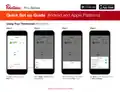
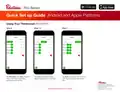
Quick Set up Guide Android and Apple Platforms
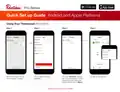
The following guide will enable you to set up your thermostat quickly. Configuration is set through WiFi networks, one being your home
network, the other programmed into the thermostat. Bluetooth is not used. Apple iOS is shown but is the same for Android set up and use.
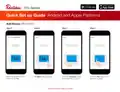
Add Device (RS10420T)
Step 1
Step 2
Step 3
Step 4
You can change
your thermostat
name later.
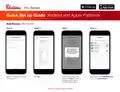
When launching the app the first
time, tap Create Account.
Complete the New Account fields.
Tap Sign up.
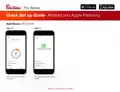
Enter your name and add your
image.
Tap + Add New Device at the
bottom.
Technical Service 800.445.8299


| General | Details |
|---|---|
| Name | Robertshaw RS10420T WIFI Programmable Thermostat User Guide |
| Make | Robertshaw |
| Language | English |
| Filetype | PDF (Download) |
| File size | 1.78 MB |
 (1 votes, average: 5.00 out of 5)
 Loading...

Robertshaw RS9220 Programmable Thermostat Installation Guide

Robertshaw RS8110 Non Programmable Thermostat Instruction Manual
Robertshaw RS8210 Thermostat Installation Guide

Robertshaw RS8210 Non-Programmable Multi-Stage 2H-1C Wall Thermostat User Manual

Robertshaw RS9220 Digital Programmable Wall Thermostat Instruction Manual

Robertshaw 9602 Programmable Thermostat User Manual

Robertshaw RS9320T Programmable Touchscreen Wall Thermostat Instruction Manual

Robertshaw RS9423T Thermostat Installation Guide

Robertshaw RTC500 WIFI Thermostat Instruction Manual

Robertshaw RS1110 Programmable 1 Heat 1 Cool Wall Thermostat Instruction Manual

Robertshaw RS10420T Manual: Questions and Answers
What does the green display on the Robertshaw RS10420T indicate?
The active thermostat displays the current temperature in green. User Guide, p. 5
How do I select Fan mode on the Robertshaw RS10420T?
Tap the Fan icon on the bottom menu. User Guide, p. 6
More Robertshaw thermostat manuals

OJ ELECTRONICS UTN5 OJ Microline Non Programmable Thermostat User Manual

Honeywell TH2320WF4011 FocusPRO Smart S200 Series Thermostat User Guide

SALUS iT500 Internet Thermostat Installation Guide

Danfoss ATF Clamp-On Pipe Mounting Frost Thermostat Installation Guide

PRAXISDIENST DZ 003 Dry Block Thermostat User Manual

Beca BHP-8000 C Room Thermostat User Guide

EMERSON ST75W Sensi Touch Wi-Fi Smart Thermostat Installation Guide

Honeywell 5000 Non Programmable Digital Thermostat User Guide

HEATIT Z-TRM6 Matt Z-Wave Thermostat User Guide

DELTA 8000 Heating Thermostat Instructions