
Micro-Air 359 Touchscreen Thermostat Instruction Manual












Thermostat Setup
Setting the Available Sources
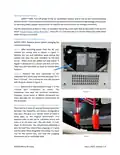
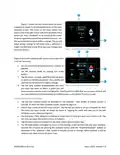
Press the settings button on the main screen.
Use the back and next buttons to locate the “switches” icon. Press the icon to configure the
modes from the available sources.
Press the icons to select or deselect the mode. A red circle with a line
through it will appear over the source when it is deselected.
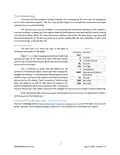
Gas Heat Override Enable/Disable
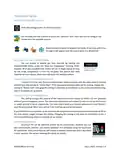
You can enable or disable gas heat override by tapping the
ENABLED
Enable/Disable button under the “Auto Gas Changeover” heading. When
Gas Heat Override
enabled, all of your available heat modes will act in stages based on how
Enable/Disable
far the inside temperature is from the set-point. See section Gas Heat
Override for more details. Most users will leave this setting enabled.
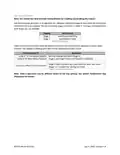
Valve Output: Active Heat/Active Cool
<Version 1.0.6.5 or later firmware> Most newer systems operate with the valve active in heating
and will have this setting on “Active heat”. If the heat pump operates when set for cooling, change this
setting to “Active Cool”. Changing this setting is only done on installation so this is not a troubleshooting
step in an already set up system.
Furnace output: Inverted/Normal
This setting changes the polarity of the EasyTouch furnace output to either +12 volt (positive)
active or ground (negative) active. This means the thermostat will output 12 volts to turn on the furnace
or output ground to do so, respectively. This must match what your furnace expects and is best found in
your furnace manual. Most users will set it for inverted, ground active output.
If you find the furnace operates all the time with the temperature in white or the thermostat set to off on
the main screen, toggle (change) this setting. Changing this setting is only done on installation so this is
not a troubleshooting step in an already set up system.
Connecting remotely
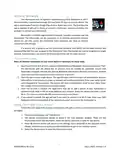
EasyTouch RV can be operated entirely by the touchscreen, however you can
also communicate, monitor, and modify operation of it wirelessly using the EasyTouch
RV application. Some extra features will require a wireless connection and is described
EasyTouch RV icon
7
©2023 Micro-Air Corp
July 3, 2023, revision 1.4

| General | Details |
|---|---|
| Name | Micro-Air 359 Touchscreen Thermostat Instruction Manual |
| Make | Micro-Air |
| Language | English |
| Filetype | PDF (Download) |
| File size | 0.5 MB |
 (1 votes, average: 5.00 out of 5)
 Loading...

micro-air EasyTouch 357 Multi Zone Replacement Thermostat Instruction Manual

Micro-Air EasyTouch RV 353 Touch Screen Thermostat Instruction Manual

Micro-Air EasyTouch RV 353 Thermostat Instruction Manual

micro-Air EasyTouch RV 351 Thermostat User Manual

Micro Air ETRV EasyTouch RV Thermostat Instruction Manual

micro-air EasyTouch RV 356 True Air RV Thermostat User Manual

micro-Air ASY-357-X02 EasyTouch 357 Touchscreen Thermostat User Manual

micro-Air EasyTouch 352 Thermostat User Manual

Micro-Air EasyTouch 355 Touch Screen Thermostat User Manual

Micro-Air 351 Air Conditioner Digital Thermostat User Guide


KeepRite TSTATIIEWF-01 Ion Gray Smart Thermostat Owner’s Manual

REPTIZOO TC04 Timing Thermostat Instruction Manual

Expert4house BHT-9000 Smart Knob Thermostat User Guide

ENSTO ECO16BT-EX Floor Heating Thermostat User Guide

TELUS Battery for Smart Thermostat Instructions

TotalHome TTHWP Wireless Programmable Thermostat Installation Guide

DAIKIN IM 1368 Vertical Stack WSHP Thermostat Instruction Manual

GENERAL LIFE FH100S Floor Heating Room Thermostat User Manual

heatmiser neoStat-Pro Smart Thermostat Instruction Manual

PRO T755 Universal Thermostat Installation Guide