Home > Schluter Systems > Schluter Systems DITRA-HEAT-E-RS1 Floor Warming Thermostat User Guide
×
- 1. Control Your Ditra-heat-e-rs1 Smart Thermostat With Amazon Alexa (Control Your Ditra-heat-e-rs1 Smart Thermostat With Google Assistant → Control Your Ditra-heat-e-rs1 Smart Thermostat With Apple Homekit)
- 2. Add Your Ditra-heat-e-rs1 Thermostat To Amazon Alexa (Download The Amazon Alexa App → Select Connected Platforms From The Schluter App Home Screen)
- 3. Amazon Alexa
- 4. Accept Alexas Request For Permission To Access Your Device And Click On Link. (Click On Allow When Asked If You Want To Grant Amazon Alexa Permission To Control Your Ecosystem. → Shortly After, The Schluter Smart Thermostat App Will Confirm The Association Was A Success. Click On Finish.)
- 5. How To Connect Your Ditra-heat-e-rs1 Thermostat To Amazon Alexa (Schluter Smart Thermostat App → Create An Account → Connect Your Device)
- 6. Click The Thermostats Tile In The Amazon Alexa App And Control Its Setpoint And Also Give Voice Commands To Alexa.
- 7. Discover The Commands For Amazon Alexa (Commands For Reporting Current Thermostat Setting → Commands For Setting The Thermostat)
- 8. Hey Google Icon And Click On Connect. You Will Be Prompted To Open From A Browser Or The Google Home App. Select The Google Home App.
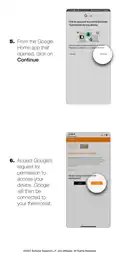
- 9. From The Google Home App That Opened, Click On Continue. Google Home Requests Access To Control And Monitor Your Schluter Ecosystem (schlute…
- 10. How To Connect Your Ditra-heat-e-rs1 Thermostat To Google Assistant (Connecting Your Device → Schluter Smart Thermostat App)
- 11. Tap Works With Google (In The Search Field, Enter Schluter Thermostat And Select It. → Follow The On-screen Steps: Enter Your Login Information, Then Grant Access.)
- 12. The Thermostat (When Your Thermostat Is Connected To The App And Has Been Configured In Google Home, You Can Control It With Google Assistant.)
- 13. Discover The Commands For Google Assistant (Commands For Reporting Current Thermostat Setting → Commands For Setting The Thermostat)
- 14. Refer To The Apple Homekit Pamphlet That Is Included In The Product Packaging And Scan The Apple Homekit Qr Code.
- 15. Select The Room In Which The Device Is Installed (The Installation Is Completed → Please Note That A Hub Is Required To Access Devices Remotely)
×
Schluter Systems DITRA-HEAT-E-RS1 Floor Warming Thermostat User Guide
| General | Details |
|---|---|
| Name | Schluter Systems DITRA-HEAT-E-RS1 Floor Warming Thermostat User Guide |
| Make | Schluter Systems |
| Language | English |
| Filetype | PDF (Download) |
| File size | 2 MB |


Munters RDT-5 Triple Phase Digital Thermostat User Manual

EUROTRONIC COMET Programmable Energy Saving Radiator Thermostat User Manual

Agatige MH1823 Intelligent Thermostat User Guide

Dettson 2-Stage WiFi Thermostat R02P033 Owner’s Manual

Danfoss RAS-C2 Radiator Thermostat Installation Guide

MOES BHT-006 Series Smart Heating Thermostat User Manual

EZAIoT R7C RGB Colorful LCD Screen Thermostat User Manual

Amber DT-two Programmable Thermostat User Guide

YETI YET-53 Smart Heating Thermostat User Manual

beok BOT-323W Room Thermostat Instruction Manual
Table of Contents
- 1. Control Your Ditra-heat-e-rs1 Smart Thermostat With Amazon A... →
- 2. Add Your Ditra-heat-e-rs1 Thermostat To Amazon Alexa - Downl... →
- 3. Amazon Alexa →
- 4. Accept Alexas Request For Permission To Access Your Device A... →
- 5. How To Connect Your Ditra-heat-e-rs1 Thermostat To Amazon Al... →
- 6. Click The Thermostats Tile In The Amazon Alexa App And Contr... →
- 7. Discover The Commands For Amazon Alexa - Commands For Report... →
- 8. Hey Google Icon And Click On Connect. You Will Be Prompted T... →
- 9. From The Google Home App That Opened, Click On Continue. Goo... →
- 10. How To Connect Your Ditra-heat-e-rs1 Thermostat To Google As... →
- 11. Tap Works With Google - In The Search Field, Enter Schluter ... →
- 12. The Thermostat - When Your Thermostat Is Connected To The Ap... →
- 13. Discover The Commands For Google Assistant - Commands For Re... →
- 14. Refer To The Apple Homekit Pamphlet That Is Included In The ... →
- 15. Select The Room In Which The Device Is Installed - The Insta... →