× 1. Control Your Ditra-heat-e-rs1 Smart Thermostat With Amazon Alexa (Control Your Ditra-heat-e-rs1 Smart Thermostat With Google Assistant → Control Your Ditra-heat-e-rs1 Smart Thermostat With Apple Homekit) 2. Add Your Ditra-heat-e-rs1 Thermostat To Amazon Alexa (Download The Amazon Alexa App → Select Connected Platforms From The Schluter App Home Screen) 3. Amazon Alexa 4. Accept Alexas Request For Permission To Access Your Device And Click On Link. (Click On Allow When Asked If You Want To Grant Amazon Alexa Permission To Control Your Ecosystem. → Shortly After, The Schluter Smart Thermostat App Will Confirm The Association Was A Success. Click On Finish.) 5. How To Connect Your Ditra-heat-e-rs1 Thermostat To Amazon Alexa (Schluter Smart Thermostat App → Create An Account → Connect Your Device) 6. Click The Thermostats Tile In The Amazon Alexa App And Control Its Setpoint And Also Give Voice Commands To Alexa. 7. Discover The Commands For Amazon Alexa (Commands For Reporting Current Thermostat Setting → Commands For Setting The Thermostat) 8. Add Your Ditra-heat-e-rs1 9. Hey Google Icon And Click On Connect. You Will Be Prompted To Open From A Browser Or The Google Home App. Select The Google Home App. 10. From The Google Home App That Opened, Click On Continue. Google Home Requests Access To Control And Monitor Your Schluter Ecosystem (schlute… 11. How To Connect Your Ditra-heat-e-rs1 Thermostat To Google Assistant (Connecting Your Device → Schluter Smart Thermostat App) 12. Tap Works With Google (In The Search Field, Enter Schluter Thermostat And Select It. → Follow The On-screen Steps: Enter Your Login Information, Then Grant Access.) 13. The Thermostat (When Your Thermostat Is Connected To The App And Has Been Configured In Google Home, You Can Control It With Google Assistant.) 14. Discover The Commands For Google Assistant (Commands For Reporting Current Thermostat Setting → Commands For Setting The Thermostat) 15. Ipados Is Recommended. Controlling This Homekit-enabled Accessory (Software And Operating System) 16. Refer To The Apple Homekit Pamphlet That Is Included In The Product Packaging And Scan The Apple Homekit Qr Code. 17. Select The Room In Which The Device Is Installed (The Installation Is Completed → Please Note That A Hub Is Required To Access Devices Remotely) 18. Apple, Apple Home, Homekit, Homepod, Homepod Mini, Ipad, (Other Countries)
Close
Schluter Systems DITRA-HEAT-E-RS1 Floor Warming Thermostat User Guide
6. The thermostat
device(s) that
are connected
to the app will
be displayed on
screen. You will
need to select each
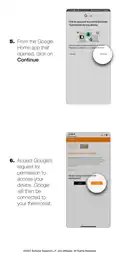
thermostat, assign
them to a home,
and then select the
room where they
are installed.
7. When your
thermostat is
connected to
the app and has
been configured in
Google Home, you
can control it with
Google Assistant.
©2022 Schluter Systems L.P. and affi liates. All Rights Reserved.
General Details Name Schluter Systems DITRA-HEAT-E-RS1 Floor Warming Thermostat User Guide Make Schluter Systems Language English Filetype PDF (Download) File size 2 MB
Download PDF Loading...




 Loading...


