Home > Schluter Systems > Schluter Systems DITRA-HEAT-E-RS1 Floor Warming Thermostat User Guide
×
- 1. Control Your Ditra-heat-e-rs1 Smart Thermostat With Amazon Alexa (Control Your Ditra-heat-e-rs1 Smart Thermostat With Google Assistant → Control Your Ditra-heat-e-rs1 Smart Thermostat With Apple Homekit)
- 2. Add Your Ditra-heat-e-rs1 Thermostat To Amazon Alexa (Download The Amazon Alexa App → Select Connected Platforms From The Schluter App Home Screen)
- 3. Amazon Alexa
- 4. Accept Alexas Request For Permission To Access Your Device And Click On Link. (Click On Allow When Asked If You Want To Grant Amazon Alexa Permission To Control Your Ecosystem. → Shortly After, The Schluter Smart Thermostat App Will Confirm The Association Was A Success. Click On Finish.)
- 5. How To Connect Your Ditra-heat-e-rs1 Thermostat To Amazon Alexa (Schluter Smart Thermostat App → Create An Account → Connect Your Device)
- 6. Click The Thermostats Tile In The Amazon Alexa App And Control Its Setpoint And Also Give Voice Commands To Alexa.
- 7. Discover The Commands For Amazon Alexa (Commands For Reporting Current Thermostat Setting → Commands For Setting The Thermostat)
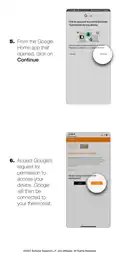
- 8. Hey Google Icon And Click On Connect. You Will Be Prompted To Open From A Browser Or The Google Home App. Select The Google Home App.
- 9. From The Google Home App That Opened, Click On Continue. Google Home Requests Access To Control And Monitor Your Schluter Ecosystem (schlute…
- 10. How To Connect Your Ditra-heat-e-rs1 Thermostat To Google Assistant (Connecting Your Device → Schluter Smart Thermostat App)
- 11. Tap Works With Google (In The Search Field, Enter Schluter Thermostat And Select It. → Follow The On-screen Steps: Enter Your Login Information, Then Grant Access.)
- 12. The Thermostat (When Your Thermostat Is Connected To The App And Has Been Configured In Google Home, You Can Control It With Google Assistant.)
- 13. Discover The Commands For Google Assistant (Commands For Reporting Current Thermostat Setting → Commands For Setting The Thermostat)
- 14. Refer To The Apple Homekit Pamphlet That Is Included In The Product Packaging And Scan The Apple Homekit Qr Code.
- 15. Select The Room In Which The Device Is Installed (The Installation Is Completed → Please Note That A Hub Is Required To Access Devices Remotely)
×
Schluter Systems DITRA-HEAT-E-RS1 Floor Warming Thermostat User Guide
| General | Details |
|---|---|
| Name | Schluter Systems DITRA-HEAT-E-RS1 Floor Warming Thermostat User Guide |
| Make | Schluter Systems |
| Language | English |
| Filetype | PDF (Download) |
| File size | 2 MB |


STELPRO STCP Floor Heating Thermostat Multiple Programming User Guide

Honeywell PCR-100 Electronic thermostat Instruction Manual

ENGO E55W230WIFI Wi-Fi Thermostat User Guide

hager 20441404 Thermostat Owner’s Manual

DEVIreg Electronic Intelligent Timer Thermostat Installation Guide

Micro-Air EasyTouch 355 Touch Screen Thermostat User Manual

COMAP L151002001 Smart Home Thermostat User Manual

BEOK TGP508 Vertical Buttons Underfloor Heating Thermostat User Guide

KCONTR K6HWIFI WiFi Smart Thermostat User Guide

HBX THM-0100 Programmable Thermostat Instruction Manual
Table of Contents
- 1. Control Your Ditra-heat-e-rs1 Smart Thermostat With Amazon A... →
- 2. Add Your Ditra-heat-e-rs1 Thermostat To Amazon Alexa - Downl... →
- 3. Amazon Alexa →
- 4. Accept Alexas Request For Permission To Access Your Device A... →
- 5. How To Connect Your Ditra-heat-e-rs1 Thermostat To Amazon Al... →
- 6. Click The Thermostats Tile In The Amazon Alexa App And Contr... →
- 7. Discover The Commands For Amazon Alexa - Commands For Report... →
- 8. Hey Google Icon And Click On Connect. You Will Be Prompted T... →
- 9. From The Google Home App That Opened, Click On Continue. Goo... →
- 10. How To Connect Your Ditra-heat-e-rs1 Thermostat To Google As... →
- 11. Tap Works With Google - In The Search Field, Enter Schluter ... →
- 12. The Thermostat - When Your Thermostat Is Connected To The Ap... →
- 13. Discover The Commands For Google Assistant - Commands For Re... →
- 14. Refer To The Apple Homekit Pamphlet That Is Included In The ... →
- 15. Select The Room In Which The Device Is Installed - The Insta... →