
Micro-Air EasyTouch RV 353 Touch Screen Thermostat Instruction Manual







Smart-Device Application Features
Restart Thermostat
This Bluetooth only feature allows resetting the display just as if you removed and restored power.
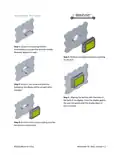
Calibrate Touchscreen
It is normally not necessary to recalibrate the touchscreen. This selection prompts the user to
press the four corners of the display then test the calibration using three diagonal marks. This feature is
only available from Bluetooth as being at the thermostat is required.
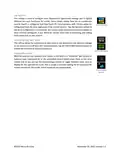
Check for Updates
Checks to see if any updates are available for the thermostat. The smart device application must
have internet and the thermostat must be connected to Wi-Fi with a green Wi-Fi symbol. Tap Check for
Updates and follow the prompts.
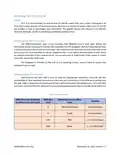
Notifications
Notifications provide a way for the user to monitor the temperature in the space using notification
limits. Limits are set by connecting to the thermostat in the app, selecting the settings gear, and then
example of operation with an 80°F maximum temperature set. Notification will be sent for each degree it
rises above the maximum temperature. If temperature drops, no notification will be sent unless the
temperature exceeds the last maximum temperature again (82 in the example). If the temperature drops
two degrees below the set maximum, (78 in the example) it will again alert for each degree above the set
maximum. This behavior helps avoid nuisance notifications to your smart device.
Temperature (°F)
Action
80
81
Send first notification
Send another notification
Send another notification
Temperature drops, no
notification
82
81…79
78
Max temp resets
Table 10 - Push Notifications Operation Example
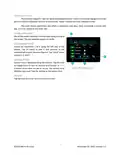
Edit Wi-Fi Settings or Connect to Wi-Fi
This is where you will make the connection from the thermostat to the internet. See section
Connecting to a New Wi-Fi Network for details on how to use this feature. The app must be connected
to the thermostat over Bluetooth to see this option.
18
©2022 Micro-Air Corp
November 22, 2022, revision 1.2

| General | Details |
|---|---|
| Name | Micro-Air EasyTouch RV 353 Touch Screen Thermostat Instruction Manual |
| Make | Micro-Air |
| Language | English |
| Filetype | PDF (Download) |
| File size | 0.42 MB |
 (1 votes, average: 5.00 out of 5)
 Loading...

micro-air EasyTouch 357 Multi Zone Replacement Thermostat Instruction Manual

Micro-Air 359 Touchscreen Thermostat Instruction Manual

Micro-Air EasyTouch RV 353 Thermostat Instruction Manual

micro-Air EasyTouch RV 351 Thermostat User Manual

Micro Air ETRV EasyTouch RV Thermostat Instruction Manual

micro-air EasyTouch RV 356 True Air RV Thermostat User Manual

micro-Air ASY-357-X02 EasyTouch 357 Touchscreen Thermostat User Manual

micro-Air EasyTouch 352 Thermostat User Manual

Micro-Air EasyTouch 355 Touch Screen Thermostat User Manual

Micro-Air 351 Air Conditioner Digital Thermostat User Guide


NEOMITIS RTE0RFA Wireless Digital Room Thermostat and Receiver Instruction Manual

White-Rodgers 1F83-277 Heating & Air Conditioning Auto Changeover Heat Pump Thermostat User Manual

YOLINK YS4003-UC Smart Thermostat User Guide
STELPRO UT202NP Series Non-Programmable Electric Thermostat Owner’s Manual

UNIWATT UT202NP Series Non Programmable Electronic Thermostat Owner’s Manual

EPH CONTROLS 20221108 RF Cylinder Thermostat Instruction Manual

sensi 1F96U-42WF Series Touch 2 Smart Thermostat Installation Guide

Puravent CFST Frost Thermostat Installation Guide

SALUS iT500 Internet Thermostat Installation Guide

KETOTEK LL0269 WiFi Digital Heating Thermostat User Manual