
heatmiser neoStat-Pro Smart Thermostat Instruction Manual













•
•
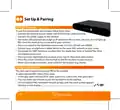
When the neoStat PRO successfully connects to the neoHub the MESH symbol will be
permanently displayed and a confirmation will show on the app.
In the app, press ADD ANOTHER for addtional zones or press FINISH to complete setup.
Please note, you only have to pair the hub to your account once.
To pair any additional neoStats, select ZONES, edit, then ADD ZONE.
What is a Mesh Network
NeoStats work using a mesh network, meaning neoStats have the ability to send &
receive signals via other thermostats on the network. This signal is relayed from one
thermostat to another until it reaches its destination. This communication method
extends the communication range whilst offering increased network stability when
compared with standard RF thermostats.
The Mesh symbol is shown when the device is communicating with the neoHub, if the
mesh symbol disappears this indicates connection to the neoHub has been lost.
Approach Sensor
The neoStat PRO uses proximity to detect when you are about to use the touch
keys. As you approach the neoStat, the touch keys and backlight will light up.
This can be useful if you need to adjust the set temperature in a dark room.
neo
8

| General | Details |
|---|---|
| Name | heatmiser neoStat-Pro Smart Thermostat Instruction Manual |
| Make | heatmiser |
| Language | English |
| Filetype | PDF (Download) |
| File size | 0.52 MB |
 (1 votes, average: 5.00 out of 5)
 Loading...

heatmiser neoStat Touch-e Touchscreen Electric Floor Heating Thermostat Owner’s Manual

heatmiser Slimline-RF V3 Programmable Wireless Thermostat Instructions

heatmiser DS1-V2 Thermostat Owner’s Manual

heatmiser neoStat-e Electric Floor Heating Thermostat Instructions

heatmiser Slimline-B V3 Programmable Room Thermostat Owner’s Manual


Owon Technology PCT 523-W-TY Tuya WiFi 24VAC Thermostat User Guide

beca BAC-005 Series Thermostat User Guide

Danfoss TP5001B Programmable Room Thermostat User Guide

REPTO R3300030 Smart Thermostat Instruction Manual

TELUS ASSORTED Smart Thermostat User Manual

Honeywell PRO 1000 Series Non-Programmable Thermostat Instruction Manual

SITERWELL GS368 Smart Programmable Thermostat User Manual

BOSCH BCC110 Connected Control Thermostat Instruction Manual

Danfoss VIMCB20F Icon2 / 24V On Wall Mount Room Thermostat Installation Guide

Danfoss CAS 178 Thermostat Installation Guide