
ELDOM NHC-RHN-WiFi Electronic Thermostat User Manual















EN
EN
WARNING! This guide is an integral part of the manual where working with the electronic thermostat (electronic control
board) is described.
Connecting is optional and is not obligatory fornormaloperation of the appliance!
CONNECTING THE WIFI MODULE TO THE INTERNET
Terms used in this gude are:
џ „module“ -The WiFi module of theelectronic thermostat (electronic control board) of theappliance.
џ „regulator“- theelectronic thermostat (electronic control board) of theappliance.
џ „device“ - smartphone, tablet, or laptop that is used to connect the WiFi module to the Internet and for its subsequent
management and monitoring.
џ „WiFinetwork“ - wireless network (WiFi) created from the module.
џ „internet network“ - the desired wireless network you want to connect the module to. It is created by a router / modem, must be
connected to the Internet and should be located near the location where the appliance is located.
џ „system“ -Internet-based remote management and monitoring system My Eldom.
ATTENTION!Thebuilt-in module is controlled by the regulator!
ATTENTION! Connecting the module to the Internet is necessary to enable the appliance to be controlled and to monitor its operation
remotely!
ATTENTION! To connect the module to the Internet and to remotely control and monitor the operation of the appliance, a device is
required on which the application My Eldom should be installed from Google Play orApp Store, or use the QR codes at the end of this
book.
ATTENTION! To connect the module to the system, the module must be connected to an Internet network, and the router / modem that
creates this networkmust have a 32006TCPpacket output portenabled.
ATTENTION! The module can only be connected to an internet network that has letters, numbers, an "underscore" or a "dash" symbol
in its name. No other characters, such as spaces, are allowed!
ATTENTION! If the internet network has WEP encoding, the password will need to be entered using the appropriate hexadecimal
number representing each letter.
ATTENTION! If you enter wrong password or name when connecting to the internet network, you may need to enter them right two
times in a row in order to connect the module to the Internet. Before each entry, you must create a WiFi network by the module.
Connecting the module to the Internet takes place in 3 main steps. Subsequent remote control and monitoring of the appliance work is
made through the system.
STEP1. CREATEAWIFI NETWORK FROM THE MODULE
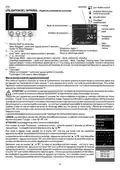
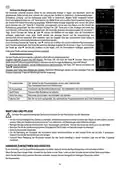
1 Enter the "New WiFi Net." menu and turn the module intoAPmode using the (OK) button.
џ The name of the created WiFi network from the module, on the illustration above is:NAT-AP-XXX
STEP 2. CONNECT THE DEVICE TO THE MODULE
1 Disconnect the device from the Internet:
џ If your device (smartphone or tablet) has "mobile data" turned on, turn it off.
џ If the device is a computer / laptop and its Internet connection is via a cable or mobile device - disconnect (remove) them.
2 Activate the GPS device location service.
3 Enable the WiFi module of the device, and connect it to the WiFi network created from the module.
џ If the device does not find the WiFi network created from the module, repeat step 1 or restart the device's WiFi module (turn
it off and then turn it on again).
џ If your device asks if you want to stay connected to the WiFi network created by the module, even though it is not connected
to the Internet - stay connected.
STEP3. CONNECT THE MODULE TO THE INTERNETUSING THE DEVICE
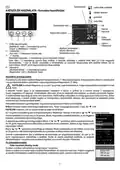
1 Launch the app and fill in the fields in theSettings tab.
If a message appears "Application connected to modem!", Click OK.
connection
Access Code
џ Field WiFi Network:the name of the internet network.
џ Field Password:the password of the internet network.
џ Field AccessCode: the access code to the module - last 4 symbols from the ID field of the
additional information display regarding WiFi connections of the regulator.
џ Field Security:the type of theencoding of the internet network.
џ Field Nearby Networks:the Internet networks found by the module.
4

| General | Details |
|---|---|
| Name | ELDOM NHC-RHN-WiFi Electronic Thermostat User Manual |
| Make | ELDOM |
| Language | English |
| Filetype | PDF (Download) |
| File size | 2.08 MB |
 (1 votes, average: 5.00 out of 5)
 Loading...


BEOK CONTROLS TGW60 Touch Screen Boiler Thermostat User Guide

vtech Installing E-Smart W960 Thermostat User Manual

Fudajo 52429 Chick Heating Plate with Thermostat Instruction Manual

LATICRETE 0804-0402-TW Programmable LCD Thermostat Instruction Manual

VIMAR 02912 Wi-Fi Thermostat Instruction Manual

stelpro STZB402+ ELECTRONIC THERMOSTAT FOR THE SMART HOME User Guide

TIOEVO0003 TEVO Wireless Thermostat User Manual

MYSON Unisenza Dial Thermostat User Manual

BEOK BOT-R7X Wireless Gas Boiler Heating Thermostat Instruction Manual

BEOK TGW60 Wifi Heating Thermostat Instruction Manual