
ELDOM NHC-RHN-WiFi Electronic Thermostat User Manual















EN
EN
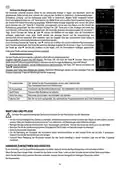
NOTE In the drop-down menu of the Nearby Networks box, the internet networks found by the module are listed. The drop-
down menu unfolds by clicking on it. The signal level (Signal) received by the module is also displayed for each of the listed
internet networks. Because the levels are negative, the smaller number means that the signal is better. The module can
work well with a signal with number below 70. Signal levels above -80dBm are not recommended for use. In this case,
move the router / modem of the internet network closer to the appliance or plug in an additional router or amplifier.
If the internet network is in the drop-down list of Nearby Networks and you select it, its log in data (without its password in
the Password field and the access code in Access Code field) is filled in automatically. The password in the Password
field and the access code in Access Code field must be entered manually. If you connected the appliance to the internet
network before, the password is filled in automatically (there may be no indication in thePasswordfield).
If the module does not find the desired internet network or the network is hidden for it, you will need to enter the data in the
fields.
2 Click SEND
Depending on entered data in the fields, the following messages may be displayed:
џ Application connected to modem -the device and the module are connected
џ Information is send to modem-The information is sent to the module
џ Incorrect access code- Wrong access code of the module
џ Network connection is reset!.
џ Application cannot connect to device’s modem. Please reconnect to device access point and try again! - the device can
not connect to the module. Please reconnectthe device to the module WiFi networkagain and try again.
џ Network set successfully
If the fields are filled in correctly:
џ Within a few seconds, the WiFi network created from the module will shut down and the device connected to it will be able to
connect to another network (by default) or stay not connected to a network.
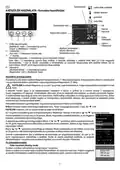
џ The symbol for Internet connection Dwill appear on the regulator display. This means that you have successfully connected
the module to the Internet! Go to the next chapter.
ADDING THE CONNECTED TO THE INTERNET WIFI MODULE IN THE REMOTE
CONTROLAND MONITORING SYSTEM MYELDOM
Once you have connected the module to the Internet (you must see the Internet connection iconDon the regulator display)
1 Login - type: myeldom.com into the device's browser address field or use the downloaded application. E-mail and password
are used for login into the system.
NOTEForgotten password can restored it by clicking "Forgotten Password“
џ Register new user. If you are not registered for the system, you must do so - click "Register as new user", fill in the fields
and activate your account (profile) from the message you will receive at the e-mail you entered upon registration.
2 Once you have logged in, add the connectedto theinternet module using the „+"button.
џ It is necessary to enter the identifier (ID) of the appliancemodule and press the "Add“ button.
NOTEOne module can only be added to one account.
NOTE If you want to add a module that is added to another account, a message will appear:Device is already added by another user!
You must remove it by "Remove" or share it through "Grant access" from the other account.
NOTE You can control and / or monitor the appliance operation remotely via its Internet connected module only from the account that it
is added to. If for some reason you do not know which this account is, you should control and / or monitor the operation of the appliance
in the conventional manner described in the instructionsbooklet forinstallation and use (which is an integral part of thisguide).
3 Once you add themodule you can remotely controltheappliance and monitor its work.
џ Detailed help instructions for operating with the system will be found after logging in with your account - button "?"
5

| General | Details |
|---|---|
| Name | ELDOM NHC-RHN-WiFi Electronic Thermostat User Manual |
| Make | ELDOM |
| Language | English |
| Filetype | PDF (Download) |
| File size | 2.08 MB |
 (1 votes, average: 5.00 out of 5)
 Loading...


BROUWLAND Brew Monk Fermenter Digital Thermostat Instruction Manual

Honeywell RTH230B Thermostat Installation Guide

RET-230-HC-3 Electronic Heat Cool Thermostat User Manual

bryant SYSTXBBECC01-C Evolution Connex Control Thermostat Owner’s Manual

Chytre Vypinace HC-T020-EWF Series Wireless Thermostat User Manual

heatit ET-7AW Touchscreen Programmable Thermostat User Manual

sinope Smart Floor Heating Thermostat TH1310WF Installation Guide

White Rodgers 1F85-0422 Blue Universal Thermostat Instruction Manual

HYSEN HY312 Wi-Fi Digital Heating Thermostat Instruction Manual

GENERAL Life ARUNA 300S RF Wireless Room Thermostat User Guide