
Drayton Wiser Smart Room Thermostat Instruction Manual


Introducing Wiser, the beautifully simple
multi-zone heating system from Drayton.
Download and open the app by searching Wiser Home then follow
the onscreen instructions to help guide you through this set up.
Skip
2. Connect your Wiser
HubR to your Wi-Fi
1. Connect your phone to
the Wiser HubR
3. Create your account
• Connect to your home Wi-Fi
press NEXT
Finally, follow the
on-screen instructions:
• Select Get started
• Select the HubR
and press Setup on the
HubR once
• Select your home Wi-Fi and
enter your password then
you’re connected
• Add your name, email address
and create a password
• Navigate to the Wi-Fi settings
and select the network
called Wiser
• Verify the account from the
email you receive
Once connected you will see an
“Add Devices” screen. As your
devices have already been set up
by installer it’s very important to
tap SKIP here
• Return to the app and add
your home details
(You will see no network
connection or network
unstable this it perfectly
normal and expected)
• Return to the app and your
connection is confirmed
Before you go any further...
!
Ensure the green light on your
Hub is a steady green which can
take up to 5 minutes. After this
time, if it continues to flash or
show any other colour, please cal
Tech Support on 0333 6000622
l
Also ensure your phone is
connected to the same Wi-Fi
network you just connected
your Hub to


| General | Details |
|---|---|
| Name | Drayton Wiser Smart Room Thermostat Instruction Manual |
| Make | Drayton |
| Language | English |
| Filetype | PDF (Download) |
| File size | 0.52 MB |
 (1 votes, average: 5.00 out of 5)
 Loading...

Drayton RF902 Digistat 3rd Generation Wireless 2-Channel Programmable Thermostat Installation Guide

Drayton 2290M Digistat 3rd Generation Programmable Room Thermostat Installation Guide
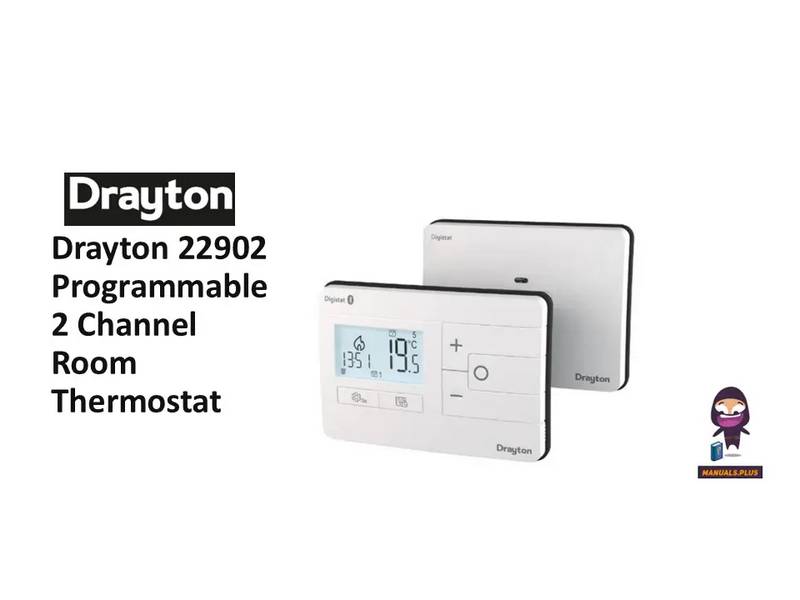
Drayton 22902 Programmable 2 Channel Room Thermostat Installation Guide

Drayton RF710 Digital Wireless Room Thermostat Installation Guide

Drayton 2290M Mains Digital Room Thermostat User Manual

Drayton Wiser Manual: Questions and Answers
What does the green light on Drayton Wiser Hub mean?
A steady green light indicates your Hub is connected to Wi-Fi. The light can take up to 5 minutes to become steady after setup. If it continues to flash or shows another colour, call Tech Support. Instruction Manual, p. 1
Can I set different heating schedules for each room in Drayton Wiser?
Yes. Each room with a Wiser device has its own independent schedule. You can define a different schedule for each day, each room, or groups of rooms, with up to 8 events per day. Instruction Manual, p. 2
More Drayton thermostat manuals

Sygonix SY-6052180 Wi-Fi Thermostat Instruction Manual

GENERAL LIFE FH252S Underfloor Heating Thermostat User Manual

WHITE-RODGERS 1F51N-619 Low Voltage Evaporative Cooler Thermostat Instruction Manual

MoesGo 002 Series Wi-Fi Thermostat Instruction Manual

Fantini Cosmi CH141E Battery Operated Weekly Programming Thermostat Owner’s Manual

GEWiSS GW 10 794H KNX Timed Thermostat Instruction Manual

Amana MMW-2 Horizontal Digital Wireless non EMS Wall Thermostat Instruction Manual

NEOMITIS RTE0RFA Wireless Digital Room Thermostat and Receiver Instruction Manual

GENERAL LIFE Senna 270S RF Wireless Room Thermostat User Manual

SALUS AT10 Contact Thermostat User Manual