
Drayton Wiser Smart Room Thermostat Instruction Manual


Introducing Wiser, the beautifully simple
multi-zone heating system from Drayton.
Download and open the app by searching Wiser Home then follow
the onscreen instructions to help guide you through this set up.
Skip
2. Connect your Wiser
HubR to your Wi-Fi
1. Connect your phone to
the Wiser HubR
3. Create your account
• Connect to your home Wi-Fi
press NEXT
Finally, follow the
on-screen instructions:
• Select Get started
• Select the HubR
and press Setup on the
HubR once
• Select your home Wi-Fi and
enter your password then
you’re connected
• Add your name, email address
and create a password
• Navigate to the Wi-Fi settings
and select the network
called Wiser
• Verify the account from the
email you receive
Once connected you will see an
“Add Devices” screen. As your
devices have already been set up
by installer it’s very important to
tap SKIP here
• Return to the app and add
your home details
(You will see no network
connection or network
unstable this it perfectly
normal and expected)
• Return to the app and your
connection is confirmed
Before you go any further...
!
Ensure the green light on your
Hub is a steady green which can
take up to 5 minutes. After this
time, if it continues to flash or
show any other colour, please cal
Tech Support on 0333 6000622
l
Also ensure your phone is
connected to the same Wi-Fi
network you just connected
your Hub to


| General | Details |
|---|---|
| Name | Drayton Wiser Smart Room Thermostat Instruction Manual |
| Make | Drayton |
| Language | English |
| Filetype | PDF (Download) |
| File size | 0.52 MB |
 (1 votes, average: 5.00 out of 5)
 Loading...

Drayton RF902 Digistat 3rd Generation Wireless 2-Channel Programmable Thermostat Installation Guide

Drayton 2290M Digistat 3rd Generation Programmable Room Thermostat Installation Guide
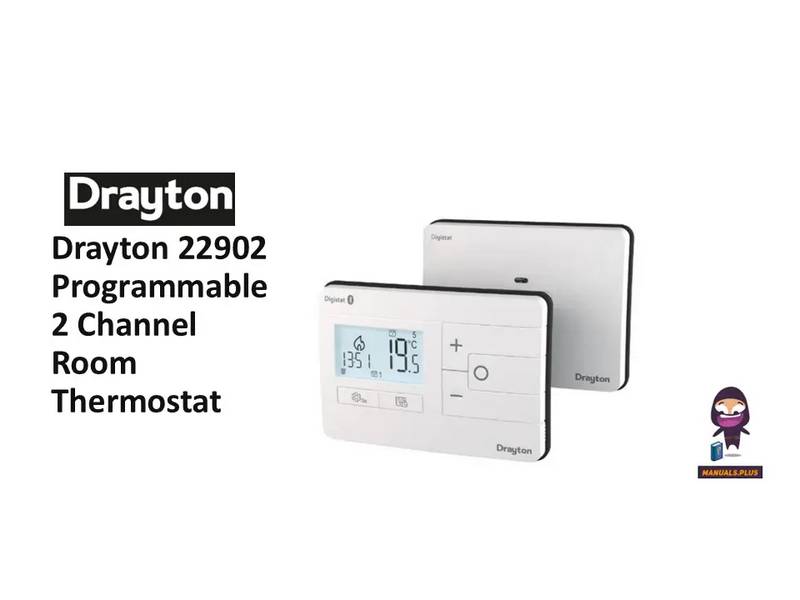
Drayton 22902 Programmable 2 Channel Room Thermostat Installation Guide

Drayton RF710 Digital Wireless Room Thermostat Installation Guide

Drayton 2290M Mains Digital Room Thermostat User Manual


New Zealand Thermostat Underline Heating Kit User Guide

COPELAND 1F86-0244 Blue 2 Inch Single Stage Thermostat Instruction Manual

SECURE radbot 1 Intelligent Radiator Thermostat Instruction Manual

EMERSON 1F87U-42WF Sensi Smart Thermostat User Guide

LAE AC1-2W Digital Thermostat Instruction Manual

ELKO EKO50107, EKO50108 Matter Thermostat Installation Guide

OJ ELECTRONICS MCD5 Touch Thermostat Instructions

Jung FTR231 Floor Thermostat Instruction Manual

Vtech E-Smart W960 Thermostat Instruction Manual

HTS HY02TP Programmable Plug In Thermostat User Manual