Home > BEOK CONTROLS > BEOK CONTROLS TS4-EP Series Thermostat Instruction Manual
BEOK CONTROLS TS4-EP Series Thermostat Instruction Manual
| General | Details |
|---|---|
| Name | BEOK CONTROLS TS4-EP Series Thermostat Instruction Manual |
| Make | BEOK CONTROLS |
| Language | English |
| Filetype | PDF (Download) |
| File size | 0.26 MB |

BEOK CONTROLS TDR83 WiFi Heating Thermostat User Guide

BEOK CONTROLS TCR7 IPS Colorful LCD Screen Smart Thermostat Owner’s Manual

BEOK CONTROLS BOT-R7X Wireless Gas Boiler Heating Thermostat Instructions

BEOK CONTROLS TCR8 IPS Colorful LCD Screen Smart Thermostat Owner’s Manual

BEOK CONTROLS TDR89 Thermostat User Guide

BEOK CONTROLS TGW60 Touch Screen Boiler Thermostat User Guide

BEOK CONTROLS TGR86 WiFi Thermostat User Guide

BEOK CONTROLS BOT-323W Series Boiler Thermostat Instruction Manual

BEOK CONTROLS TDS72 Digital Screen Thermostat Instruction Manual

BEOK CONTROLS BOT-R6W Gas Boiler Thermostat Instruction Manual

BEOK CONTROLS TS4-EP Series Thermostat Instruction Manual Overview
Summary of Contents
- Page 1: TS4 series thermostat user guide This thermostat is suitable for water heating, electric heating or boiler.
- Page 2: Welcome Thank you for your trust and support! We have adopted advanced technology and perfect craftsmanship so that your new thermostat will provide you with a suitable temperature environment every day in the future. Main functions and characteristics WIFI for Android & Apple iOS Large screen display and touch screen Power-off memory function Real-time data save function 5+2 or 6+1 or 7 days six periods program schedule Anti-freezing function 3 sensor modes can be set Child lock function
- Page 3: Technical parameters include power supply specifications ranging from 100 to 240V with varying current loads for different heating types. The power consumption is less than 1W. The external material is made of flame-retardant PC+ABS. The sensing element used is NTC. The set temperature range is between 5 to 95 degrees Celsius and 5 to 60 degrees Celsius for floor settings. Temperature hysteresis is adjustable with a default of ±1 degree Celsius. The dimensions of the device are 86x86x14mm. Ambient temperature operates between 0 to 45 degrees Celsius with a humidity range of 5 to 95 percent RH. Storage temperature is between -5 to 55 degrees Celsius. The timing error is less than 1 percent.
- Page 4: Please read this manual carefully. Improper operation may damage the product or cause dangerous conditions. The installation personnel must be well-trained and experienced service technicians. After installation, please read this manual carefully and operate the product according to the instructions. Caution: Risk of electric shock. Wiring diagram. External sensors cannot be connected.
- Page 5: Installation instruction This product is suitable for standard 86*86mm wall box and 60 mm european round box. Separate the power supply from the control board cable. Connect the power box according to the wiring diagram. Screw the power supply into the box of 86. Connect the power board to the board line, and align the buckle at 30 degrees to complete the installation.
- Page 6: Description of display & icon
- Page 7: Operation instruction Power on/off: Press to turn on/off the thermostat. Set temperature: Press to set the desired temperature. Set the clock: Press to set the minute, then press M key to set the hour and the week. Switch modes: Press M key to switch between Manual and Programming mode. Manual mode: Indicates non-programmable mode. Programming mode: Indicates programmable mode. Set the child lock: Simultaneously press and hold specific buttons to add or cancel the child lock.
- Page 8: Wi-Fi link When the thermostat is turned on, press and hold the key for 5-8 seconds, the Wi-Fi icon flashes on the thermostat screen. Indicates that the thermostat enters the code matching state. Set the programming mode. Press and hold to display. Into programming mode setting. Press to enter the temperature adjustment. Press or to set the temperature. Press to enter the next period adjustment. If you want to make a temporary adjustment in any programming period, press or, then will display. Press the M key to switch between manual mode and programming mode.
- Page 9: Defaulted time settings include specific periods throughout the day. The defaulted temperature for periods 3 and 4 is the same as period 2. Adjust the temperature settings according to the request. Do not set the last time point of each day beyond 23:59. Working day temperature settings are specified. Rest day temperature settings are also provided. The document outlines specific time periods for temperature adjustments. The defaulted temperature is indicated in degrees Celsius. There are specific instructions for changing temperature settings. The document includes remarks for clarity on temperature settings.
- Page 10: Advanced setting allows access to various configuration options. To enter the advanced option setting, press the M key and the seconds key for 5 seconds while in the power-off state. Options include temperature calibration, with a range from -9.9 to 9.9℃. Sensor selection allows for the use of internal, external, or both sensors. Limit temperature value can be modified between 35 to 60℃. Temperature hysteresis can be set from 0.5 to 10℃. The antifreeze function can be toggled on or off. Weekly programming options include settings for 5, 6, or 7 working days. Mode setting is also available as part of the advanced options. Press the M key to enter the next option and display code 01 to save and exit.
- Page 11: Close the main and auxiliary reversal function. Indicate the auxiliary reversal. Main and auxiliary reverse selection (optional). Turn off the backlight. Backlight brightness options include low, medium, and high. Set temperature upper limit ranges from 15-95°C, with a default of 60°C. Long press the key to adjust the button to reset. Sound settings can be turned on or off. Sensor error will display Er if no external sensor is connected or if there is a sensor error. The thermostat will stop heating until the sensor issue is resolved.
- Page 12: Preparation before Wi-Fi connection APP download and account registration: Download APP For iOS system: Login in App Store, search “Tuya Smart”, you can download it on your iPhone. For Android system: Login in Google Play, search “Tuya Smart”, you can download it on your phone.
- Page 13: Register account If you do not have an APP account yet, you can choose to register or log in via SMS verification code. Click “Create a new account”, you will enter the Tuya Smart Platform Privacy Policy page. After you click Agree, you will officially enter the mobile phone registration page.
- Page 14: The system automatically determines the current country or region. You can also select the country or region manually. After entering your mobile phone number or email address, click “get verification code.” Enter the received verification code, then enter the password, and click “Finish” to register successfully.
- Page 15: WIFI connection Turn on your mobile phone's Bluetooth and wifi. Make sure your mobile phone connects to 2.4Ghz Wi-Fi. Activate the thermostat WiFi module by pressing and holding the button for 5 seconds. The WIFI icon flashes on the thermostat display, indicating it enters the code matching state. There are 3 ways to add a device. Method 1 involves entering the Tuya APP. The main page automatically pops up Device to be added and click Add.
- Page 16: Enter the Tuya app and click Add Device or + on the upper right corner of the app homepage. You will enter the Add Device interface. It will prompt you to find the device to be added and follow the prompts.
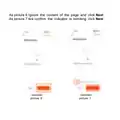
- Page 17: Enter the Tuya app and click + on the upper right corner of the app homepage. Find the temperature control product (Bluetooth + WiFi model) in the small household appliance section. Ignore the content of the page and tap Next.
- Page 18: Page 18
- Page 19: Enter Wi-Fi information. Enter the name and password of the 2.4Ghz Wi-Fi. Ensure that the Wi-Fi name and password contain only numbers and letters, not special symbols. Follow the prompts to the next step. You can see the device is being added. After a few seconds, you will see that the device is added successfully. The length of time will depend on the strength of the Wi-Fi signal.
- Page 20: Display of temperature controller app interface If you encounter any problems during the use of the product, please feel free to contact us through the purchase platform.