
fontastic RAVL Wireless Radiator Thermostat User Manual


GB
GB
power supply or the micro USB cable. The gateway‘s LED indicator
Connection with the Gateway and the
FontaHome App
The wireless thermostat can be used in combination with the Fontastic
WiFi Gateway (model SH15 or SH22) via the FontaHome App. To
use the gateway and the thermostat with the App, you must have the
FontaHome App installed on one of your devices such as a smartphone
or tablet. With the App you can add FontaHome devices and control
them worldwide.
will initially light up blue and red and flash red once the gateway is
ready to connect.
4. Make sure that the Wi-Fi ID is correct and enter the password of the
Wi-Fi network. Then press „Next“.
5. Please make sure that the LED indicator of the gateway flashes
quickly as shown in the app (approx. 2 times/second). If the LED
indicator does not flash as described, press and hold the back button
of the gateway for about 6 seconds.
6. To connect, confirm that the LED flashes quickly and press „Next“.
During the connection, the progress is displayed. The unit will now
connect to your Wi-Fi.
7. Press the „+“ symbol on the device that has been found. You can now
rename the device and assign it to a room.
Note: If you have already installed the FontaHome App and
connected to a gateway, you can go to the step „Add thermostat in
FontaHome“.
App installation
Get the app „FontaHome“ from the
Google Play Store, the Apple App Store
or follow the QR code or link.
Note: The unit only supports 2.4GHz Wi-Fi networks. If the connec-
tion fails and you are using a router with 5GHz frequency band,
select AP mode or switch off the 5GHz band for initial
configuration.
Note: If the configuration in EZ mode does not work, use AP mode.
The unit will set up its own Wi-Fi network to which you must
connect your smartphone.
Registration
Before using the FontaHome app, you must register. You can choose
from various registration options here.
Note: It is technically not possible to use the app without registe-
ring. Please refer to the privacy policy for the processing of your
Adding the gateway (AP mode)
1. Open the „FontaHome“ app on your smartphone, log in and tap on
„Add device“ or the „+“ symbol at the top right.
2. In the „Add manually“ area, select „Add“.
3. Connect the gateway to a USB power supply using the micro USB
power supply or the micro USB cable. The gateway‘s LED indicator
will initially light up blue and red and flash red once the gateway is
ready to connect.
Adding the gateway (EZ mode)
1. Open the „FontaHome“ app on your smartphone, log in and tap on
„Add device“ or the „+“ symbol at the top right.
2. Select „Add“.
4. Make sure that the Wi-Fi ID is correct and enter the password of the
Wi-Fi network. Then press „Next“.
3. Connect the gateway to a USB power supply using the micro USB
21
22

| General | Details |
|---|---|
| Name | fontastic RAVL Wireless Radiator Thermostat User Manual |
| Make | fontastic |
| Language | English |
| Filetype | PDF (Download) |
| File size | 0.36 MB |
 (1 votes, average: 5.00 out of 5)
 Loading...


ENGO E901 Wireless Internet Thermostat User Manual

AURATON Libra Room Thermostat User Manual

LG PREMTA200 Deluxe Thermostat User Guide

SALUS RT310i Smart Phone Controlled Programmable Thermostat Installation Guide

Robertshaw 9602 Programmable Thermostat User Manual
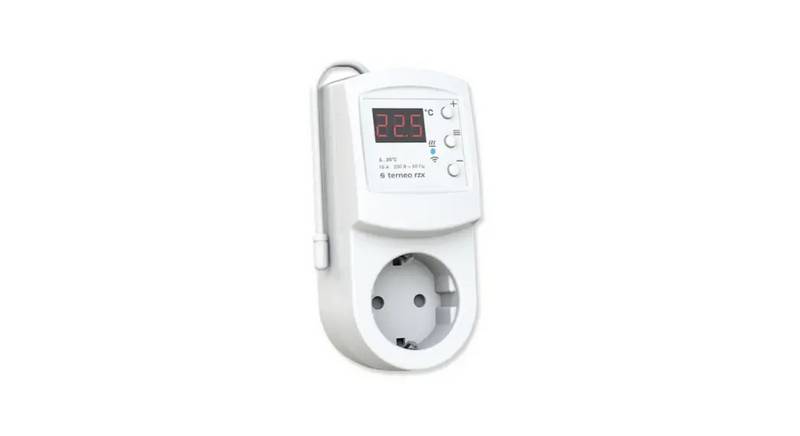
terneo rzx Smart Thermostat User Manual

ezlo EZL-TSTAT-US Wave Thermostat Instruction Manual

hansgrohe 15384XXX RainSelect Thermostat Instruction Manual

LATICRETE 0804-0402-TW Programmable LCD Thermostat Instruction Manual

Honeywell N100 Series Non Programmable Thermostat Installation Guide