
Home > BEOK CONTROLS > BEOK CONTROLS BOT-R7X Wireless Gas Boiler Heating Thermostat Instructions
BEOK CONTROLS BOT-R7X Wireless Gas Boiler Heating Thermostat Instructions




Installation Method
WiFi Connection
1. Install an expansion screw sleeve with a spacing of 59mm on the
wall.
Smart Life App Download
For IOS system: Login in App Store, search“Smart Life "or " Tuya
Smart", you can download it on your iphone.
For Android System: Login in Google Play, search“Smart Life", or "
Tuya Smart" ,you can download it on your phone.
Or scan below code to download:
2. Use a screwdriver to separate the upper cover and the lower cover,
pursuant to the wire direction, pass the wire through the back cover to
the wiring duct, and leave about 20cm long as per the actual situation.
Thermostat Setting
3. Fix the bottom shell to the wall, and finally fix the wire, and cover the
front shell on the bottom shell.
POWER
OFF STATE
In the POWER OFF state, press and hold the
button for 5
Inspection Steps
seconds. When the WIFI icon is displayed on the screen, you can start
the configure on your phone.
Install the intelligent touch screen thermostat in a place where it is easy
for the user to view the screen and adjust the temperature set point.
The thermostat is located in a place that can represent the overall
ambient temperature of the room. Avoid installing the thermostat near
hot and cold sources, such as vents, heaters, outdoors, etc.
Connection with phone
Open”Smart Life "or“Tuya Smart" on your phone.
Be sure to turn on your phone' s Bluetooth.
Only 2 4G status configuration can be added for WIFI access on mobile
phones (the name and password can only use numbers and letters,
not symbols),
Common Faults Handing
Phenomenon
Don't start up
Solutions
1. Check whether the battery is installed
backwards.
2. Inspect whether the boot key is valid LCD
displays.
LCD displays Whether the rear shell installation is deformed, it
messy code
can be loosened and reinstalled.
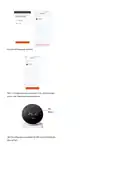
Click the Add Device button in the upper right corner, or click Add
Device.
1. Check whether the boundary between the main
control board
and the power board is damaged.
2. Check whether the output is connected to the
wrong wire.
Display
normal,
there is no
output
is
but
Temperature
displays error
Calibrate the panel temperature display via the first
item of advanced options.

| General | Details |
|---|---|
| Name | BEOK CONTROLS BOT-R7X Wireless Gas Boiler Heating Thermostat Instructions |
| Make | BEOK CONTROLS |
| Language | English |
| Filetype | PDF (Download) |
| File size | 0.22 MB |
 (1 votes, average: 5.00 out of 5)
 Loading...


BEOK CONTROLS TDR83 WiFi Heating Thermostat User Guide

BEOK CONTROLS TCR7 IPS Colorful LCD Screen Smart Thermostat Owner’s Manual

BEOK CONTROLS TDR89 Thermostat User Guide

BEOK CONTROLS TCR8 IPS Colorful LCD Screen Smart Thermostat Owner’s Manual

BEOK CONTROLS TGW60 Touch Screen Boiler Thermostat User Guide

BEOK CONTROLS TGR86 WiFi Thermostat User Guide

BEOK CONTROLS BOT-323W Series Boiler Thermostat Instruction Manual

BEOK CONTROLS TDS72 Digital Screen Thermostat Instruction Manual

BEOK CONTROLS BOT-R6W Gas Boiler Thermostat Instruction Manual

Beok Controls TS4 Series Thermostat User Guide


EPH CONTROLS HRT Battery Operated Non Programmable Thermostat Installation Guide

Danfoss FH-RT Wireless Room Thermostat Installation Guide

Aprilaire S86WMUPR Programmable Wi-Fi Multi Stage Universal Thermostat Installation Guide

Glow-Worm SRT 50-2 Climastat Select Programmable Room Thermostat User Manual

SALUS Programmable Wired Thermostat VS30W/VS30B Installation Guide

SALUS Wired Digital Thermostat – Non-programmable HTRS230 User Manual

BOSCH 6721807275 Smart Radiator Thermostat Installation Guide

HEATIT Z-Temp3 is a Battery Operated Thermostat Instruction Manual

vtech T961NN50 E-Smart Thermostat Installation Guide

Honeywell T5 7-Day Smart Wi-Fi Thermostat Instructions