
Home > Commercial Electric > Commercial Electric HTSA15CWB Smart Thermostat User Guide
Commercial Electric HTSA15CWB Smart Thermostat User Guide





Troubleshooting (continued)
Problem
Solution
My product is in a location
that does not have Wi-Fi.
Can I still use it with the
Hubspace app?
Yes. Use the app on a phone with an internet
connection like LTE. The phone must be within
Bluetooth range of your Hubspace product and have
Bluetooth enabled.
I cannot find the
QR code.
It is on the thermostat housing. A copy of the QR
code is also included in your product’s documentation.
The QR code has become
Under the QR code is a 24-digit code. You can
damaged. How do I add the enter those manually instead of scanning the code.
product?
1. Make sure the product is connected to power.
2. In the Hubspace app, tap +, then Add Product.
I lost my QR code. How
3. On the Scan Product screen, tap the Search
do I add a product?
button in the lower-right corner.
4. Follow the on-screen instructions.
A product is on another Scan the QR code and it will transfer to your
account. How do I transfer it? account.
Make sure your Wi-Fi signal strength is suf cient.
You may need to move your router, use mesh
Wi-Fi, or Wi-Fi extenders.
My product is offline for
long periods of time.
The product is on and I
scanned the QR code,
but the app cannot
connect to it.
For Android phones, make sure Location is enabled
because it is required for Bluetooth scanning. Turn
off Bluetooth on your phone and turn it back on.
Then, scan the QR code. If the problem persists,
turn your phone off and on, then try again.
Can I scan the same QR code No. Each product has a unique QR code.
to add multiple products?
-31-

| General | Details |
|---|---|
| Name | Commercial Electric HTSA15CWB Smart Thermostat User Guide |
| Make | Commercial Electric |
| Language | English |
| Filetype | PDF (Download) |
| File size | 1.81 MB |
 (1 votes, average: 5.00 out of 5)
 Loading...


PURGEAR STC-8080H Digital Thermostat User Guide

Rayotec PERGARP0DCN6YB3I Wi-Fi Thermostat Instruction Manual
Haswill STC-8080A Thermostat User Guide

BEOK TDS23 Wifi Thermostat Owner’s Manual

Smartica HY607B 3A Zig Bee Thermostat User Manual

GENERAL LIFE FH251S Underfloor Heating Thermostat User Manual

Danfoss TPOne-B Electronic Programmable Room Thermostat User Guide

SIEMENS RDG260KN Room Thermostat Instruction Manual
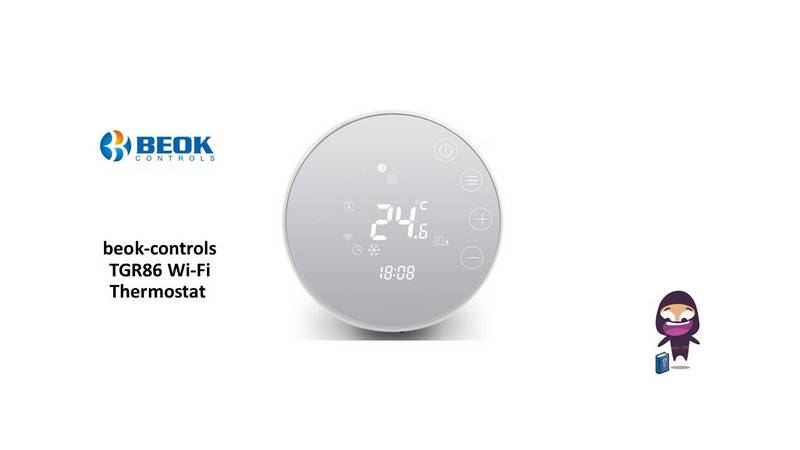
beok-controls TGR86 Wi-Fi Thermostat User Guide

STELPRO SIBTE12C Electronic Thermostat Owner’s Manual