
BEOK TCB38WIFI Color TFT-LCD Heating Thermostat User Manual


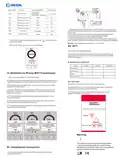


4. Setting the clock
IX. Phone Port Operation Instruction
1. Install APP on phone
Press the
key to display the week,
hour, and minute (as shown in the left
figure).
For iOS system: Login in App Store, search “ Beok Home”, you can
download it on your iphone.
Press the
and minute. Press the
to set the correct time.
key to select week, hour,
and
Or scan below code to download:
keys
5. Setting the programmable mode
12345+67
Loop:
Time Period Weekday:
06
08
13
12
00
20.0 oC
15.0 oC
15.0 oC
15.0 oC
:
Period1:
Period2:
Period3:
Period4:
Wed
:
00
22:55
.
For Android System: Login in Google Play, search “Beok Home”, you can
download it on your phone.
17
0
Set Temp.
:
30
:
30
20 0
.
Or scan below code to download:
5
35
12
17
22
30
15.0 oC
22.0 oC
15.0 oC
Auto
Period
6
:
Period4:
Period5:
Period6:
:
00
:
30
Time Period Weekend
:
08
13
00
15.0 oC
Period5:
Period6:
15.0 oC
:
30
Press and hold
key for 5 seconds when the thermostat is turned on,
and the screen will display “LooP” to set the desired time and time period
temperature. “LooP” represents a week’s working and rest day cycle
control mode. Repeat the operation “ “ to move the cursor to select the
2. Connection Thermostat with phone
Thermostat Setting
set time and time period temperature. Press
time period temperature parameters.
and
to set the time and
The working day is divided into six time periods, and the rest day is divided
into two time periods. The time period parameters in the graph are the
default parameters at the factory.
Wed
22:55
Set Temp.
In power off state: Long press the Up
key for 10 seconds.
20 0
.
6. Advanced settings (recommended for professional operation)
Wed
22:55
Set Temp.
When shutting down, press
to enter advanced settings;
first and then
20 0
.
EasyConfig
Connecting
Connected
Wed
EasyConfig
Press the key to move the cursor and
select the setting parameters.
22:55
.0
17
Start WIFI configuration: When the WIFI
icon and EasyConfig are displayed on
the screen, WIFI configuration can be
used.
Set Temp.
20 0
.
AP Config
5
35
Auto
Period
6
English
Language: English/Chinese
Language
In
42
2
Sensor Mode
Out Set temp:
In / Out (Ext Sensor) / In and Out
Easyconfig: network distribution can begin.
Connecting: the phone is connected normally.
Connected: distribution network complete.
oC
oC
oC
oC
5-99℃
Out Control Hysteresis:
Set temp Max:
1-9℃(Ext Sensor)
5-99℃
Connect the distribution network to the WIFI branch server cloud.
AP Config: AP thermostat hotspot configuration (operate FAC=12 in
advanced settings).
35
05
Set temp Min:
5-99℃
Connection with Phone
oC
Sensor compensate:
Antifreeze:
0-5℃
Open Beok Home APP on your phone, you can see APP welcome page.
00
Disable
Disable/Enable
When the WIFI icon and EasyConfig are displayed on the screen, you can
start the configure on your phone.
Restart:
always off/keep last status
0.5-3.0℃
always off
oC
Room Control Hysteresis:
Linkage output direction:
FAC:
10
Positive
Positive/Negative
FAC=0 Restore factory settings
08
(Press the key to take effect)
Remark:
Deadzone for floor temp.: i.e. the setting deadzone for floor sensor is 2,
Out Set temp. is 42℃, when actual temp. reach 44℃, the relay will stop
working; when actual temp. is back to 40℃, the relay starts working again.
It works when room temp. is lower than set temp.
Press Configure key
Sensor error:
Please select the right sensor mode. If select the different mode or there
is error of sensor, “Ext sensor dropped” will display on the LCD screen,
the thermostat will stop heating till the problem is solved.

| General | Details |
|---|---|
| Name | BEOK TCB38WIFI Color TFT-LCD Heating Thermostat User Manual |
| Make | BEOK |
| Language | English |
| Filetype | PDF (Download) |
| File size | 0.4 MB |
 (1 votes, average: 5.00 out of 5)
 Loading...

BEOK Color TFT-LCD Heating Thermostat User Manual

BEOK TDS21WIFI-AC Fan Coil Thermostat Instruction Manual

BEOK TGR85-EP Underfloor Heating Thermostat User Guide

BEOK TDR89 Zigbee Room Thermostat User Guide

BEOK BOT-R7X Wireless Gas Boiler Heating Thermostat Instruction Manual

BEOK TDS23 Wi-Fi Fan Coil Thermostat Instruction Manual

BEOK TGP53 China Piano Buttons Underfloor Heating Thermostat User Guide

beok TGW60 Thermostat User Guide

BEOK TS4 Series Wi-Fi Touch Screen Thermostat User Manual

BEOK TGP53 Wifi Thermostat User Guide


EPH CONTROLS 2023-03-10 RFR-RF Room Thermostat Instruction Manual

SALUS FC600 Fan Coil Thermostat User Guide

auronic AU3151 Oil Radiator with Thermostat User Manual

thermokon JOY SR 5DO Electronic Fancoil Thermostat User Guide

Klima SF300 Digital Thermostat Instruction Manual

OJ ELECTRONICS MCD5 Touch Thermostat Instructions

TFC Group WFSTAT Wi-Fi Thermostat Instructions

SALUS BTR230 Room Thermostat User Guide

ENSTO ECO16BTD Combination Thermostat Instruction Manual

expert4house BHT-003 Series Zigbee Thermostat User Guide