
Home > WarmlyYours > WarmlyYours 670078B Wifi LED Touch Thermostat User Manual
WarmlyYours 670078B Wifi LED Touch Thermostat User Manual














5. HOW TO TURN A SCHEDULE ON AND OFF
If the thermostat is regulating heating according to a schedule, the schedule icon will be visible on the home screen:
.
If you change the temperature while the schedule is activated, this adjustment will only apply until the next scheduled tem-
perature change. The schedule can be activated or deactivated on the thermostat.
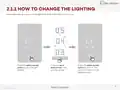
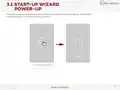
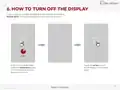
In the screen saver mode,
touch the temperature
area to wake up the ther-
mostat. The home screen
will appear.
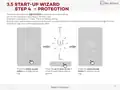
Press and hold the temperature area
for three seconds. The schedule
abbreviation will appear and the text
SCHEDULE ON will scroll across the
screen.
The thermostat will now follow
the schedule and the schedule
icon will be visible.
To deactivate the schedule,
follow the same procedure; the
schedule icon will turn off and
screen will say SCHEDULE OFF.
19
Back to Content
© 2024 OJ Electronics A/S

| General | Details |
|---|---|
| Name | WarmlyYours 670078B Wifi LED Touch Thermostat User Manual |
| Make | WarmlyYours |
| Language | English |
| Filetype | PDF (Download) |
| File size | 0.65 MB |
 (1 votes, average: 5.00 out of 5)
 Loading...

WarmlyYours TH115-AF-GA-08 SmartStat TH115 Series Thermostat Instruction Manual

WarmlyYours UTN5-4999 Thermostat User Guide


tekmar U-T-562 WiFi Thermostat User Manual

KETOTEK LL0269 WiFi Digital Heating Thermostat User Manual

PRO1 T731W Wireless PTAC Non-Programmable Thermostat Installation Guide

EPH CONTROLS PR092K7 RF Cylinder Thermostat Instruction Manual

Honeywell TL5110 Digital Non-programmable Thermostat User Guide

Living Heat Wi5 Wi-Fi Digital Heating Thermostat Instructions

COPELAND P-N 810-1600 Programmable Touchscreen Thermostat User Guide

GENERAL LIFE MITRA 250S Wired Room Thermostat User Manual

TX1000 Thermostat Instruction Manual

SASWELL SAS919WHB-0 Thermostat User Manual