
MI-HEAT WT8 WiFi Smart Thermostat User Manual


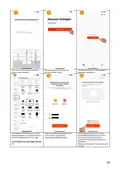





Enter the verification code received by
email or SMS in the app.
Set the password for the Tuya user
account and tap "Finish".
Now the thermostat can be integrated by
tapping on "Add device".
To integrate a thermostat, tap on "Small
household appliance" on the left and then
select "Thermostat Wi-Fi" on the right.
Select the WLAN network (SSID) of the
existing router and enter the
corresponding WLAN password.
Set the thermostat to teach-in mode:
Switch off the thermostat and press the
Eco button (button 3) for approx. 5
seconds until the Wifi symbol appears in
the display.
Do not select Bluethooth, Zigbee, BLE+Wi-
Fi!
Now tap on 'Next step' in the app and then
on 'Next'.
19

| General | Details |
|---|---|
| Name | MI-HEAT WT8 WiFi Smart Thermostat User Manual |
| Make | MI-HEAT |
| Language | English |
| Filetype | PDF (Download) |
| File size | 0.3 MB |
 (1 votes, average: 5.00 out of 5)
 Loading...

Mi-HEAT M2 Wi-fi Bluetooth Thermostat Instruction Manual

Mi-Heat GH35EU Digital Greenhouse Thermostat User Manual

MI-HEAT E51 Thermostat User Manual

MI-HEAT MST1 Room Thermostat for Underfloor Heating User Manual

MI-HEAT MTS200 WiFi Thermostat Instruction Manual


GENERAL LIFE FH103S Underfloor Heating Thermostat User Manual

VIESSMANN ViCare ZK05991 Wireless Thermostat Instruction Manual

tekmar TEK564 Invita WiFi Thermostat User Manual

MOES BHT-12 Smart Thermostat Instruction Manual

TIMEGUARD TRT05 Plug In Thermostat Instruction Manual

Honeywell L641 Surface Contact Thermostat Instructions

SANGAMO CHPWIFI Fort Programmable Thermostat User Guide

vtech T961NN50 E-Smart Thermostat Installation Guide

Carrier 33WIFISTAT43 Wi-Fi Thermostat Installation Guide

GENERAL LIFE ARUNA HT300S Smart Room Thermostat User Manual