
Honeywell RTH8500 Wi-Fi Series Thermostat User Guide




| General | Details |
|---|---|
| Name | Honeywell RTH8500 Wi-Fi Series Thermostat User Guide |
| Make | Honeywell |
| Language | English |
| Filetype | PDF (Download) |
| File size | 1.23 MB |
 (1 votes, average: 5.00 out of 5)
 Loading...


Honeywell RTH8500 Manual: Questions and Answers
Where is the C wire terminal on the Honeywell RTH8500?
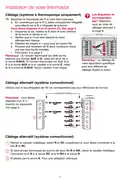
The C terminal is located on the wallplate. For conventional systems, it's in the bottom row. For heat pump systems, it's also in the bottom row of the terminal layout. User Guide, p. 8
What voltage does the C wire provide to the Honeywell RTH8500?
24 VAC. The C wire, or common wire, is the primary power source for the thermostat. User Guide, p. 8
Can I install the Honeywell RTH8500 without a C wire connection?
No. The C wire is required and is the primary power source. If you don't have a C wire, look for an unused wire pushed into the wall, connect it to C, and verify it reaches the 24 VAC common at your heating/cooling system. User Guide, p. 8
What does setting 0112 Device Name control on the Honeywell RTH8500?
Controls the thermostat's identifier when viewing it remotely. Assign a unique name if registering multiple units. User Guide, p. 23
What does the Filter Change Reminder setting mean on the Honeywell RTH8500?
Displays a reminder after a selected number of days of system runtime, not calendar days. User Guide, p. 25
How long does the screen lock when cleaning the Honeywell RTH8500?
30 seconds. Press DONE to exit early or SCREEN again if you need more time. User Guide, p. 20
How do I know the Honeywell RTH8500 connected to Wi-Fi successfully?
The message center will display CONNECTION SUCCESSFUL, JOINED: [WI-FI NETWORK NAME], or YOU ARE ALMOST DONE after showing CONNECTING for up to 30 seconds. User Guide, p. 14
What if my Wi-Fi network doesn't show on the thermostat setup page?
Press the Rescan button to try again. For hidden networks, enter the SSID in the textbox, select the encryption type, and click Add, then enter your password and click Connect. User Guide, p. 14
Other Honeywell RTH8500 manuals
More Honeywell thermostat manuals


