
Home > Honeywell Home > Honeywell Home TH8320R1003-Uv VisionPRO 8000 with RedLINK Multistage Thermostat Installation Guide
Honeywell Home TH8320R1003-Uv VisionPRO 8000 with RedLINK Multistage Thermostat Installation Guide
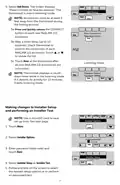
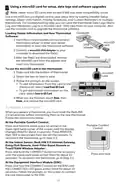


Using a microSD card for setup, data logs and software upgrades
Note: newer micro SD cards that exceed 8 MB may have compatibility issues.
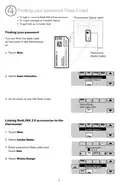
Use a microSD (secure digital) card to save setup time by loading Installer Setup
settings, Dealer Information, Holiday Schedules, and Custom Reminders to multiple
thermostats. For troubleshooting help, you can save the thermostat Data Logs (Alerts
Log and Interaction Log) to a microSD card - then view them on your computer. Also
use the microSD card to upgrade the thermostat software.
Computer
Loading Dealer Information and New Thermostat
Software:
thermostat-setup/ to enter your dealer
information or load new thermostat software.
microSD
card
USB
adapter
2 Connect a microSD USB Adapter to your
computer to download the file(s).
Thermostat
3 After the file(s) are downloaded, remove
the microSD card from the adapter and
insert into thermostat.
To use the microSD card in the thermostat:
1 Slide card into the bottom of thermostat.
microSD
card
2 Select the item to load or save.
3 Follow the prompts on the screen.
• To add information from the card to the
thermostat, select Load from SD Card.
Installer Setup
Dealer Information
• To put thermostat information on the
card, select Save to SD Card.
4 When you are finished, touch Done, then
Home, and remove the microSD card.
To replace a thermostat
When you replace a thermostat, you must reset the RedLINK
2.0 accessories before connecting them to the new thermostat.
Follow the instructions below:
At the Portable Comfort Control:
Portable Comfort
Control
Press and hold the blank space (or arrow) in the
lower right hand corner of the screen until the display
changes (hold for about 4 seconds). Press REMOVE,
then YES to disconnect from the old thermostats. To
reconnect the thermostat, go to Step 3.2.
At the Indoor Sensor, RedLINK 2.0 Internet Gateway,
Entry/Exit Remote, Vent-Filter Boost Remote or
TrueSTEAM Wireless Adapter:
Press and hold the CONNECT button on the accessory
until the status light glows amber (hold for about 10
seconds). To reconnect the thermostat, go to Step 3.2.
Press and hold
At the Equipment Interface Module (EIM):
Press and hold the CONNECT button on the EIM until
the CONNECTED LED glows amber (hold for about 10
seconds). Follow the prompts on the screen to connect
the new thermostat to the EIM.
10

| General | Details |
|---|---|
| Name | Honeywell Home TH8320R1003-Uv VisionPRO 8000 with RedLINK Multistage Thermostat Installation Guide |
| Make | Honeywell Home |
| Language | English |
| Filetype | PDF (Download) |
| File size | 0.64 MB |
 (1 votes, average: 5.00 out of 5)
 Loading...

Honeywell Home TH2110DH 1 Cool Programmable Digital Thermostat Installation Guide

Honeywell Home DT4R Wireless Room Thermostat User Guide

Honeywell Home N100 Series Non Programmable Thermostat User Guide

Honeywell Home X1N Non Programmable Thermostat Installation Guide

Honeywell Home DT4M Wired Room Thermostat User Manual

Honeywell Home T834 Series Thermostat Owner’s Manual

Honeywell Home M38794 T10 and T10 plus Pro Smart Thermostat with RedLINK Installation Guide

Honeywell Home DT4 Channel Wired Room Thermostat Instruction Manual

Honeywell Home T10 Smart Home Thermostat Instructions

Honeywell Home FocusPRO Smart S200 Series Smart Thermostat User Guide


MClimate MC-LW-V02 Smart Radiator Thermostat User Manual

vivint VS-ZGBTHERM-001 Smart Thermostat User Guide

Network Thermostat NetX X7 Series Thermostat Instruction Manual

PRO T751 Thermostat Installation Guide

EUROTRONIC Spirit ZigBee Energy Saving Radiator Thermostat User Guide

GENERAL SENNA 300S Smart Room Thermostat User Manual

Honeywell RTH7500D Programmable Thermostat Owner’s Manual

GENERAL ARUNA 300S Smart Room Thermostat User Manual
Haswill STC-8080A Thermostat User Guide
Honeywell Home T10 Smart Home Thermostat Instructions