
TFC Group OP-WFSTAT Wi-Fi Programmable Thermostat User Guide
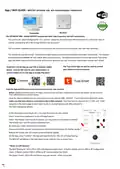


App / WiFi GUIDE - WFSTAT OPTIMUM VIBE WiFi PROGRAMMABLE THERMOSTAT
Receiver
Transmitter
The OPTIMUM VIBE - Model WFSTAT incorporates both radio frequency and WiFi connectivity.
The control set - when configured for T.P.I. control - meets the UK Government BEIS Department’s criteria for Class IV
control, contributing 2% to the energy efficiency of the system.
The transmitter is battery-powered (2 x AAA alkaline); the receiver is mains-powered, with volt-free switching
The control set uses the license - free 868 MHz radio band to communicate between transmitter and receiver. The receiver
incorporates both 868MHz RF and 2.4GHz WiFi communications. The Optimum Connect C-Home App (or the Tuya Smart
App) will allow control of the thermostat and receiver wherever you are, from your smart phone via your WiFi router.
The Tuya Smart App can also be used to control
your Optimum Connect devices.
Install the C-Home App on your iOS or Android mobile
phone - scan the QR code for your device below, or
search C-Home on the iOS App or Google Play Store
C-Home
Load the App and follow the instructions to create your user account.
Before adding the thermostat in the App, make sure that you first connect the receiver and power-up the receiver.
Then add the device as noted below.
Once the App is installed on your smart phone you can add the VIBE - WFSTAT. If you have a dual-band WiFi router,
make sure that your phone is connected to the 2.4GHz network. You may have to separate the 2.4 GHz and 5 GHz
networks in the home page of your router to do so, as smart phones will often connect to
the 5GHz network by default.
In the App home screen touch the + icon (top RH corner) to add a device.
Select ‘Small Home Appliances’ in the left-hand column
Select ‘Thermostat’ from the list of devices; you may have to scroll down to find the
Thermostat icon—see the partial screenshot here
Re-enter your router password (if prompted) .
Press and hold the receiver manual button until the Red Heating on LED flashes rapidly *.
Release the button (the LED should continue flashing rapidly)
On the App, press ‘Confirm’ - the App will load the device. The LED will stop flashing.
The WFSTAT will display in the App Home Screen with the icon as shown here.
* Notes on LED function:
The Red ‘Heating on’ LED is ON or OFF indicating the output state. It flashes quickly when in Wifi or RF configuration
mode. It flashes slowly if WiFi is offline or RF communication has failed.
The Green ‘Power’ LED is ON and flashes once per second - when connected.


| General | Details |
|---|---|
| Name | TFC Group OP-WFSTAT Wi-Fi Programmable Thermostat User Guide |
| Make | TFC Group |
| Language | English |
| Filetype | PDF (Download) |
| File size | 0.6 MB |
 (1 votes, average: 5.00 out of 5)
 Loading...

TFC Group WFSTAT Wi-Fi Thermostat Instructions

TFC Group OP-WFSTAT Wi-Fi Thermostat User Guide

TFC Group OP-WFSTAT Wi-Fi Programmable Thermostat User Guide Overview
Summary of Contents
- Page 1: App / WiFi guide Optimum Vibe WiFi programmable thermostat The Optimum Vibe - Model WFSTAT incorporates both radio frequency and WiFi connectivity. The control set meets the UK Government BEIS Department’s criteria for Class IV control, contributing 2% to the energy efficiency of the system. The transmitter is battery-powered; the receiver is mains-powered, with volt-free switching. The control set uses the license-free 868 MHz radio band to communicate between transmitter and receiver. The Optimum Connect C-Home App will allow control of the thermostat and receiver from your smartphone via your WiFi router. Install the C-Home App on your iOS or Android mobile phone. Before adding the thermostat in the App, make sure that you first connect the receiver and power-up the receiver. If you have a dual-band WiFi router, make sure that your phone is connected to the 2.4GHz network. The Red ‘Heating on’ LED indicates the output state and flashes quickly when in WiFi or RF configuration mode.
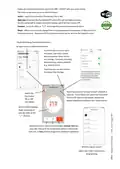
- Page 2: Follow the instructions below to control the VIBE - WFSTAT with your smart phone. The home screen gives access to other functions. Switch the transmitter (thermostat) ON or OFF. If you turn the thermostat OFF, it will no longer control the heating. Touch the Heating Thermostat panel icon to open access to additional functions. Touch the pen icon to rename the device and view/amend basic parameters. Touch the settings icon to view/amend week program, child lock, and fine temperature adjustment. Touch the clock icon to enter a timed schedule if required. Use these icons to switch quickly between Manual, ECO, or Auto. Weekly program screen allows adjustment of day, time, and temperature programming.

Danfoss 015G3090 React Radiator Thermostat Installation Guide

GENERAL LIFE HT300 RF Digital Room Thermostat User Manual

SECURE radbot 1 Intelligent Radiator Thermostat Instruction Manual

sinope TH1134ZB Smart Line Voltage Thermostat Installation Guide

HVAC Electrical Heating Thermostat M5.XX Installation Guide

SIEMENS RDG200KN Room Thermostat Instruction Manual

sinope TH1134ZB-HC Smart Line Voltage Thermostat Owner’s Manual

ESi ESRTP6C, ESRTP6CW Centro Prog Room Thermostat User Guide

Aprilaire S86WMUPR Programmable Wi-Fi Multi Stage Universal Thermostat Installation Guide

EUROTRONIC Programmable Energy-Saving Radiator Thermostat User Manual