
Wengart TP808 Wi-Fi Low Voltage Thermostat User Guide
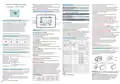


Where to connect with thrid party access
service-Voice control?
EZ MODE WIFI connection
App Buttons explanation
WIFI Connection and app use explanation
Please try to make sure the router or modern
closely with your mobile phone when first time
to connect WIFI with your smart thermostat .
This will help you connect WIFI sucessful more
fastly.
1.Please make sure your thermostat is power off.
Press the comfirm button over 7seconds.The icon
will flash one time per 0.5 second.
When you thermostat connect sucussfully.The
page will same as (Fig 5-1).
You could click ME in the right corner button to enter mo
(Fig6-1) select voice contro Alexa.Google.Yandex
alice ,Smart things etc.(Fig6-2)
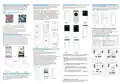
Then go to the app page see the picture(Fig3-1)
bellow press “Add device”or”+”in the upper right
to add your device.Choose- small applicance
device-add manualy -Thermostat (Fig3-2).Then enter
your wireless router name and password(Fig3-3)
comfirm next.Click Confifirm indicator rapidly blink
comfim next button (Fig 3-4).The app will connect
automaticlly (Fig3-5).This will take 10seconds
to connect sucessfully (Fig3-6)
Step 1.Please download the App
(Fig1-1,Fig2-2)
Fig5-1
Fig5-2
Fig5-3
Fig 1-1
Fig1-2
Fig6-3
For IOS devices could search”Tuya Smart”or
“Smart Life”app in app store.Or scan the QR
code above(Fig1-1,Fig2-2)
Fig6-1
Fig6-2
How to share devices and creat group?
You could also Click
in the upper right corner
For Android devices could search”Tuya Smart”or
”Smart life”app in google play store.Or scan the
QR code above(Fig1-1,Fig2-2)
to select ” share devices” and “creat
group” with your family.See page(Fig6-3)Choose
the “smart” button.Customize your own
personal scenes to suit your needs.
Fig3-1
Fig 3-2
Fig 3-3
Step 2.Register your account
Thermostats Trouble Shooting
Open "Smart Life" app.You will get a notification
(Fig 2-1),Click Agree to go into your page of register
(Fig 2-2). Press register and enter your phone no. or
email (Fig 2-3) then you can get a verifification code
(Fig2-4). Set your password and confifirm (Fig 2-5)
to complete your registeration..If you have account,
please log in.
Fig5-4
Fig5-5
Fig5-6
NO.
Phenomenon
Handling method
Room temp is litte different
from the actual temp
You could use thermostat temperature
conpensation to change the temp to be the same
1
.
When the thermostats show
ERR
This means you need to connect your external
sensor
2
3
.
.
Please check weather you connect correct wires
or your thermostat is connect well.
Power on but not display
Fig3-4
Fig 3-5
Fig 3-6
Heat pump (air or geothermal)with auxiliary heat
Conventional heating and cooling(up to 2 stages each)
AP MODE wifi connection
1.On your thermostat
RC
RH
G
RC
Jumper
Jumper
NTC+
NTC-
C
NTC+
RH
NTC-
C
G
S
S
Please make sure your thermostat power is on.
Press button the wifi symbol flash one time
per second.
AUX/W
O/B
Y
AUX/W
O/B
Y
Fig5-7
Fig5-8
System button. You could select mode Heat/Cool
Emergency Heat,Auto.See page(fig5-2,fig5-3)
Click Confirm indicator slowly blink (Fig 4-1) then
select your network and back to your app to enter the
password of your wireless router (Fig 3-3) and
confifirm. The app will go into the page in (Fig 4-2).
Press Go to connect to select the wif signal
Fig 2-1
Fig 2-2
Y
R
C
G
W
Y
C
R
AUX
Y
C
W
O/B
O/B
G
Y
R
C
Air Conditioner
Furnace
Run mode:You could select Program(Schedule),
See (fig5-6).You could set four periods each day
Manual(Permanent hold),Temporary hold,ECO
(fig5-4)
Air Handler
Heat Pump
NOTE:Do not remove jumper Rc and Rh
NOTE:Do not remove jumper Rc and Rh
Smartlife-XXXX of your thermostat (Fig 4-3) .
Then Go back to your app the app will connect
automatically(Fig3-5).This will take 12seconds
to connect sucessfully (Fig3-6)
Boiler or radiant system with air handler
and conventional cooling or heating
Power Extender Kit thermostat wiring
Fan Mode select:See page(Fig5-5)You could
select Auto/on/cycle/Auto fan here
RC
RH
G
Jumper
NTC+
NTC-
C
RC
RH
G
NTC+
NTC-
C
S
O/B
Y
AUX/W
S
AUX/W
O/B
Y
Vocation Setting:Select you could setting
Holiday days,Heat temp and cool temp(fig5-8)
W
S
R
C
Power Extender Kit
Air Handler
G
R
W
C
Y
R
G
Y
C
C/F:In the left corner.You could
easy to change temperature in C or F(fig5-2)
Air Conditioner
or Heat Pump
Boiler
(Fig2-3)
(Fig2-4)
(Fig2-5)
Y
C
O/B
R
W
Air Conditioner
Furnace
G
R
C
*Reversing valve for heat pumps only
NOTE:Remove jumper Rc and Rh
Y
W
Y
C
Step 3 Connect WIFI signal with thermostat
NOTE:Do not remove jumper Rc and Rh
Note:There are two WIFI signal connection way to
your thermostat,EZ mode and AP mode Default is
EZ mode(AP mode is slowly connection way, do
not suggest to use)
Child lock:Select lock/unclock your thermostat.
.
Fig4-1
Fig4-2
Fig4-3
Settings :You could select
temperature conpensation,Min temp.Max temp and
back to factory setting etc.see page( fig5-7).

| General | Details |
|---|---|
| Name | Wengart TP808 Wi-Fi Low Voltage Thermostat User Guide |
| Make | WENGART |
| Language | English |
| Filetype | PDF (Download) |
| File size | 0.99 MB |
 (1 votes, average: 5.00 out of 5)
 Loading...

Wengart TP808-S-2 Low Voltage Thermostat User Guide

Wengart TP808-3 Heat Pump Thermostat User Guide

Wengart TP808 Low Voltage Thermostat User Guide

Wengart TP808-3 7 Day Programmable Thermostat User Manual

Wengart WG603 Home Smart Thermostat User Guide


Robertshaw RS8110 Non Programmable Thermostat Instruction Manual

Hansgrohe 13125000 Ecostat E Wall Mounted Shower Thermostat Instruction Manual

HYSEN HY518WE WIFI Digital Heating Thermostat User Manual

TIMEGUARD TRT05 Plug In Thermostat Instruction Manual

miMonitor MI-TH02-HMO-V2 Wifi Smart Thermostat User Guide

namron Touch Z Wave 16A Thermostat Instruction Manual

Danfoss ECtemp 532 Electronic Thermostat Installation Guide

GENERAL HT250 Smart Room Thermostat User Manual

INKBIRD C216T Plug In Timer Thermostat User Manual

Sinum R-S3 Room Thermostat Owner’s Manual