
Home > Quality Heating > Quality Heating Plug In Programmable WiFi Thermostat Instruction Manual
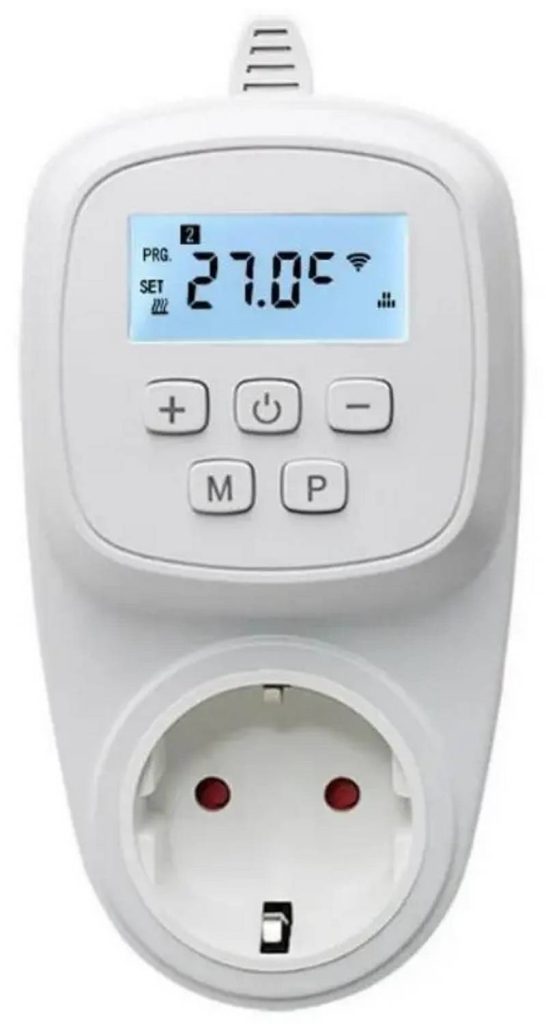
Quality Heating Plug In Programmable WiFi Thermostat Instruction Manual





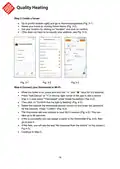







Step 3 Create a house
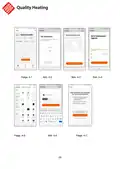
• Go to profile (bottom right) and go to Home management (Fig. 3-1).
• Name your home by clicking Home Name (Fig. 3-2).
• Set your location by clicking on ''location'' and click on confirm.
• (This does not have to be exactly your address, see Fig. 3-3).
Fig. 3-1
Fig. 3-2
Fig.3-3
Step 4 Connect your thermostat to Wi-Fi
• While the boiler is on, press and hold the “ + ” and “ M ” keys for 3-5 seconds .
• Press "Add Device" or "+" in the top right corner of the app to add a device
(Fig. 4-1) and select "Thermostat" under Small Household ( Fig. 4-2) .
• Then click on “Confirm that the light is flashing” (Fig. 4-3).
• Select the network the thermostat should connect to and enter the password
for this network. Press “Confirm'' (Fig. 4-4).
• The thermostat will now connect to your Wi-Fi network (Fig. 4-5). This can
take up to 90 seconds.
• If this is successful you can assign a name to the thermostat (Fig. 4-6), then
go to step 6.
• If this fails, you will see the text “No response from the device” on the screen (
Fig 4-7).
• Continue to Step 5.
18

| General | Details |
|---|---|
| Name | Quality Heating Plug In Programmable WiFi Thermostat Instruction Manual |
| Make | Quality Heating |
| Language | English |
| Filetype | PDF (Download) |
| File size | 0.3 MB |
 (1 votes, average: 5.00 out of 5)
 Loading...

QH Basic Quality Heating CV Clock Thermostat Instruction Manual

Quality Heating PRF-80 Touch Thermostat Instructions

Honeywell 5000 Series Non Programmable Digital Thermostat Instruction Manual

sinope TH1134ZB-HC Smart Line Voltage Thermostat Owner’s Manual

ENGO CONTROLS E901-RF Programmable Wireless Thermostat Instruction Manual

OSCAR OS20 LCD Thermostat Instruction Manual

Honeywell Communicating Fan Coil Thermostat Instruction Manual

GENERAL LIFE MITRA 260S RF Room Thermostat User Manual

FantiniCosmi C820RQ LED Thermostat Instruction Manual

INKBIRD ITC-306A Digital Thermostat User Manual

GENERAL LIFE HT25 RF Wireless Room Thermostat User Manual

NEOMITIS RTE7OTA Wired Digital 7 Day Programmable Smart Room Thermostat Instruction Manual