Home > HIVE > HIVE SLT3 Thermostat User Guide

HIVE SLT3 Thermostat User Guide
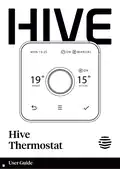
MON 19:25  
O N  
M A N U A L  
ON  
19˚ 15˚  
TARGET  
ACTUAL  
Hive  
Thermostat  
User Guide  
GeneralDetails
NameHIVE SLT3 Thermostat User Guide
MakeHIVE
LanguageEnglish
FiletypePDF (Download)
File size0.21 MB
Download PDF
1 Star2 Stars3 Stars4 Stars5 Stars (1 votes, average: 5.00 out of 5)
Loading...
HIVE HAH2INSTAMZ-01 Active Heating Thermostat User Guide
HIVE 852031 Mini Wireless Heating Smart Thermostat Instructions
HIVE Thermostat for Heating Owner’s Manual
HIVE Thermostat Mini User Guide
HIVE Cheap Smart Thermostat User Guide
Hive B011B3J6B8 Active Heating Thermostat Owner’s Manual
HIVE 81351 Thermostat Mini for Heating Installation Guide

HIVE SLT3 Thermostat User Guide
Get the free PDF manual for the HIVE SLT3 Thermostat User Guide and access setup steps, usage instructions, and troubleshooting tips. 👉 View online or download now to keep your thermostat running smoothly!
HIVE SLT3 Thermostat User Guide Overview
Summary of Contents

  • Page 1: Hive thermostat user guide.
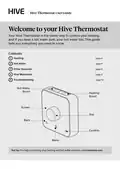
  • Page 2: Welcome to your Hive Thermostat. Your Hive Thermostat is the clever way to control your heating and hot water. This guide tells you everything you need to know. Contents include heating, hot water, other features, Hive Multizone, troubleshooting, and hot water boost. Hot tip: For help controlling your heating and hot water remotely visit hivehome.com.
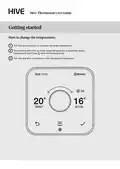
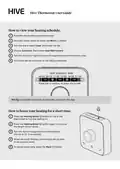
  • Page 3: Hive thermostat user guide Getting started How to change the temperature: Turn the dial clockwise to increase the target temperature. Your heating will come on if the target temperature is above the actual temperature. Turn the dial anti-clockwise to lower the target temperature.
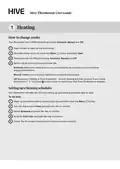
  • Page 4: Hive thermostat has three different heating modes: Schedule, Manual, and Off. Schedule mode allows heating to turn on and off based on occupancy, reducing energy consumption. Manual mode maintains a constant temperature in your home. Off mode activates Frost Protection, turning on heating only if the temperature drops below 7 °C. To change the heating mode, wake up the thermostat and select Heat from the Menu. Setting up a heating schedule is guided step by step by the thermostat. To set a schedule, wake up the thermostat and select Heat, then choose Schedule. You can start over the schedule setup by selecting Start Over. Follow the on-screen instructions to create your new heating schedule.
  • Page 5: Hive thermostat user guide How to view your heating schedule: Push the dial to wake up the thermostat. Once the screen turns on, press the Menu button. Turn the dial to select Heat, then push the dial. Choose Schedule, then select View/Edit Current. Turn the dial left or right to browse through the days and to select a day. You’ll now see the schedule for the day you selected. How to boost your heating for a short time: Press the Heating Boost button on top of the thermostat to turn the heating on. Press the Heating Boost button again to increase the length of your boost. Turn the dial to change the boost temperature. When the boost finishes, your heating will go back to its previous mode. To cancel boost early, press the Back button.
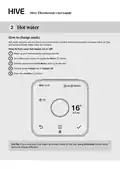
  • Page 6: Hive thermostat user guide How to change mode: Hot water features are not shown on combi boilers as they automatically heat water when it’s needed. How to turn your hot water on or off: Wake up your thermostat by pushing the dial. Once the screen turns on, press the Menu button. Turn the dial to select Hot Water, then push the dial. Choose either Always On or Always Off. Press the Confirm button. Hot tip: If you only want hot water at certain times of the day, using Schedule mode could be more energy efficient.
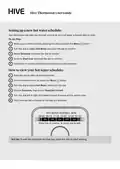
  • Page 7: Hive thermostat user guide Setting up a new hot water schedule Your thermostat will walk you through setting up your hot water schedule step by step. To do this: Wake up your thermostat by pushing the dial and press the Menu. Turn the dial to select Hot Water and push the dial to confirm. Select Schedule and push the dial to confirm. Scroll to Start Over and push the dial to confirm. Follow the on-screen instructions to create your new schedule. How to view your hot water schedule: Push the dial to wake up the thermostat. Once the screen turns on, press the Menu button. Turn the dial to select Hot Water, then push the dial. Choose Schedule, then select View/Edit Current. Turn the dial left or right to browse through the days and to select a day.
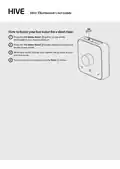
  • Page 8: Hive thermostat user guide How to boost your hot water for a short time: Press the hot water boost button on top of the thermostat to turn the hot water on. Press the hot water boost button again to increase the length of your boost. When your boost finishes, your system will go back to your previous mode. To cancel your boost early, press the back button.
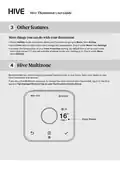
  • Page 9: Hive thermostat user guide More things you can do with your thermostat Select holiday mode and set the dates you’ll be away by going to menu, then holiday. Set a child lock so little hands can’t change the temperature. Find it under menu then settings. Increase the temperature of your frost protection setting. By default, this is set so your home won’t drop below 7 °C and will activate whatever mode your heating is in. Find it under menu then settings. Hive multizone Multizone lets you control existing plumbed heating zones in your home. Each zone needs its own Hive thermostat and receiver. If you are a Hive multizone customer, to change the zone name of each thermostat, log in to the Hive app and tap manage > devices > tap on your thermostat > rename device.
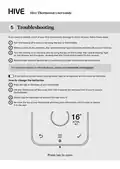
  • Page 10: Hive thermostat user guide If you need to identify which of your Hive thermostats belongs to which receiver, follow these steps. Turn the heating off in every zone using the app or thermostats. When you look at the receivers, the ‘central heating’ light should be switched off on each receiver. Turn the heating on in one zone only by using the app or thermostat. The ‘central heating’ light on one receiver will turn green, showing that this thermostat is paired to this receiver. A red battery symbol means your batteries need to be replaced with four new AA batteries. How to change the batteries: Press the tab on the base of your thermostat. Lift your thermostat off the hooks that hold it against the wall. Simply pop the batteries out and put the new ones in. Re-hook the top of your thermostat and then press the bottom until it clicks to secure it to the wall.
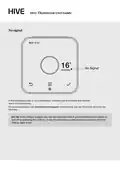
  • Page 11: Hive thermostat user guide If this message shows on your thermostat, it means your thermostat and receiver aren’t communicating. For more information visit hivehome.com/support. You can find more advice in the Hive app. Even without a signal you can still manually switch your heating and hot water on and off by pressing the buttons on the Hive receiver when its ‘Status’ light is red.
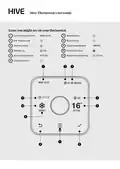
  • Page 12: Hive thermostat user guide Icons you might see on your thermostat Current day and time Hot water mode Heating mode Menu button Back button Target temperature Frost protection Boost time remaining Heating on Actual temperature Confirm button
  • Page 13: Hive Thermostat User Guide You can view our handy how-to-use videos along with hints and tips at hivehome.com/support. If for any reason you need to return your Hive Thermostat, simply return your box and its contents to the retailer. Any return is subject to the retailer’s refund policy, so please don’t forget to check the retailer’s refund policy too. Centrica Connected Home Limited declares that the radio equipment types SLT3c, SLR1c and SLR2c comply with UK SI 2017 No.1206 and EU Directive 201/53/EU. To avoid environmental and health problems due to hazardous substances in electrical and electronic goods, appliances marked with a crossed out wheeled bin should not be placed into your household rubbish bin. Instead, when they are unable to be re-used, they should be recycled. Your local authority will be able to advise you on the location of the nearest recycling centre that is authorised to accept this type of waste. Please recycle responsibly.