
ecoer EST02 Smart Wi-Fi Thermostat User Guide





EST02
Additional Features
Except from the above basic settings, Ecoer Smart Wi-Fi Thermostat also provides possibility to
connect to the Alexa Assistant, hence helps you to control your room temperature by voice control.
Follow our instructions below to get connected with Alexa:
How to connect to Alexa?
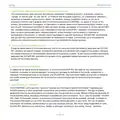
1 . Download Amazon Alexa App and set up your Alexa-enabled device.
2 . Tap "More" button on the bottom-right corner of Alexa app main screen.
3 . IMPORTANT Step-link the Skill.
1
Tap "Skills & Games" in Alexa app menu.
2
Type and search "Ecoer Thermostat", then select and tap "ENABLE TO USE" to enable
the skill.
3
Enter Ecoer Thermostat App login account to Alexa Skill.
Now you can control your thermostat over Amazon Alexa.
4 . Common commands:
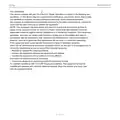
Common commands for Alexa to control ECOER Thermostat:
Alexa, turn (Device Name) on. Alexa, turn (Device Name) off.
Alexa, set (Device Name) mode to Coo/Heat/Auto.
Alexa, Increase (Device Name) by _ degrees.
Alexa, Decrease (Device Name) by _ degrees.
Alexa, Set (Device Name) to _ degrees.
Alexa, what is the (Device Name) set to?
Try out some of the commands and enjoy!
Note: The steps to connect to Alexa may subject to change. You can find
the latest guide on the "Ecoer Thermostat" Skill enable page of Alexa App.
18

| General | Details |
|---|---|
| Name | ecoer EST02 Smart Wi-Fi Thermostat User Guide |
| Make | ecoer |
| Language | English |
| Filetype | PDF (Download) |
| File size | 0.63 MB |
 (1 votes, average: 5.00 out of 5)
 Loading...

ecoer EST01 Wi-Fi Programmable Thermostat User Guide


sauermann TST Electronic Thermostat User Guide

KING ELECTRIC HW120 – Hydronic Electronic Line Voltage Non-Programmable Thermostat User Manual

Honeywell T827 Series Heat Only Vertical Thermostat Owner’s Manual

Honeywell TH8000 Vertical Non Programmable Thermostat Installation Guide

SIEMENS ET 134-22 Low Temperature Detection Thermostat Instructions

VILPE WIVE 100 Intake Vent Plus Thermostat Installation Guide

SAVANT CLI-W220X-00 Multistat Smart Thermostat User Guide

AJAX ETHT82 White Touch Screen Thermostat Instruction Manual

PREMTOOL BHT-009 GA ThermaHeat Smart Dial Wi-Fi Thermostat User Guide

DEVI 330 Electronic Thermostat Installation Guide