
CYDATA CY917B Daisy Wi-Fi Thermostat User Guide


BASIC FUNCTIONS
REFRESH / WI-FI SETUP BUTTONS
Press the refresh button to restart thermostat.
Press and hold the Wi-Fi setup button for 3
seconds to enter Listening Mode. The on-board
LED should be blinking blue. Connect to
thermostat using the CYDaisy app.
FAN MODE
Press the fan button to switch between available
fan modes. Setting the fan mode to “Auto” allows
heat/cool modes to determine fan function.
SWITCHING SYSTEM MODE
Press the heat/cool button to switch between
all available system mode. When mode is “Off”,
the thermostat will not activate any heating or
cooling systems.
SETTING TEMPERATURE
To hold specific temperature, adjust using the up
and down arrow buttons to desired temperature.
Temperature will hold until next programmed
schedule or next manual adjustment.
MENU BUTTON
Press menu button to toggle thermostat
configuration as noted on next page.
DAISY Wi-Fi Thermostat / USER GUIDE
4

| General | Details |
|---|---|
| Name | CYDATA CY917B Daisy Wi-Fi Thermostat User Guide |
| Make | CYDATA |
| Language | English |
| Filetype | PDF (Download) |
| File size | 1.29 MB |
 (1 votes, average: 5.00 out of 5)
 Loading...

CYDATA DAISY Wi-Fi Enabled Thermostat Installation Guide

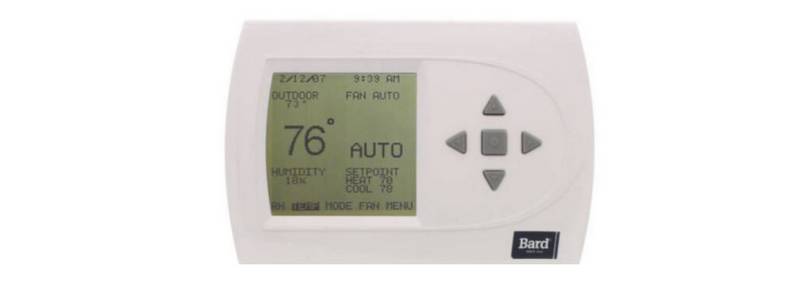
BARD THERMOSTAT Menu Driven Display 1120-445A User Manual

SALUS RT310i Internet Thermostat Installation Guide

Honeywell TH2110U4004 Thermostat User Guide

EVOLVEO Thermal Smart Wireless Programmable Thermostat Owner’s Manual

DAIKIN IM 1368 Vertical Stack WSHP Thermostat Instruction Manual

Honeywell RLV4305A1000 Programmable Thermostat Owner’s Manual

Danfoss VICUQ24M Icon Programmable II Room Thermostat Installation Guide

Honeywell RTH6300B Programmable Thermostat Installation Guide

MI-HEAT MTS200 WiFi Thermostat Instruction Manual

tado TRV3 Smart Radiator Thermostat User Guide